

A WordPress 403 error means a server or access control refused your request. Common causes include security rules, incorrect file permissions, and plugin restrictions, so the safest fix starts with identifying what was blocked.
I recommend one reversible change at a time, with a site backup before editing files. First, separate a site-wide outage from a blocked login or failed page-saving request.
Key Takeaways
- Record the affected URL, time, and recent changes before troubleshooting.
- Match permissions to hosting ownership rather than applying blanket changes.
- Test plugins, access rules, and configuration reversibly while preserving recent business data.
Identify Where the WordPress 403 Error Appears
Compare public pages, login, and failed actions
Open your homepage, an internal page, and the login page. Then repeat the failing action in a private browser window.
If only your connection fails, an IP restriction becomes more likely. If everyone sees the error everywhere, investigate hosting rules, ownership, and server configuration.
A working dashboard with failed page saves points toward a particular request rather than an entire-site failure. An error immediately after migration makes transferred files and configuration important clues.
Before editing, preserve files and the database. My website backup and recovery guidance explains why both matter.
Read the response before choosing a fix
As MDN explains the 403 status, 403 Forbidden means the server understood the request but refused it. This status isn’t specific to WordPress.
“Access to this resource on the server is denied” doesn’t identify the responsible setting. A branded firewall response suggests a security layer; a structured WordPress error suggests application-level handling.
Browser messages such as “Failed to load resource: the server responded with a status of 403 (Forbidden)” confirm rejection, not its cause. A server log showing “failed to open stream: Permission denied” points toward filesystem access.
Check File and Directory Permissions
Match access to ownership
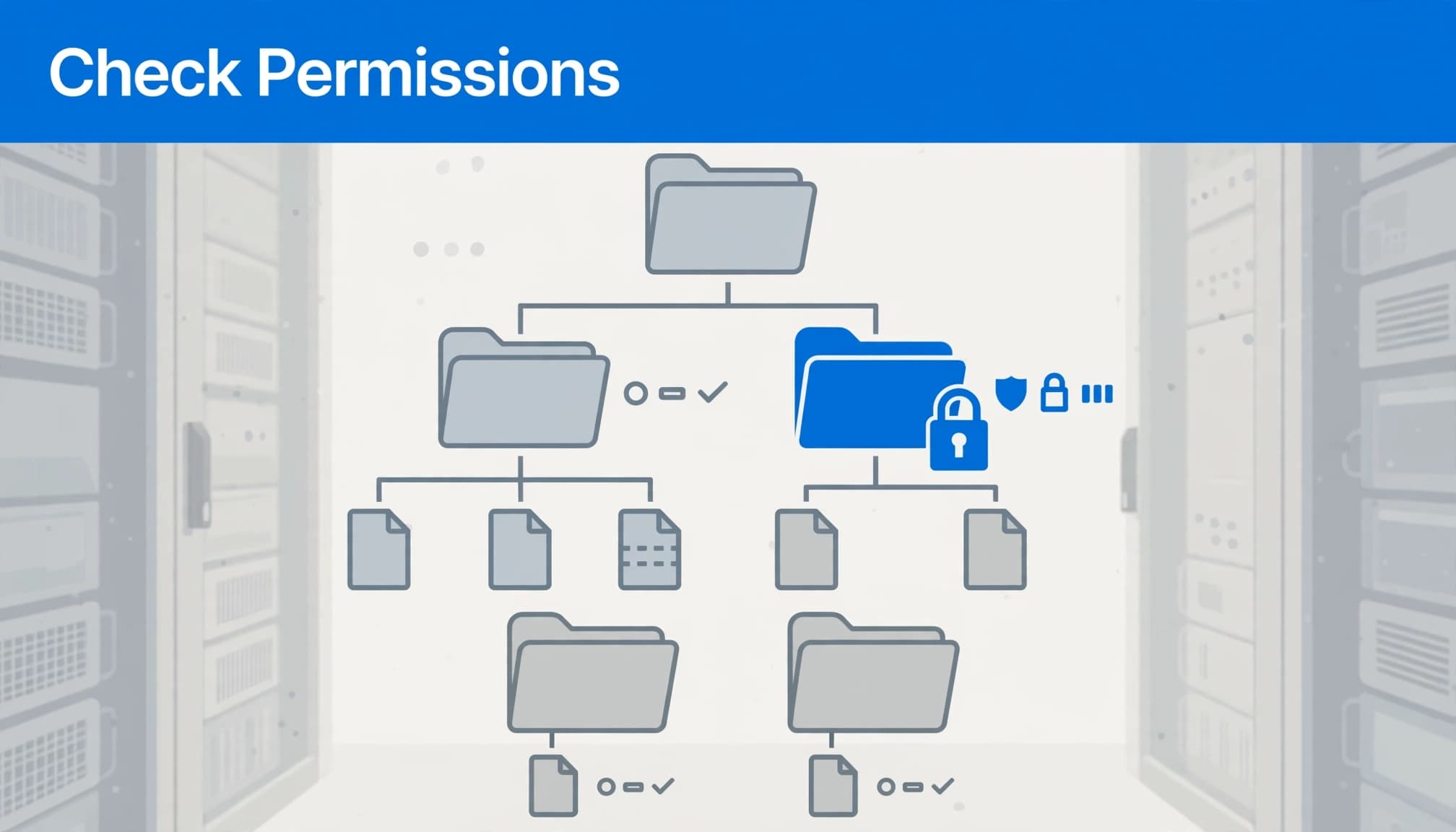
Common WordPress permissions are 755 for directories and 644 for files. Group-based hosting configurations can require 775 and 664.
Those values only work when ownership is correct. A file owned by the wrong account can remain inaccessible despite normal permissions.
Use SFTP access or your hosting file manager to inspect the affected path. If logs identify a permissions failure, ask hosting support to correct ownership and access for that path.
Avoid 777 and blanket recursive changes across the hosting account. Also, don’t make wp-config.php publicly readable to remove a denial. Restricted browser access to that configuration file is intentional.
Use WP Engine’s platform-specific reset
WP Engine uses 0775 for directories and 0664 for files. Its platform doesn’t allow a plugin to force permissions to 777.
Its Reset File Permissions tool is available under Utilities in the User Portal. Alternatively, use WP Engine > Site Settings inside the dashboard.
The reset typically takes one or two minutes, although large or clustered sites can take longer. These defaults describe WP Engine, not every WordPress host.
Review .htaccess and Missing Index Files
Preserve custom rules before regenerating
On Apache, .htaccess can contain WordPress routing, redirects, and security restrictions. The WordPress Apache documentation explains its server-specific role.
Download a copy of the .htaccess file first. If the dashboard works, open Settings > Permalinks and click Save Changes without changing the structure. This refreshes the permalink settings.
If dashboard access is unavailable, temporarily rename .htaccess to help isolate a problematic rule. Removing the file also removes its active redirects and protections. Keep the test brief, and restore the original if it doesn’t help.
Look for unexpected Require all denied, older Deny from all, or IP restrictions that affect legitimate requests. Don’t remove security rules simply because they contain “deny.”
WP Engine doesn’t support .htaccess, so this procedure doesn’t apply there.
Restore the expected entry file
A directory request can return 403 when directory listing is disabled and no index file exists.
Restore the expected index.php file wherever WordPress needs one, particularly in the site’s document root. Use a known-good backup or the appropriate clean WordPress file.
Don’t enable directory browsing to hide the symptom. After a manual installation or migration, a misplaced document root can also send requests to the wrong directory.
Isolate Plugins and Themes Reversibly
Test ordinary plugins individually
Start with a recently changed security plugin, login restriction, or access-control extension. Record active plugins and export settings where available because some plugins clear settings during deactivation.
To test for a plugin conflict, deactivate plugins one at a time and reproduce the failure. Restore each plugin if nothing changes. One Stack Overflow contributor estimated this approach works nine times out of ten, but that’s anecdotal rather than a measured success rate.
If dashboard access is unavailable, rename the suspected plugin’s folder using SFTP. For broader isolation, temporarily rename wp-content/plugins to plugins_old.
When access returns, visit the Plugins screen while the folder is renamed. Then restore its original name and reactivate previously active plugins individually, testing each time.
Include must-use plugins and the theme
Inspect the wp-content/mu-plugins mu-plugins folder too. Must-use plugins load automatically and aren’t controlled by ordinary activation switches. Some belong to the host, so don’t rename unfamiliar hosting components blindly.
If plugins aren’t responsible, test an installed default theme on staging. A theme can contain custom access checks or interfere with requests.
Keep security-plugin downtime brief. Once the cause is isolated, repair the setting or extension and restore protection. My safe plugin update guidance covers testing changes before production deployment.
Trace Firewall and Hosting Rules
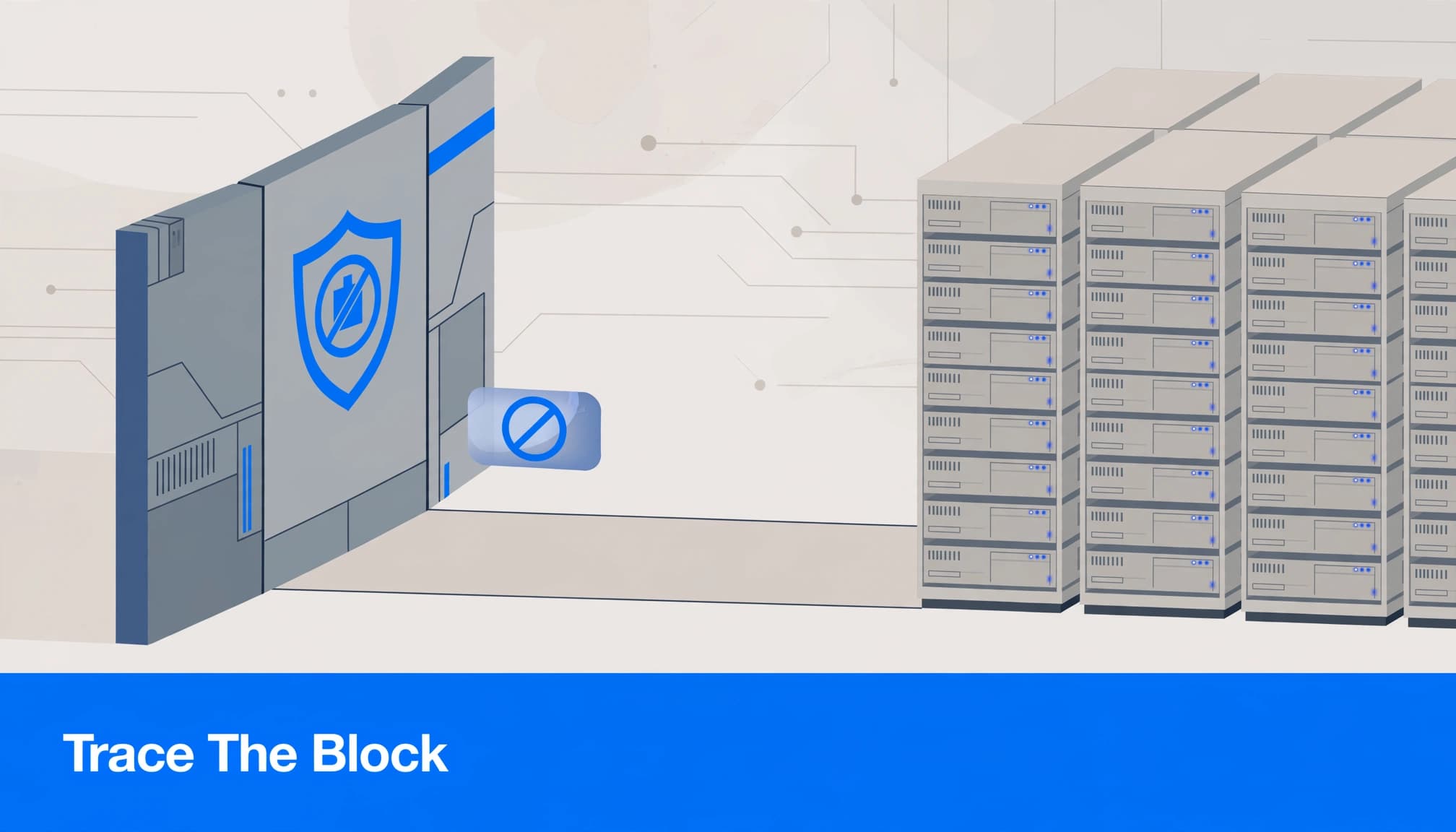
A WordPress 403 error can happen before WordPress executes. Disabling plugins won’t fix every denial.
Check hosting security events, server error logs, ModSecurity logs, and Cloudflare or Sucuri firewall events. Match the affected URL and timestamp to the blocking firewall rule.
WP Engine says a site-wide 403 can mean its firewall blocked the visitor’s IP. Its support team can allowlist that address when appropriate.
Give your hosting provider the full failing URL, request method, timestamp with timezone, public IP, and any request or rule identifier. Ask which layer rejected the request and whether a narrow exception would fix the false positive.
A firewall rejection can leave no WordPress debug entry because the request never reached WordPress.
Don’t disable the entire firewall to accommodate one legitimate form submission. A targeted rule correction preserves protection elsewhere.
Remove passwords, cookies, tokens, and customer information before sharing request details. Error logs and screenshots can contain sensitive information.
Diagnose wp-admin, REST API, and AJAX Denials
Separate account permissions from authentication
If only wp-admin fails, compare the standard login flow with any custom login page. Note the affected account, its role, and where access stops.
Authentication establishes identity; authorization determines which actions a user can take. A 401 can indicate an authentication problem, while a 403 can indicate denied access. Neither status identifies the exact setting.
Don’t promote someone to Administrator as a troubleshooting shortcut. Compare their assigned role with the operation they need instead. My WordPress user roles guidance explains safer access boundaries.
Inspect the exact failing request
For Elementor saves, Block Editor failures, or integrations, open the browser’s Network panel and repeat the action. Record the endpoint, HTTP method, response body, and status.
A WordPress response containing rest_cannot_create points to content-creation permissions. An HTML firewall page suggests a different starting point. An expired session or invalid security nonce can also interrupt logged-in requests.
If you need PHP evidence, follow the WordPress debugging documentation. Enable WP_DEBUG and logging temporarily, keep error display off, and check wp-content/debug.log.
Disable debugging afterward and secure or remove the logs. If WordPress logs no entry, inspect the hosting logs instead.
Restore Carefully and Retest Business Functions
If the failure started with a known file edit, restore that file before making unrelated changes. Test the intended modification on staging.
After a failed manual installation, preserve the previous site’s files and database rather than deleting directories to start over. Match the recovery component to the change that caused the outage.
A full database rollback can remove newer orders, bookings, submissions, and content. Preserve those records before restoring, and don’t overwrite current production data with an older staging database.
After the repair, clear relevant caches and repeat the original failing action. Then test login, forms, checkout, and any affected integration. A working homepage alone doesn’t prove recovery.
Frequently Asked Questions
Can a database prefix mismatch cause a wp-admin 403?
Yes. A DEV Community migration report described an admin-access failure when imported table names and $table_prefix in wp-config.php used different letter cases.
Compare the configured database table prefix with the imported table names, preserving an export before changes. The WordPress configuration documentation describes the table-prefix setting. This is a migration clue, not the first fix for every 403.
Does 403 Forbidden mean an IP address is blocked?
Sometimes. Firewalls can block an IP, but file permissions, account restrictions, and security rules can return the same status.
Compare another connection and inspect matching security events before requesting allowlisting. Repeatedly changing passwords won’t resolve a server-side access rule.
Restore Access Without Weakening Protection
The safest repair targets the layer that rejected the request. I recommend keeping a clear rollback path, using logs to guide changes, and restoring security controls after testing.
If your business needs help isolating the cause, Contact Us for a free website consultation. Recovery is complete when legitimate access works and your site’s protections remain in place.
As you restore access, read Acts 6:1-7 in the Amplified Bible and reflect or pray for patience, wisdom, and good stewardship.