

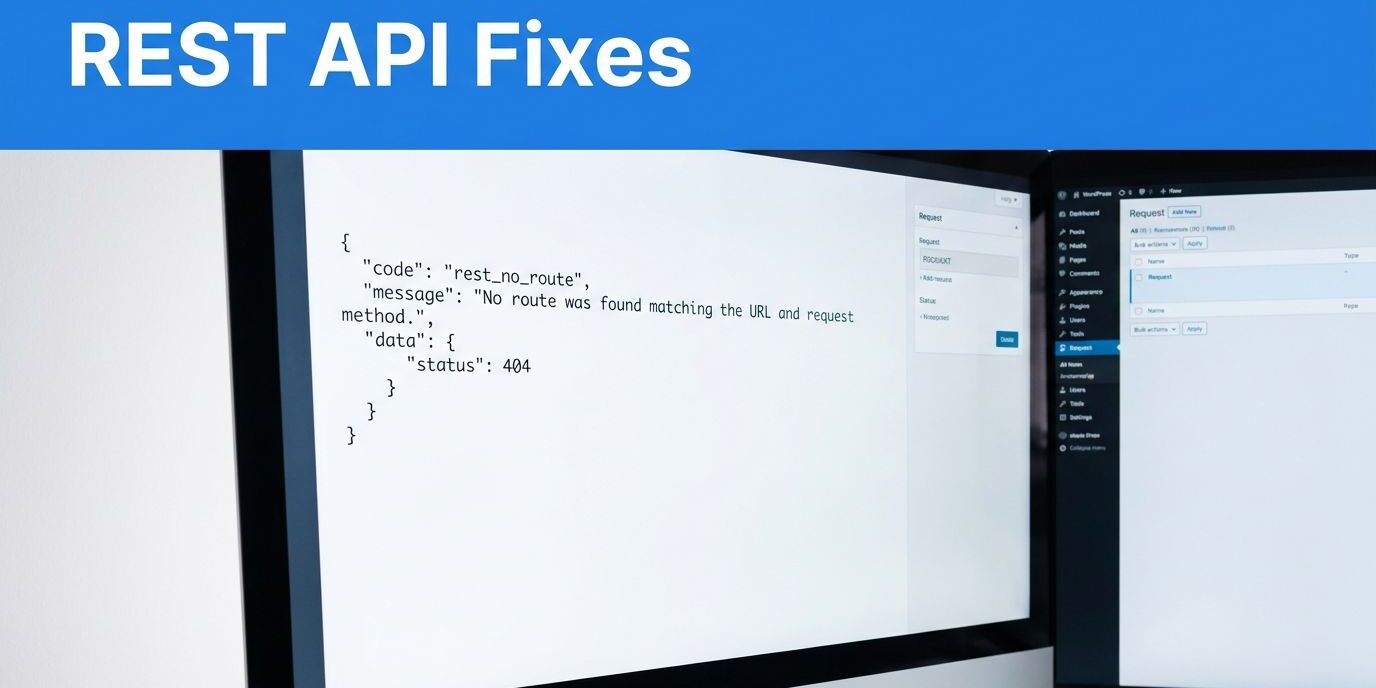
WordPress REST API errors are easiest to fix with API error handling that matches the response to the failing request. Start with the HTTP status, structured error code, and endpoint before changing plugins or server settings.
A broken WordPress REST API request can prevent page saves, interrupt an integration, or stop a business process while your homepage still loads. I recommend a least-invasive-first approach, with configuration changes tested on staging.
First, separate the evidence in the response from the warning displayed in WordPress.
Key Takeaways
- Read the response body because a 401 or 403 status alone doesn’t identify the responsible setting.
- Match the endpoint, HTTP method, authentication, and user permissions before changing site configuration.
- Back up files and the database, reproduce the failure on staging, and deploy only the repair that passes testing.
Read WordPress REST API Errors Before Changing Settings
The WordPress REST API exchanges data as JSON. Its standard routes cover posts, pages, categories, tags, media, and users, including /wp-json/wp/v2/posts.
Public content can be accessible without authentication. However, private content and editing operations require appropriate access. User routes don’t make every account detail public.
Capture the response body
Open your browser’s developer tools, select Network, and repeat the failing action. Select its request and record the URL, method, HTTP status code, and complete error response.
A WordPress error commonly includes code, message, and data. The data.status field can contain the HTTP status. For example, rest_cannot_create points toward permission to create content, while rest_no_route points toward routing or method matching.
Also note whether the response is structured data or an HTML page. A branded firewall page or PHP warning gives you a different starting point.
Reproduce the same request
In Postman, reproduce the URL and method without changing several settings simultaneously. Start with a read-only GET request when possible.
WordPress’s request handling documentation describes how authentication and endpoint callbacks fit together. Record the test time so you can match the request to server logs.
If a request fails only in a browser from another origin, check the server’s CORS headers. CORS doesn’t replace authentication or permission checks.
Remove passwords, cookies, tokens, and customer information before sharing request details.
Fix 401, 403, and Permission Errors
A 401 response can indicate an authentication issue, while a 403 Forbidden error can indicate denied access. Neither status identifies the setting that caused the failure.
I use the structured error code and affected account to narrow the investigation before changing a role.
Separate authentication from authorization
API authentication establishes who sent the request. Authorization determines whether that account can perform the requested action.
For dashboard requests using cookie authentication, WordPress expects the login cookie and a REST nonce. The nonce commonly travels in the X-WP-Nonce header. Missing or expired nonces can prevent an otherwise signed-in workflow from working correctly.
For rest_cannot_create or rest_cannot_edit, inspect the account’s capabilities and the requested operation. An account allowed to read posts might not be allowed to publish them.
Don’t promote someone to Administrator to make an API request succeed. Repair the missing permission or authentication requirement first.
Isolate account-specific failures
Record the affected role, plugin version, and exact action that fails. On Multisite or sites with custom logins, reproduce the problem with a test account on staging.
Then compare the custom login process with the standard WordPress sign-in flow. This helps separate a custom-login problem from an endpoint permission problem.
If the response comes from a firewall rather than WordPress, match its timestamp to the firewall event before changing a rule.
Resolve “Unexpected Result” and Missing Routes
The Site Health message “The REST API encountered an unexpected result” is a starting point, not a complete diagnosis. Open the reported response and identify what WordPress received.
Diagnose rest_no_route
A rest_no_route response commonly means the URL, HTTP method, or registered route doesn’t match.
Open /wp-json/ to inspect the API index and available routes. Then compare the failing path with the endpoint your integration expects. A route that accepts GET doesn’t automatically accept POST.
WordPress’s routes and endpoints guidance explains this distinction. If a plugin supplies the route, its absence is evidence to investigate that plugin’s loading or registration.
Investigate HTML and malformed responses
An API call expecting a structured response may instead receive a login page, redirect, or PHP warning. Inspect the response body before editing rewrite rules.
For requests that send structured data, use a valid request body and the appropriate Content-Type: application/json header. In Postman, selecting raw JSON avoids sending ordinary form data by mistake.
If warnings appear inside the response, keep error display off and investigate through private logs. Displaying a warning can corrupt an otherwise valid response.
Fix Application Password and Basic Authentication Failures
For an external integration, I recommend a separate Application Password rather than sharing an administrator’s normal login password. An API key isn’t automatically interchangeable with a WordPress Application Password, so confirm the integration supports the credential you choose.
Generate it under Users > Profile > Application Passwords. Give the credential a recognizable integration name. WordPress displays the generated password once, and you can revoke it independently.
HTTP Basic Authentication sends the username and credential in each request’s Authorization header. Base64 encoding doesn’t encrypt them. However, WordPress supports Application Passwords through Basic Authentication over HTTPS.
Use HTTPS for every request. The WordPress site needs a valid SSL certificate, and the external client must validate that SSL certificate. Certificate validation helps prevent a man-in-the-middle attack, so don’t disable certificate verification to bypass a connection error.
If credentials work in one client but fail through another connection path, inspect whether the server forwards the Authorization header.
On the particular Bitnami Lightsail/Apache deployment using httpd-app.conf, enabling CGIPassAuth on and restarting Apache can allow that header to reach WordPress. This is a deployment-specific repair, not a general WordPress setting.
Back up the configuration file before editing it. Also avoid placing credentials in URLs, screenshots, public tickets, or source control.
Investigate Slow Responses and Timeouts With Evidence
Record the endpoint, response time, page size, and test timestamp. Then repeat the same request under controlled conditions. Check documented rate limiting, reduce request concurrency, or honor retry delays before asking your host to change a limit.
For standard WordPress collection endpoints, the default is 10 items per page, with per_page accepting values up to 100. Use page to retrieve subsequent batches. Response headers such as X-WP-TotalPages help clients determine how many requests are needed.
Reduce unnecessary response fields with _fields when the endpoint supports it. This gives you a measurable comparison without changing hosting or application code.
For a specialized integration, a developer can return only required fields through a custom endpoint. WordPress documents adding custom endpoints using register_rest_route() during rest_api_init.
Next, correlate the slow request with PHP and hosting logs to identify whether server resources are exhausted. Increase memory only when a matching error reports memory exhaustion. A higher memory allowance won’t repair invalid PHP syntax.
I also test the affected dynamic feature directly. Caching can make a homepage load successfully even when checkout, imports, or dashboard requests fail.
Test Repairs on Staging Without Overwriting Business Data
Create a recoverable backup before changing authentication, plugins, theme code, or server configuration. Include files and the database, with a copy outside the hosting account. My website backup guidance covers recovery planning.
Use a protected copy that matches production closely. A WordPress staging site lets you repeat the failing request without interrupting customers.
On staging, test suspected plugin conflicts or other implicated components one at a time. Don’t disable protections on the live site. Repeat the original action after each change. If logs point to theme code, compare against an installed default theme.
On staging, enable WP_DEBUG and WP_DEBUG_LOG, while keeping WP_DEBUG_DISPLAY false. Replace existing definitions rather than adding duplicates.
Reproduce the failure, then inspect wp-content/debug.log. If it’s empty, inspect the hosting PHP error log. Record matching timestamps, file paths, and line numbers.
Deploy the approved files or configuration without replacing current production data with an older staging database. Otherwise, newer orders, bookings, and submissions can disappear.
Afterward, disable debugging and secure or remove logs.
Keep API Security Controls Working
Disabling the REST API can break the Block Editor and dependent plugins. Repair access controls rather than blocking the entire API.
Custom endpoints need a permission_callback that checks access. WordPress’s register_rest_route() reference documents that requirement. Restrict sensitive operations to the capabilities they need.
Weak endpoint permissions and stale privileged accounts can increase the risk of account takeover or data exposure.
Where revealing a private resource’s existence creates risk, an endpoint can return 404 rather than 403. That response choice doesn’t replace authorization checks.
Keep your security plugin updated. If it blocks a request, review its logs and rules instead of broadly disabling safeguards.
In November 2024, Wordfence reported an authentication bypass in Really Simple Security products installed on more than four million websites. The historical vulnerability, CVE-2024-10924, has been patched.
That example makes update testing important even for protection tools. After staff departures or agency handoffs, review privileged accounts, revoke unused Application Passwords, and maintain tested backups.
A firewall adds protection, but it doesn’t replace those controls.
Frequently Asked Questions
Does an API error mean WordPress is down?
No. WordPress runs on your site’s hosting, and an API failure can affect one request while ordinary pages continue loading. Compare the failing feature with other requests and inspect the response before treating it as a site-wide outage.
Should an integration retry every failed request?
No. Correct authentication, permission, and malformed-request errors before retrying. For temporary failures, use bounded retries with delays. Also make write operations safe against duplicate submissions, especially when a timeout leaves the client unsure whether WordPress completed the action.
Restore the Failing Request, Then Retest
The strongest fix starts with the actual response, followed by a controlled test. I recommend confirming that the original business task works after deployment, rather than relying on a successful homepage load.
Keep the repair narrow and preserve current production data.
If you need help diagnosing an integration or planning safer website maintenance, Contact Us for a free consultation about your website and SEO needs.