

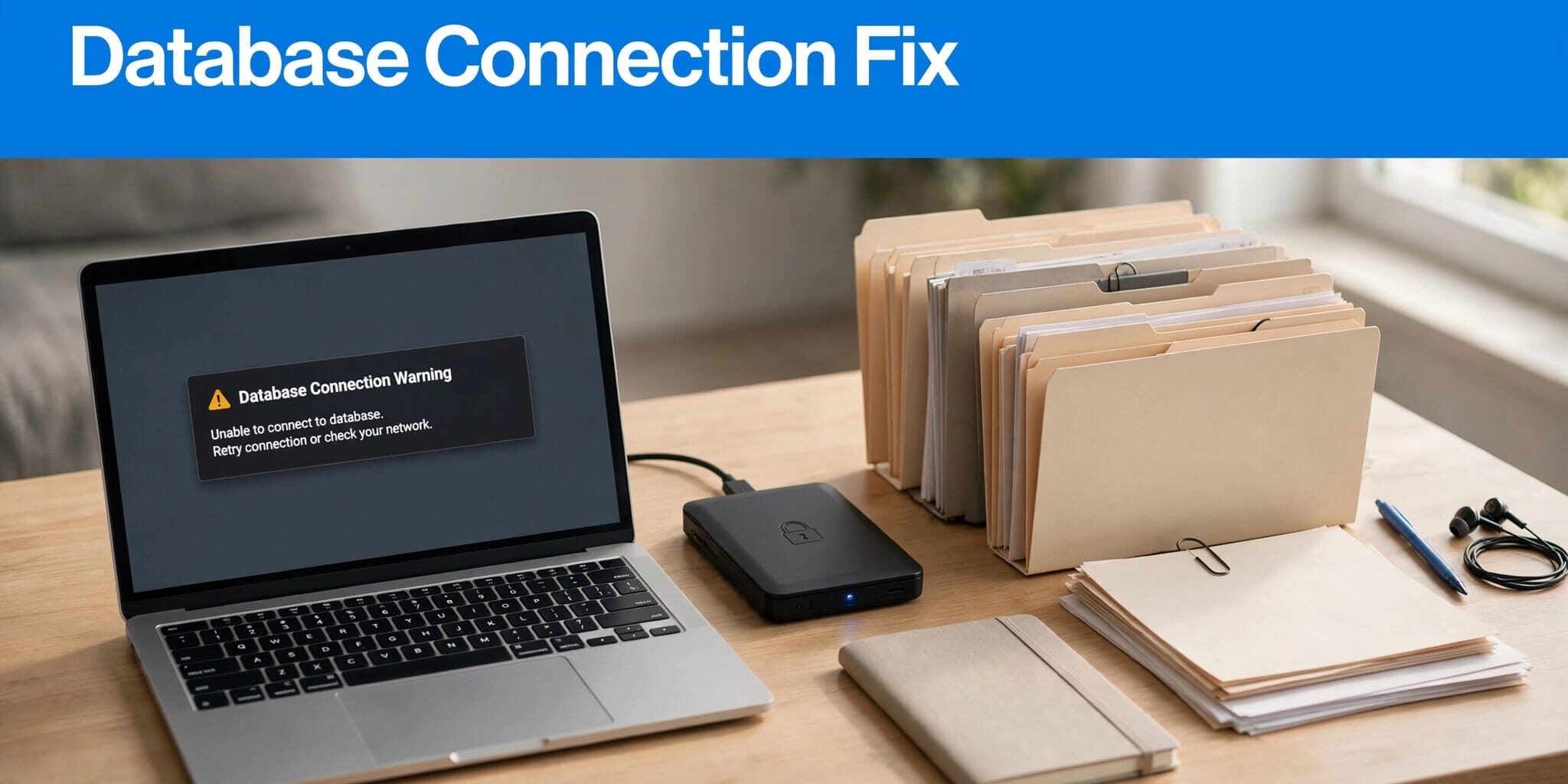
An error establishing a database connection usually means incorrect settings in wp-config.php or an unavailable server. I recommend checking those two causes before repairing tables or disabling plugins.
Because your database holds orders, inquiries, and website settings, troubleshooting should protect business data first. A current recovery copy can restore service quickly, but an unnecessary rollback can erase recent transactions. Start by separating a configuration problem from a hosting failure.
Key Takeaways
- Incorrect
DB_NAME,DB_USER,DB_PASSWORD, orDB_HOSTvalues are the most common cause. - Preserve current files and database records before editing configuration or restoring backups.
- Use repair tools only when evidence points to damaged tables.
- Test uncached pages and business functions after recovery, because a cached homepage can hide continuing failures.
1. Protect Data and Identify the Failure
Preserve a Recovery Point
Download wp-config.php and back up website files. If database access works, export every WordPress and plugin-created table through phpMyAdmin. Store copies outside the public website directory and hosting account.
Restoring the last functioning backup is often the fastest fix after a failed change. WP Engine automatically backs up sites nightly. Before you restore backup files, preserve newer orders, bookings, and submissions.
A database import doesn’t restore themes, plugins, or images. My website backup guidance explains why compatible file and database copies matter.
Separate Authentication Problems From Server Failures
WordPress’s detailed error message points to incorrect credentials or an unavailable database server. Both need checking.
Compare the hosting error log with the failure time. These messages narrow the diagnosis:
| Log message | Likely direction |
|---|---|
| Access denied | Wrong credentials or missing user permissions |
| Unknown database | Incorrect database name or missing database |
| Connection refused or timed out | Wrong host or port, firewall, or stopped server |
| Too many connections | Database connection limits or excessive workload |
A working phpMyAdmin session doesn’t prove WordPress can connect because it may use different credentials or routing.
For server failures, ask your hosting provider to inspect service status, disk space, and connection limits. Repeated credential changes won’t repair an offline server.
2. Correct the WordPress Database Connection Error Settings
Match the Four Connection Values
Open wp-config.php through SFTP or your hosting file manager. Find the database definitions, then compare them with the database credentials in your hosting dashboard.
In cPanel, look under MySQL Databases. In Plesk, use Databases. Managed platforms usually list connection details within the website’s environment settings.
Each value has a different purpose:
| Setting | Required value |
|---|---|
DB_NAME | The exact database name |
DB_USER | The database account assigned to it |
DB_PASSWORD | That account’s password, not your WordPress login password |
DB_HOST | The database hostname, sometimes with a port or socket |
Replace only the text inside the value’s apostrophes. Preserve the setting name, quotation marks, parentheses, and semicolon. Don’t add duplicate definitions or publish screenshots containing passwords.
On WP Engine, database names follow the pattern wp_environmentname_; the database username is the environment name. Use the actual environment’s values.
Check Permissions and the Table Prefix
Under MySQL Databases, confirm the database user is assigned to the correct MySQL database and review its database user privileges. It needs at least SELECT, INSERT, UPDATE, and DELETE. WordPress installation and updates may require additional MySQL privileges.
Compare the configured database prefix with table names in phpMyAdmin. If the options table is wp_3f_options, the configuration should contain $table_prefix = 'wp_3f_';.
A prefix mismatch usually causes missing-table or installation behavior rather than a failed server connection. It’s especially relevant after migrations.
3. Repair Tables Only When Corruption Is Reported
Repair is appropriate when WordPress reports unavailable or corrupted tables, especially if the dashboard displays a database-repair message. It won’t fix incorrect passwords.
Export the database first whenever possible. Then follow this sequence:
- Add
define('WP_ALLOW_REPAIR', true);towp-config.php, before the comment containing “That’s all, stop editing!” - Open your site’s
/wp-admin/maint/repair.phppath and select Repair Database. - Remove the configuration line immediately after the operation finishes.
The repair page doesn’t require a WordPress login while enabled. Leaving the setting active exposes a maintenance function unnecessarily.
If repair fails, stop repeating it. Some storage engines don’t support the repair operation WordPress requests. A database administrator may need to recover the affected tables or restore a known-good export.
Avoid dropping tables as a troubleshooting shortcut. Dropping removes existing records, including customer data. If replacement becomes necessary, preserve an export and use a compatible recovery point. Large SQL imports may require a server-side import instead of phpMyAdmin.
4. Rule Out Plugin, Theme, and Memory Failures
Disable Extensions Reversibly
Normal plugins load after WordPress establishes its initial database connection, so I put this test after credentials and server checks.
Rename wp-content/plugins to plugins-old using SFTP or File Manager. If dashboard access returns, this can help identify plugin conflicts. Visit the Plugins screen so WordPress recognizes the missing plugins. Then restore the folder’s original name and reactivate plugins individually.
Test after each activation. If the error persists, switch to an installed default theme such as Twenty Twenty-Three. When the dashboard remains unavailable, a developer can switch themes through WP-CLI.
Increase Memory Only With Supporting Logs
An “Allowed memory size exhausted” entry points to PHP memory pressure. It doesn’t prove the database server lacks memory.
For a justified workload, replace the existing definition with define('WP_MEMORY_LIMIT', '512M');, or add it before WordPress loads.
This requests 512 MB for WordPress; it doesn’t override hosting restrictions. A higher PHP limit won’t fix authentication, unavailable MySQL, or damaged tables.
5. Fix Local MAMP, Docker, and WP-CLI Connections
Match MAMP’s Host and Port
In MAMP, localhost may use a Unix socket, while 127.0.0.1 requests a TCP connection. Changing the address can bypass a socket-path mismatch.
Check the active port number in MAMP’s server port settings. Then set DB_HOST to 127.0.0.1:8889 or 127.0.0.1:3306, depending on that port.
If TCP still fails in MAMP PRO, enable Allow network access to MySQL. The MAMP MySQL documentation explains this setting. Restrict access to the local machine rather than exposing MySQL publicly.
Use the Correct Runtime and Container Address
Inside Docker, localhost identifies the current container. A separate database container usually requires its service name as DB_HOST, with the internal MySQL port.
If the website works but WP CLI fails, compare its PHP executable, database extensions, environment variables, and socket settings. With the local stack, use its PHP binary.
On multisite, target the correct site context with a parameter such as --url=mysite.org. That selects the site, but it doesn’t repair incorrect credentials.
Treat Charset Warnings as Compatibility Problems
MySQL 8.0 defaults to utf8mb4. Its default collation can trigger “Server sent charset (255) unknown to the client” in older clients. MySQL documents database character sets and collations.
Historical local workarounds included MySQL 5.7 or MariaDB 10.3. Both are outdated choices for a new production fix. I recommend updating the PHP/MySQL client stack instead. Never downgrade an existing database directory in place.
6. Verify Recovery and Prevent Repeat Outages
After fixing a WordPress database connection error, clear accessible WordPress, hosting, and CDN caches. Then load the site in a private browsing window in Chrome, Firefox, or Edge.
Test an internal page and administrator login. Also submit a contact form and confirm delivery. For stores or booking sites, exercise checkout or reservations without creating unintended charges.
A cached homepage isn’t enough evidence of recovery. Database-dependent requests must work too.
Next, remove temporary repair settings and secure diagnostic logs. Record the cause, configuration change, and recovery timestamp.
I recommend independent backups scheduled around how often your business receives new data. Also monitor recurring connection failures, disk usage, and database limits. Intermittent outages often require workload investigation rather than another password reset.
Use a protected WordPress staging site for risky updates. Our website maintenance plans provide ongoing support for updates, backups, and routine checks.
Frequently Asked Questions
What If Restoring a Backup Doesn’t Fix the Error?
A restore won’t restart an unavailable database server or remove a network restriction. It may also restore an old database password into wp-config.php.
Compare the restored configuration with the active database account. Then review current server logs. Avoid repeatedly restoring older databases because each rollback risks losing more recent business records.
If importing SQL manually, select the intended database first. Never drop existing tables without a recoverable export and an approved replacement plan.
Why Does the Error Appear Only in Chrome?
A database connection error originates on the server, but Chrome may display cached output that differs from another browser.
Compare private windows in Chrome, Firefox, or Edge using the same page address. If only a normal Chrome window fails, clear that site’s browser data.
If fresh requests fail across browsers, continue server-side troubleshooting. Browser settings won’t repair MySQL authentication. Likewise, a browser showing a cached working page doesn’t prove the database has recovered.
Restore Service Without Sacrificing Business Data
I prioritize preserving current records before changing credentials, repairing tables, or restoring backups. The safest fix follows the evidence, then passes real login, form, and transaction tests.
Acts 2:42-47 in the Amplified Bible (AMP) describes a community that cared for one another. Reflect on how protecting your business records helps you care for the people who depend on your work. Pray for wisdom as you choose the next recovery step.
If you need help recovering your business website, Contact Us for a free consultation.
A successful recovery brings your website back without unnecessarily rolling your business data backward.