

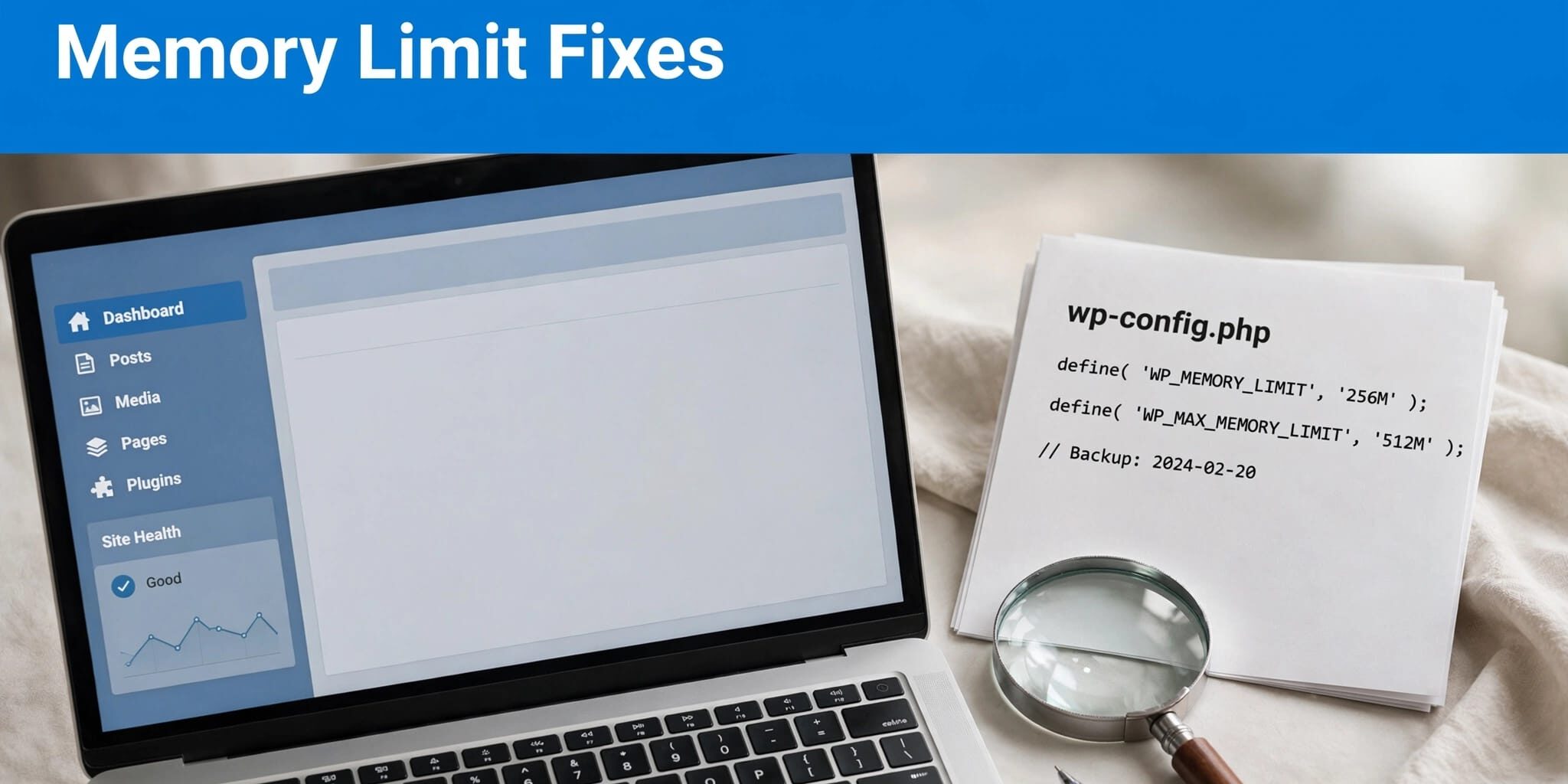
A WordPress memory limit error means PHP ran out of permitted memory while processing a request. Consider an increase only after logs confirm a “memory exhausted” error and your host allows it.
I recommend identifying the failing task before changing settings, especially when your website handles orders or bookings. Start with the error message, then make one reversible change at a time.
Key Takeaways
- Confirm memory exhaustion in the error log before changing limits.
- Use 128M, 256M, or 512M as workload-based starting points, not universal requirements.
- Back up configuration files, test on staging, and confirm the effective setting afterward.
Recognize a WordPress Memory Limit Error

Identify the actual failure
A common error reads: Fatal error: Allowed memory size of 33554432 bytes exhausted (tried to allocate 2348617 bytes).
PHP reached a 32 MB ceiling. The allocation figure is the additional memory requested, not the total memory the task needs.
Recent WordPress versions may instead show “There has been a critical error on this website.” That critical error message alone doesn’t prove memory exhaustion. Syntax errors and incompatible plugins can also trigger a critical error screen.
Find evidence without exposing errors
Look for the administrator email titled “Your Site is Experiencing a Technical Issue,” then check the hosting PHP error log.
On a protected staging site, enable WP_DEBUG and WP_DEBUG_LOG, while keeping WP_DEBUG_DISPLAY false. Reproduce the failure and inspect wp-content/debug.log.
A matching log entry confirms a memory exhausted failure. Compare its timestamp, file path, and line number with your test. A plugin path is a lead, not proof that the plugin caused the entire problem.
For blank pages without a clear message, follow our WordPress white screen troubleshooting sequence.
Check the Current Limits in Site Health
Find the PHP and WordPress values
In your dashboard, open Tools > Site Health > Info > Server. Read the PHP memory limit, then expand WordPress constants to find WP_MEMORY_LIMIT and WP_MAX_MEMORY_LIMIT.
WordPress requests 40 MB for single-site installations and 64 MB for multisite by default. A higher PHP setting takes precedence. The WordPress default constants code shows how WordPress handles these values.
WP_MEMORY_LIMIT covers ordinary execution, including front-end requests. WP_MAX_MEMORY_LIMIT sets a separate target for administration and other operations that request more memory.
Understand why the numbers can differ
WordPress can raise the PHP allowance when permitted, but it doesn’t lower a higher setting.
For example, with PHP set to 512M and the ordinary setting at 256M, WordPress keeps the higher PHP allowance. If PHP is set to 128M, a higher request works only when the server permits runtime changes.
A host-enforced 128M cap blocks that request. Changing the setting doesn’t guarantee that the effective value has changed.
I treat Site Health as a configuration snapshot. The task that failed still needs a repeat test.
Choose a Memory Allowance That Fits the Website
These are practical starting points, not mandatory settings for every website.
| Website workload | Starting allowance |
|---|---|
| Small blog or lightweight website | 128M |
| Business website or page builder | 256M |
| WooCommerce, membership, or resource-heavy website | Varies |
Treat 128M as a starting allowance, not a requirement for the whole server. The right setting depends on the work each request performs.
WooCommerce’s server recommendations specify an allowance of 256 MB or greater. Memory exhaustion means the store’s current allowance or workload needs attention.
For heavier stores, 512M is a reasonable test target when hosting capacity supports it. A small catalog doesn’t automatically need that much.
I wouldn’t recommend raising the allowance just because more capacity is available. First check whether failures affect browsing, checkout, media processing, or a large import. Different tasks can need different remedies.
Reduce Memory Demand Before Raising the Ceiling

Isolate plugins, themes, and custom code
Deactivate unused plugins, then test the component linked to the failure on staging. Reactivate plugins individually and repeat the same action.
If the error started after an update, investigate that change first. Our guidance on testing plugin updates safely helps keep those tests controlled.
When logs point to theme code, test an installed default theme. Also check custom plugins and must-use plugins.
Review media and caching
Resize oversized source images before uploading. Image processing can require substantial memory, even when the compressed upload looks small.
A caching plugin can reduce repeated PHP work on cacheable public pages. It won’t resolve every dashboard, import, or checkout failure.
My decision rule is straightforward: investigate sudden increases first. Consider raising the memory limit when a legitimate, repeatable workload exceeds the current allowance after unnecessary demand is removed.
1. Increase the Limit in wp-config.php
Back up your files and database, including a separate copy of wp-config.php. Use SFTP or the hosting file manager so you can restore the file if an edit breaks access.
Use this method to increase memory limit when the site’s workload requires more room. Replace an existing definition with define('WP_MEMORY_LIMIT', '256M');, or add it just above the comment containing “That’s all, stop editing! Happy publishing.” The official WordPress configuration documentation covers this setting.
If only administration tasks fail, add define('WP_MAX_MEMORY_LIMIT', '512M'); for a justified administrative workload.
Choose that value separately instead of automatically matching both limits. Neither setting bypasses hosting restrictions.
After saving, reload the dashboard and repeat the original action. If you introduce a syntax error, restore the saved configuration file before attempting another edit.
2. Adjust PHP Settings Through the Correct Server Route
Use the hosting panel or php.ini
A hosting PHP settings interface is often the safest server-level route. Select the affected website and change its memory_limit setting.
With server access, add or update memory_limit = 256M in the active php.ini used by that website’s PHP handler. A file in the wrong directory may have no effect.
Changes often require reloading or restarting PHP-FPM, or Apache when it runs embedded PHP. Restarting Nginx alone won’t reload PHP-FPM settings.
Shared hosting frequently restricts direct PHP configuration. Use the hosting panel or contact support instead.
Use .htaccess only with compatible Apache configurations
The directive is php_value memory_limit 256M.
Add the .htaccess directive only when Apache runs PHP through mod_php and permits the relevant overrides. Override permissions alone don’t make it compatible with PHP-FPM.
Back up .htaccess first. On an incompatible setup, this directive can cause an HTTP 500 error. Remove the added line or restore your copy immediately if that happens.
Nginx doesn’t process .htaccess. For Nginx or PHP-FPM deployments, use the hosting interface or the appropriate PHP configuration.
3. Ask Hosting Support When Settings Are Restricted
If the effective limit stays unchanged, give your hosting provider the failing URL or task, error timestamp, current PHP setting, and requested value. Ask whether a server-enforced cap, such as 128M, applies to the website’s active PHP environment.
Without control-panel access, SFTP may still let you edit wp-config.php. A server-enforced restriction requires hosting access or assistance.
An upgrade becomes relevant when the plan’s permitted resources can’t support the legitimate workload. Our comparison of managed and shared WordPress hosting explains the differences beyond a larger advertised memory figure.
Choose hosting capacity based on the website’s workload, rather than repeatedly raising one PHP setting.
Confirm the Fix Without Risking Business Data
Return to Site Health and compare the PHP memory limit with both WordPress constants. Then repeat the exact request that failed.
Test uncached pages and dynamic features such as forms, bookings, and checkout. A cached homepage can load while these requests still fail.
On staging stores, test WooCommerce checkout with sandbox payment credentials, and prevent customer emails. Deploy the approved configuration change without replacing production data with an old staging database.
A full staging database push can overwrite newer orders, bookings, customer records, and inventory changes.
Review new log entries from the test period. Turn WP_DEBUG and WP_DEBUG_LOG off afterward, and secure or remove generated logs.
For ongoing help with updates, backups, and monitoring, our WordPress website maintenance plans support those routine checks.
Frequently Asked Questions
Is 512M safe on shared hosting?
It depends on the account’s available resources and enforced restrictions. PHP’s memory limit definition describes a per-script allocation cap, not memory reserved for every request.
That setting doesn’t add physical RAM to the plan. Use it for a demonstrated workload, not as a guarantee against future failures.
Why does the error return after an increase?
The workload may keep growing, or code may retain more data than necessary. Repeated failures deserve an investigation of the same request, including its plugins, theme, and custom code.
A larger allowance won’t fix invalid PHP syntax or an incompatible function call. Those require different fixes.
Restore Service With a Targeted Fix
A safe WordPress memory limit fix starts with a confirmed error and ends with a successful repeat test. Keep reversible changes and current business data at the center of the process.
If you need help diagnosing the failure or planning website support, Contact Us for a free website and SEO consultation.