

A new employee needs to update your website, so you give them an Administrator login. It solves the immediate problem, but also gives them control over settings they may never need to touch. Too much access can turn an ordinary account mistake into a much bigger problem.
Start with the smallest role that lets each person do their work, following the principle of least privilege. Good user access management means reviewing access as responsibilities change and checking what each person can do on your particular site.
Key Takeaways
- Match each person’s role to their actual website tasks, starting with the lowest level of access that lets them work.
- WordPress roles bundle capabilities, but plugins, custom setups, WooCommerce, and Multisite can change permissions—check access on your site.
- Give each person a separate account, review access when responsibilities change, and keep business-controlled Administrator access secure.
- Use default roles when they fit; test custom permissions and troubleshoot specific errors before raising someone’s role.
How WordPress user roles control access
WordPress user roles and capabilities organize permissions, called capabilities, into bundles. WordPress checks user capabilities when someone tries to edit posts, publish posts, change a setting, or install plugins. The role name is a useful shortcut, but the capabilities determine the result.
Capabilities matter more than job titles
An office manager may run your business without needing the WordPress Administrator role. If they update pages and approve articles, Editor may fit. Meanwhile, a developer who handles plugin updates might need temporary Administrator access.
You may see capability names such as edit_posts, publish_posts, and manage_options in a role-management plugin. WordPress’s roles and capabilities documentation details how its default permissions are assigned. Plugins can add custom capabilities, so the permissions on your site may differ.
Some permissions depend on the item being edited
A basic, or primitive, capability describes a permission WordPress can assign to a role. A meta capability is checked in context. For example, whether someone can edit a particular post may depend on who owns it and its status.
I wouldn’t change these mappings to solve a simple staffing problem. They matter most when a developer builds custom post types or diagnoses an unexpected denial. Learn WordPress explains custom post types and capability mapping for those cases.
What each WordPress role can do
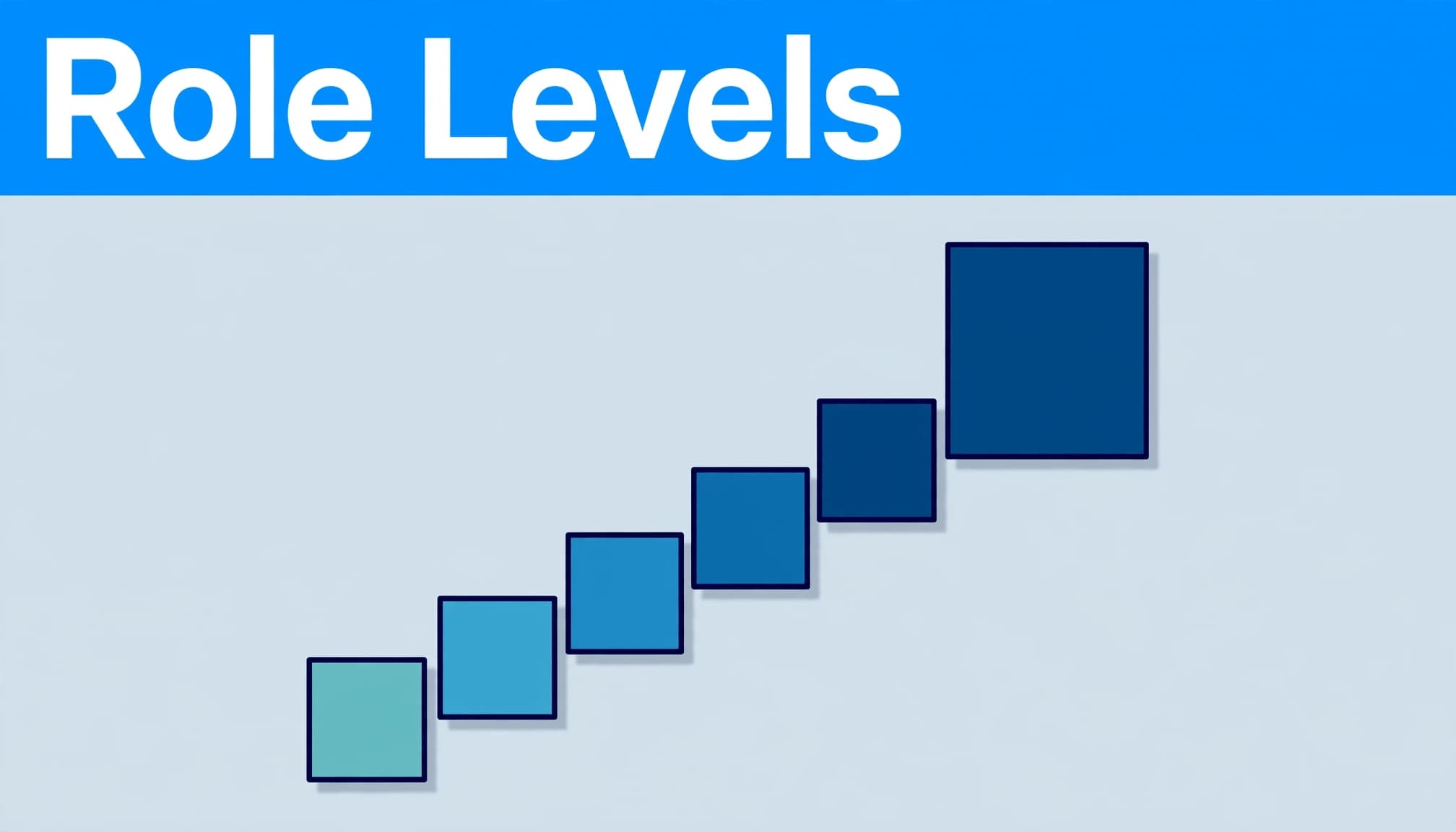
WordPress has six default user roles, but a normal single-site installation uses five. Super Admin applies to Multisite networks, not an ordinary standalone website.
| Role | Typical access | Small-business fit |
|---|---|---|
| Administrator | The administrator role manages site settings, users, plugins, and themes, and can install plugins. | Owner or trusted technical maintainer. |
| Editor | The editor role manages posts and pages, including other people’s content, and can moderate comments. | Content lead who approves website updates. |
| Author | The author role writes and publishes their own posts. | Regular writer trusted to publish without approval. |
| Contributor | The contributor role writes and edits their own posts but can’t publish them. | Occasional writer whose work needs review. |
| Subscriber | The subscriber role mainly provides access to login-only features and profile management. | Account holder who doesn’t edit the site. |
| Super Admin | Controls a Multisite network and its sites. | Person responsible for the network as a whole. |
The table describes the default roles. A plugin or custom setup can change what someone can do. Check media permissions before assigning an image-heavy task to a Contributor, since permissions to upload files can vary by site.
Match each website task to a role
I match WordPress user roles to a person’s actual tasks, not their position in the company. Someone who approves articles needs different access from someone who changes opening hours on a page. That follows the principle of least privilege.
Give content staff room to work
For a writer who submits drafts, Contributor is a sensible starting point. If the writer publishes their own articles, consider Author. When one person must edit staff posts and business pages, Editor may be appropriate.
Ask them to complete a real task before deciding the role is too restrictive. A missing upload button, for example, calls for checking the upload_files capability and your publishing process, not creating custom user roles.
Keep ownership separate from everyday editing
Your business should retain an Administrator account that it controls, even if an agency maintains the website. Give each person a separate login so you can identify their work and remove access when an assignment ends.
A contractor may need Administrator access to configure a plugin. I prefer to agree on the scope and end date first, then review the account after the work. During a launch or handoff, also confirm who owns the domain, hosting, and other business accounts. My website security checks before launch include those ownership questions.
Add and change users without losing control
For most small businesses, the safest first move is to use WordPress’s existing roles. Create a separate account for each person instead of sharing a login.
Assign a role to a new user
In the dashboard, go to Users > Add New, enter the person’s account details, and choose a role before saving. Use an email address they control. Then have them sign in and test the task you assigned.
If your site allows public registration, check Settings > General for the new-user default role. I keep that default set to the subscriber role unless a specific workflow requires something else. An Administrator default would grant excessive access to new registrants.
Review roles when responsibilities change
When duties change, review the person’s WordPress access and assign, adjust, or remove it as needed. The WordPress Users screen guide covers the account list and its role controls.
Before reducing someone’s access, confirm they no longer handle the affected work. Before deleting a WordPress account, decide what should happen to its content. And don’t remove your business’s only working Administrator login until another trusted Administrator can sign in.
Create a custom role only when defaults fall short
Custom user roles make sense when someone needs a narrow mix of permissions that no default role provides. For example, a staff member who maintains one custom content type may not need permission to edit every business page.
Start with a role-management plugin
The User Role Editor plugin lets administrators create roles and adjust capabilities through checkboxes. I’d start with a role close to the intended job and review each added permission, including custom capabilities for settings, plugins, users, and publishing rights.
Write down what the person must accomplish before changing anything. If the request is “update service pages,” use the user role editor to test that exact task. Avoid granting broad capabilities just because their names sound related to editing.
Test with an account that has the new role
First, take a current backup and test the role on a private staging copy when possible. Sign in as a test user with that role. Check that they can complete the assigned work but can’t reach unrelated settings or other people’s sensitive content.
Custom post types deserve extra attention. A booking or portfolio plugin may register permissions differently from ordinary posts. If role changes don’t work as expected, ask the developer to inspect the post type’s capability setup rather than repeatedly adding powerful permissions. I use a private WordPress staging site for permission tests that could disrupt live work.
Account for WooCommerce and Multisite differences
Plugins and network setups can add more role choices. Review them before granting anyone Administrator access to handle a store or network task.
Store staff need store-specific access
WooCommerce adds Customer and Shop Manager roles. Customer accounts support shopping activity, while Shop Manager is designed for store operations without full WordPress Administrator control. The WooCommerce guide to roles and security provides more detail.
Shop Manager is still a sensitive role. Store staff may access orders and customer information, so give each person an individual account and review access when their duties change. Test the specific product and order tasks they need, especially when other WooCommerce extensions are active.
Multisite has network-wide decisions
On WordPress Multisite, a Super Admin controls network-level functions. A site’s Administrator doesn’t automatically have the same control over network settings, themes, or plugins.
I would keep Super Admin access particularly limited because a network-wide change can affect multiple sites. If someone can’t install a plugin on an individual site, check whether network policy restricts it before changing roles or troubleshooting the account.
Audit access as part of website maintenance
Roles help contain mistakes, but they won’t protect an abandoned Administrator account with a stolen password. I treat user access management as a recurring maintenance task, particularly after staff departures, agency handoffs, or a security incident.
Review the user list and privileged logins
Open Users > All Users and identify every account. Look for unfamiliar names, old contractors, shared logins, and people whose roles exceed their current work. Remove access that has ended, and investigate unknown accounts rather than merely downgrading them.
Require unique passwords and two-factor authentication for privileged accounts. Also review hosting, email, domain, and backup access: changing a WordPress role won’t close those other doors. If you suspect a breach, follow a broader process to secure compromised WordPress accounts.
Keep recovery separate from permissions
I pair access reviews with software updates and tested off-site backups. Keep WordPress core, themes, plugins, and PHP current, but test changes involving custom features before deploying them. Store backups away from the live hosting account, include files and the database, and test restoration several times a year.
A firewall or login-protection tool adds another layer, but it doesn’t replace account reviews or these security best practices. The same applies to hosting security features. When comparing plans, check what managed WordPress hosting security features actually include and who handles the remaining work.
Troubleshoot a permission error before raising a role
If someone suddenly cannot save a page or open the Site Editor, don’t promote them to Administrator as a quick fix. First, confirm which account is signed in, what role it has, and whether that role could complete the task before.
A 401 response can point to an authentication problem; a 403 can indicate denied access. Neither number proves the role is the cause. Sessions, security tools, plugin conflicts, and custom capability checks may also interfere.
I would reproduce the error with the affected account, record the exact action and message, then check recent plugin or role changes. If a custom post type is involved, have your developer inspect its capability mapping. Make any fix in staging first, then verify the original task without expanding access to unrelated settings.
Frequently asked questions
How many default roles does WordPress have?
WordPress documents six default user roles: Super Admin, Administrator, Editor, Author, Contributor, and Subscriber. Super Admin belongs to Multisite networks; on a typical single site, the subscriber role is one of the other five options.
Can a Contributor publish a post?
No. The contributor role can prepare its own posts but cannot publish them. Assign an Editor or another person with publishing rights to review the work. Check media permissions separately if the assignment includes images.
Is Editor safer than Administrator?
Editor generally has less control over site configuration, so it’s often a better fit for a content lead. It still allows substantial control over published content, including other people’s work. I would assign it only when those responsibilities are part of the job.
Keep access tied to the work
The convenient Administrator login in the opening example carries more authority than most website tasks require. Start with the work, choose the lowest suitable role, and test it with a real account.
Then revisit access as people and responsibilities change. Clear ownership and regular reviews make WordPress roles useful long after the initial setup. If you need help sorting out website access alongside maintenance or SEO needs, Contact Us for a free consultation.
Reflect or pray through Acts 6:1-7 in the Amplified Bible, considering how delegation can guide careful website access.