


To stop WordPress contact form spam, combine a honeypot, a timing check, and server-side spam filtering. I recommend starting with these low-friction defenses, then adding bot challenges if unwanted submissions continue.
Your goal is to block junk without rejecting customers who complete forms quickly or use assistive technology. Start by identifying the spam reaching your site, then strengthen protection one layer at a time.
Key Takeaways
- Combine invisible checks because sophisticated bots can bypass individual defenses.
- Filter submissions before sending notifications or automatic replies.
- Test legitimate inquiries after every protection change, including email delivery and saved lead records.
Why Contact Forms Attract Spam
Automated bots and human spammers behave differently
Automated spambots scan public websites and submit forms, while human spammers send messages themselves. Receiving these messages doesn’t automatically mean your website is hacked.
Human spammers can complete challenges and write plausible messages. CAPTCHAs address automation, so they offer little protection against someone submitting promotional messages personally. Content filtering remains important.
Notifications can create a second problem
Spam also consumes monthly SMTP sending allowances when every submission generates email.
The greater reputation risk arises when automatic replies go to forged addresses or repeat spam content. Those messages can bounce, trigger complaints, damage sending-domain reputation, and potentially contribute to blocklisting.
I recommend filtering before email generation, rather than moving unwanted notifications into an inbox folder afterward.
Choose Protection Based on the Spam Pattern
Use the spam submissions reaching your form to choose the next layer.
| Spam pattern | First response | Visitor friction |
|---|---|---|
| Instant, repetitive submissions | Honeypot and timing check | None when configured correctly |
| Plausible promotional messages | Content filtering and narrow rules | Usually none |
| Persistent automated submissions | Cloudflare Turnstile or invisible scoring; hCaptcha may show an interactive challenge | Low for invisible options, higher with hCaptcha |
| Rapid submission bursts | Firewall rate limiting | Low with careful targeting |
These measures work together. For most business websites, I favor invisible filtering first, followed by a challenge if bots continue getting through.
Avoid requiring an account simply to request an estimate. That adds a substantial barrier to a public contact form.
Add Honeypots and Minimum Submission Times
Configure Contact Form 7 with a compatible extension
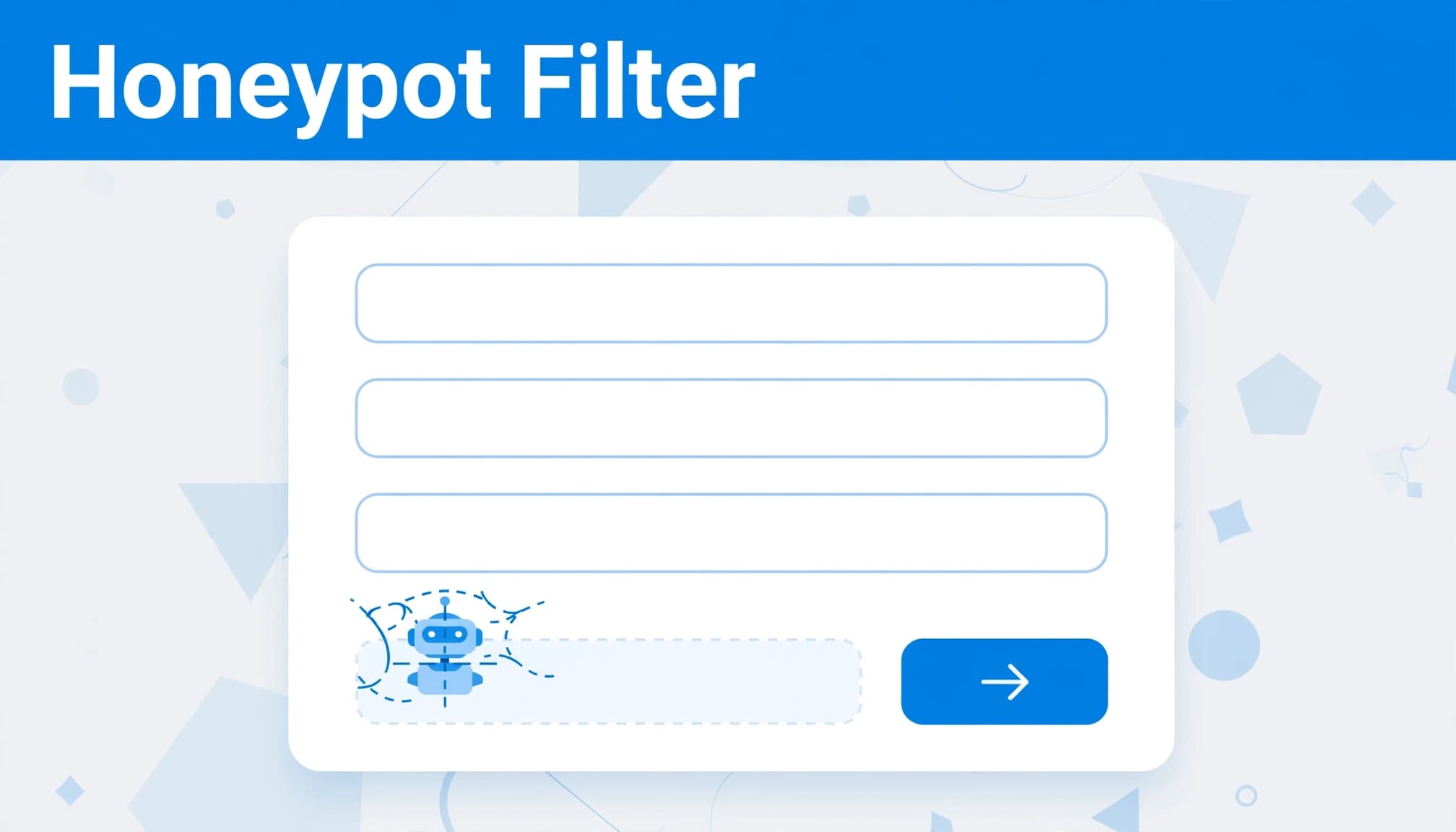
A honeypot field adds a hidden input that ordinary visitors never complete. Basic spambots fill it, giving the server a reason to reject the submission.
For WordPress forms, use a compatible honeypot extension rather than adding an ordinary text field yourself:
- Install and activate the extension through Plugins > Add New.
- Open Contact > Contact Forms and edit the affected form.
- Use the extension’s honeypot tag generator, insert its generated tag, and save.
- Confirm the generated honeypot field is hidden from visitors and keyboard navigation. Enable the timing check if available, then test the published form while logged out.
Correctly implemented honeypots add zero visitor friction. However, modern spambots often recognize hidden fields and skip them, so a honeypot shouldn’t stand alone.
Add timing checks without penalizing fast customers
A minimum submission time rejects entries submitted faster than a chosen threshold. Three seconds is a reasonable example because automated submissions can arrive in fractions of a second.
However, browser autofill can also make legitimate customers fast. I recommend treating timing as one signal rather than making aggressive thresholds your primary defense.
In WPForms, verify the relevant setting is enabled for the specific form under Settings > Spam Protection and Security. Fluent Forms also provides anti-spam controls. Settings vary by form plugin, so prefer supported integrations over custom snippets.
Use server-side validation to enforce these rules. Client-side validation can improve feedback, but it can’t stop bots that submit directly to the form endpoint.
Filter Messages, Addresses, and Known Spam Patterns
Choose a service that supports your form builder
Akismet checks submission content for spam. Install it through Plugins > Add New, then select Install and Activate. Connect the service and enable your form builder’s integration; activation alone doesn’t connect every form automatically.
Contact Form 7 supports Akismet field options such as akismet:author and akismet:author_email. Jetpack Forms also uses Akismet for spam protection.
SendLayer’s contact form spam guide reports Akismet’s spam-content detection accuracy above 99.9%. Treat that as a reported service figure, not a guarantee for every form.
ActiveLayer returns a spam verdict and confidence score. A threshold of 0.8 is a suggested blocking starting point for its zero-to-one confidence interface, not a universal API default.
Cloud-based content filters send submission data to external servers. That can add latency and creates third-party privacy considerations.
CleanTalk is another anti-spam service to evaluate. Check its current form-builder support, pricing, and data-processing terms.
Add narrow rules rather than broad exclusions
Block recurring spam phrases, excessive links, or known disposable email domains when those patterns appear in your submissions. Bots commonly use disposable addresses, including 10-minute inboxes.
Blocking known disposable domains can remove substantial junk with little customer friction. However, don’t block all unfamiliar domains or free email providers.
For sites with multiple builders, Maspik’s anti-spam plugin advertises CAPTCHA-free protection without API keys. It supports Contact Form 7, Elementor, Fluent Forms, and other builders, and advertises 100 free Matrix checks monthly.
I’d choose one coordinated filtering setup rather than stack a second anti-spam plugin with overlapping rejection rules.
Add Bot Challenges Only When Needed
Turnstile avoids visual puzzles
Cloudflare Turnstile checks browser behavior without asking visitors to identify pictures. Avoiding visual puzzles helps visitors with visual impairments, although the complete form still needs accessibility testing.
Cloudflare Turnstile’s free plan includes unlimited verification requests. It provides a practical option for business forms without introducing a puzzle at every submission.
Use your form builder’s supported integration. Add the site and secret keys where required, and retain server-side token verification. A visible widget alone doesn’t validate the submission.
reCAPTCHA versions have different trade-offs
Google reCAPTCHA v2 includes the familiar “I’m not a robot” checkbox, which can lead to image challenges. In contrast, reCAPTCHA v3 scores interactions invisibly.
SendLayer recommends trying v3 first because it avoids interrupting visitors. However, its score needs a defined response, such as rejection or review.
Don’t copy an ActiveLayer threshold into reCAPTCHA settings. The services use scores differently.
Legacy reCAPTCHA v1 shut down on March 31, 2018. The Admin Bar cites BuiltWith figures placing reCAPTCHA above 90% of the CAPTCHA market, but popularity doesn’t determine suitability.
Both Google reCAPTCHA and hCaptcha involve third-party data processing. hCaptcha also offers interactive challenges, so it isn’t automatically a puzzle-free alternative. Assess hCaptcha’s challenge accessibility and data handling before choosing it. For reCAPTCHA, confirm your form builder supports the integration and review Google’s data practices.
Control Submission Bursts and Protect Email Delivery
Apply targeted firewall rate limits
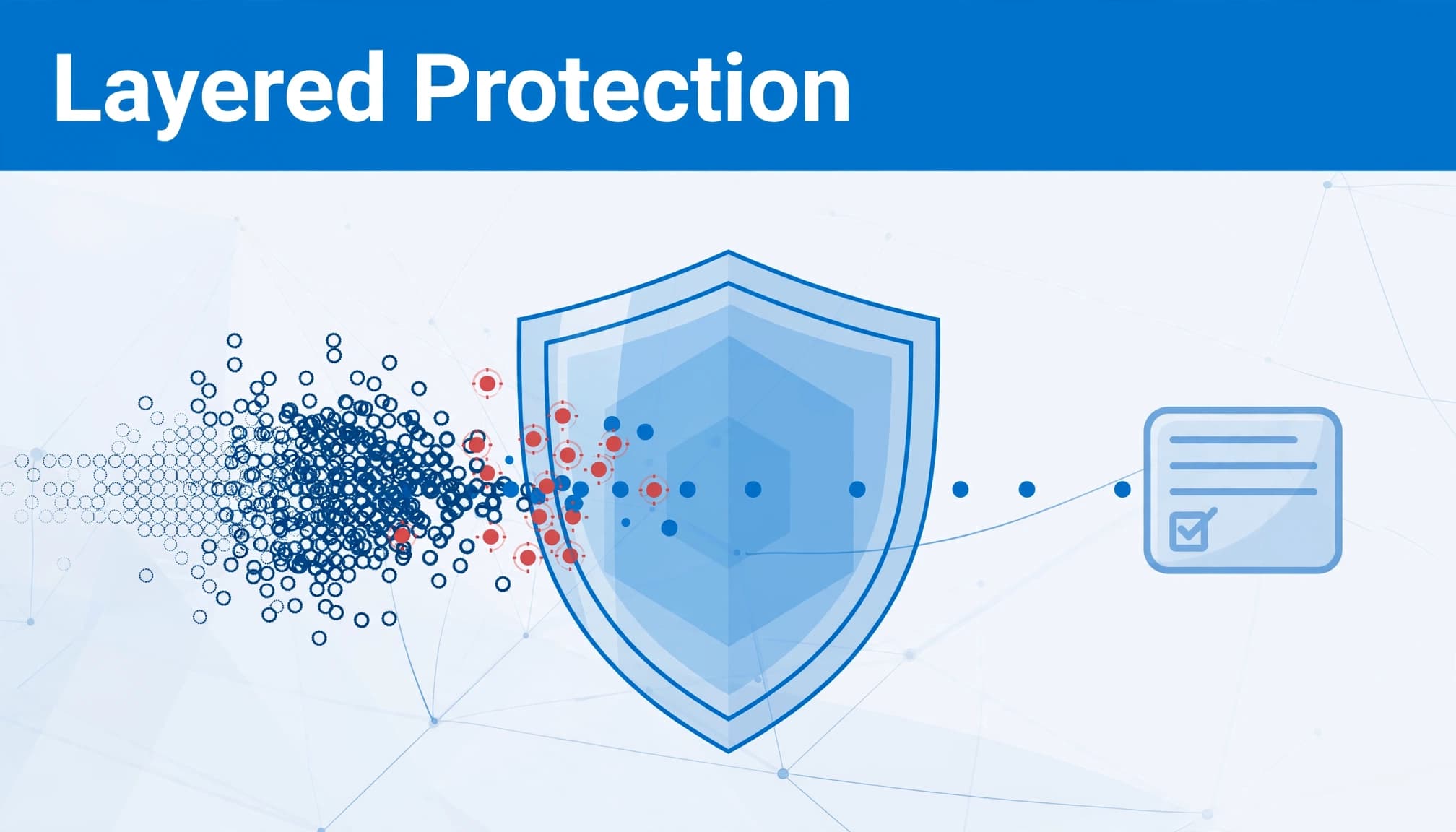
A Web Application Firewall can throttle high-frequency requests from the same IP address and block known spam sources. It also addresses other attack patterns, including SQL injection.
Target the submission endpoint carefully. A broad restriction on WordPress REST requests can disrupt legitimate forms and integrations.
Shared office networks and mobile carriers can place several customers behind one IP address. Therefore, avoid permanent bans based on a single burst.
Firewall protection complements content filtering. A slow human spammer may never trigger rate limits.
Authenticate notifications and control automatic replies
Use authenticated SMTP or a transactional email integration for notifications. Configure SPF, DKIM, and DMARC for the actual services sending your business email.
Set the notification’s From address to your business domain. Put the visitor’s address in Reply-To rather than impersonating their domain.
Authentication supports delivery but doesn’t guarantee inbox placement. Also avoid automatic replies that reproduce unfiltered message content, because attackers can use those replies to distribute spam.
Keep plugins current through ongoing website maintenance, then retest forms after updates.
Test Real Inquiries After Every Change
A quieter inbox can mean better filtering, but it can also mean lost leads.
I recommend testing from a private browser window with a normal service inquiry. Complete the form on iPhone and Android, then repeat using keyboard navigation. Confirm that errors identify the problem without erasing entered information.
Follow the submission through every destination: the confirmation screen, staff notification, stored entry, and connected CRM.
Send test notifications to two monitored accounts with different email providers. Inspect both inboxes and spam folders, then reply to confirm the response reaches the submitted address.
A successful confirmation screen doesn’t prove that an email arrived or that a CRM saved the lead.
Keep a protected backup lead record where your system supports it, with suitable access and retention rules. Our contact form testing process covers this complete path.
Repeat testing monthly and after plugin, hosting, DNS, email, or form changes. Review rejected submissions too, because false positives can remain invisible.
Frequently Asked Questions
Can contact form spam stop without CAPTCHA?
Yes. Honeypots, timing checks, content filtering, and targeted rate limits can block spam without puzzles. However, persistent automation may justify adding Turnstile or another supported bot-verification service.
Do WordPress discussion settings protect contact forms?
Usually not. Settings > Discussion primarily controls comments. Contact forms need protection through their builder, compatible integrations, or server-side rules.
Can these methods protect registration forms?
Many can, provided the plugin supports registration. Add email verification and account-creation rate limits, because fake accounts create risks beyond unwanted notifications.
Keep Spam Out Without Losing Leads
I recommend starting with invisible checks, adding content filtering, and escalating only when the remaining spam justifies it. Measure success by legitimate inquiries delivered and whether contact form spam declines, not simply by fewer emails.
For help configuring WordPress contact form spam protection and testing the complete lead path, Contact Us for a free consultation.
The right setup protects your inbox while keeping your business easy to reach.