

Plugin updates can erase hours of work, disrupt lead forms, or stop an online store from taking orders. Website backups give you a way back, but only when they include the right data and can be restored.
I have seen business owners discover that their host kept a backup, but the copy was too old, stored on the same server, or missing the database. A practical backup strategy helps limit data loss through a schedule, independent storage, and regular restoration tests. I start by deciding how much data and downtime a business can afford to lose.
Key Takeaways
- Set backup schedules around your Recovery Point Objective (RPO) and Recovery Time Objective (RTO), based on how much data and downtime your business can afford to lose.
- A complete WordPress backup must include both website files and the database, since each contains different parts of your site and business information.
- Keep multiple backup versions in separate, offsite storage, and protect access with strong passwords, MFA, encryption, and retention or immutable-storage features.
- Use automated backups for routine copies and create a fresh manual backup before major updates, migrations, or other high-risk changes.
- Test restorations regularly in a staging environment or separate hosting account, then verify forms, logins, images, checkout, emails, and other essential functions.
Plan Recovery Around RPO and RTO
A backup schedule should reflect your business risk rather than a convenient calendar habit. A brochure site that changes once a week has different needs from a store processing orders every hour.
Set RPO and RTO targets
I use two planning terms when setting up a recovery plan:
- Recovery Point Objective (RPO) is the maximum amount of recent data you can afford to lose.
- Recovery Time Objective (RTO) is the longest acceptable period of website downtime.
For example, a small service website may accept an RPO of 24 hours. A business that receives frequent quote requests may need backups every few hours, especially with a frequently changing WordPress database. An online store usually needs a much shorter RPO because lost orders and customer records can create immediate problems.
Your RTO matters too. Restoring a simple site within a day may be acceptable. A store or booking website may need recovery within an hour.
Match the schedule to the site
These starting points can help you plan a schedule. Adjust them when your content, traffic, or sales activity changes.
| Website type | Starting frequency | Example RPO and RTO |
|---|---|---|
| Brochure website | Site files weekly, database daily | Low activity: RPO up to 24 hours, RTO within 1 day |
| Lead-generation website | Files daily, database every 4 to 12 hours | Regular inquiries: RPO 4 to 12 hours, RTO 1 to 4 hours |
| E-commerce website | Files daily, database hourly or real-time | Frequent orders: RPO about 1 hour, RTO 15 to 30 minutes |
Full backups capture everything at a set point. Incremental backups capture changes since the previous backup, which saves storage and allows more frequent copies. Differential backups capture changes since the last full backup.
Jetpack Backup offers daily or real-time options that can support the RPO you choose.
A Complete WordPress Recovery Needs Files and the Database
A complete WordPress recovery needs site files and a WordPress database. The WordPress backup documentation also separates backups into database and file backups for this reason.
Site files hold the working site
Your website files include the WordPress core files, themes, plugins, uploaded images, custom scripts, and configuration files. The wp-content folder deserves close attention because it usually contains your themes, plugins, and media library.
A file backup can restore the code and assets that make your website display correctly. However, files alone won’t bring back new posts, customer records, form submissions, product information, or site settings.
I also protect the wp-config.php file, but I store downloaded copies carefully because it contains database connection details. Anyone who obtains that file may gain access to sensitive information.
The database holds changing business information
The WordPress database stores posts, pages, menus, settings, comments, users, orders, and many form entries. Plugins often add their own tables, so those plugin-created tables are also part of the WordPress database.
Database changes often happen more frequently than file changes. A service website may update its files once a week but receive new inquiries every day. An online store may change its database with every order.
That is why I often schedule frequent database backups alongside less frequent file backups. Together, both parts create a usable recovery point.
Choose Automated and Manual Backup Methods
Automated backups reduce missed runs, while manual backups remain useful before high-risk changes. They also provide a fresh recovery point before migrations.
Automate routine copies
For WordPress sites, tools such as UpdraftPlus and Jetpack Backup can send copies to remote storage on a schedule. Jetpack Backup supports daily and real-time options, while the other tool offers several frequency settings, including frequent intervals for active websites.
I don’t select a tool based only on its name. I check whether it can:
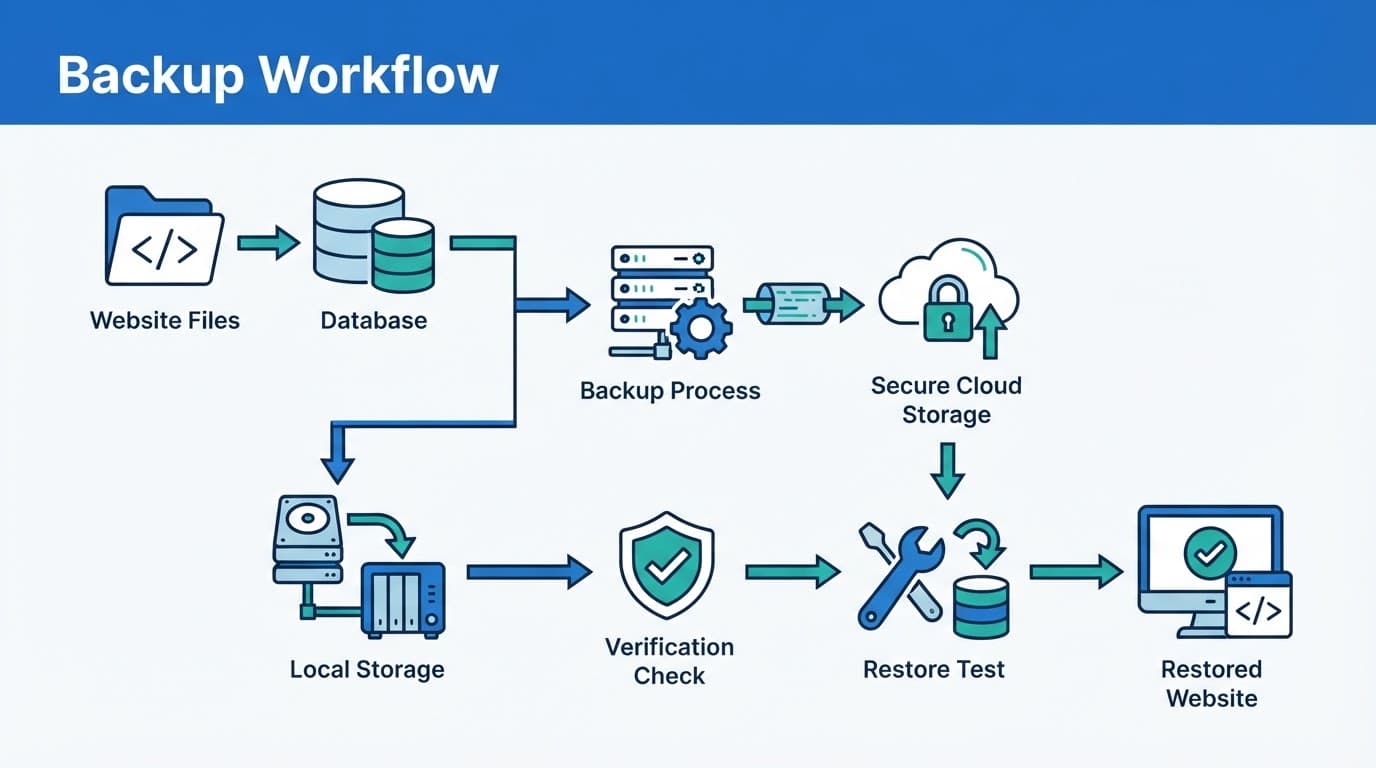
- Back up both files and the WordPress database.
- Send copies away from the hosting account.
- Keep multiple versions for different recovery dates, using incremental backups to reduce storage use where supported.
- Notify someone when a backup fails.
- Confirm whether it can restore your site and offer a one-click restore where supported.
I also ask whether remote destinations depend on third-party services, and review failure notifications and account access.
A hosting provider backup can add another layer. However, I don’t treat that provider copy as the only recovery source. A compromised account, billing problem, server failure, or provider error could affect both the live site and its backup.
A practical overview of host, plugin, cPanel, and SFTP approaches is available in these WordPress backup methods.
Create a manual copy before major changes
Before changing a theme, updating several plugins, or moving a site, I create a fresh manual copy. This gives me a known recovery point immediately before the change.
For high-risk plugin updates, I recommend testing first in a staging environment.
For cPanel backups, the basic archive can create full backups of the account:
- Sign in to cPanel and open Backup Wizard.
- Select Back Up, then choose Full Backup.
- Select the home directory as the destination, or choose a remote destination if your host supports it.
- Start the archive and wait until cPanel finishes creating the file.
- Download the archive to a separate computer or storage account, then verify that the file exists.
The cPanel Backup Wizard documentation explains the available full and partial backup options. A full account archive may include email and hosting settings, not only website content.
For a file-only copy, I use FileZilla with SFTP, not unencrypted FTP. In the Site Manager, select SFTP, enter the host, username, port, and password or SSH key, then verify the host key before connecting. Download the site directory, including wp-content, configuration files, and any custom folders. Then verify the downloaded directory in FileZilla and confirm the expected files are present.
Store Copies Offsite and Protect Access
Keeping website backups on the same hosting server creates a single point of failure. If malware encrypts the account or the server suffers a serious problem, the live site and local copy may disappear together.
Automated backups should be sent outside the hosting environment rather than kept beside the live site.
Use separate cloud storage
Remote copies are often safer than server-only copies because they can live outside the hosting environment. Remote storage also makes it easier to keep several restore points and maintain copies in separate locations.
A service such as Jetpack Backup can send scheduled or real-time copies to remote storage.
I follow a simple version of the 3-2-1 approach:
- Keep at least three copies of important data.
- Use at least two different storage locations or systems.
- Keep at least one set of offsite backups.
Cloud storage isn’t automatically secure. I use encryption in transit and at rest, strong unique passwords, and multi-factor authentication (MFA). I also use separate administrator accounts.
The remote repository should operate in a secure cloud environment. Encryption, MFA, retention rules, and immutable versions help protect against malware or hacks. Backup history helps identify a clean restore point.
I also check whether the provider supports retention rules or immutable storage. Those features can prevent an attacker with access to one account from deleting every available backup.
Keep a retention plan
Retaining only the newest copy can preserve a problem. If malware entered the site two weeks ago, the newest archive may already contain the infection.
For many small business sites, I keep daily backups for at least 30 days, weekly backups for several months, and monthly archives for longer-term records. E-commerce and regulated businesses may need different retention periods based on accounting, legal, or customer-data requirements.
Store backup credentials in a password manager, and make sure at least two trusted people know how to reach them. A backup that only one former employee can access is not a dependable business asset.
Test a Restore Before an Emergency
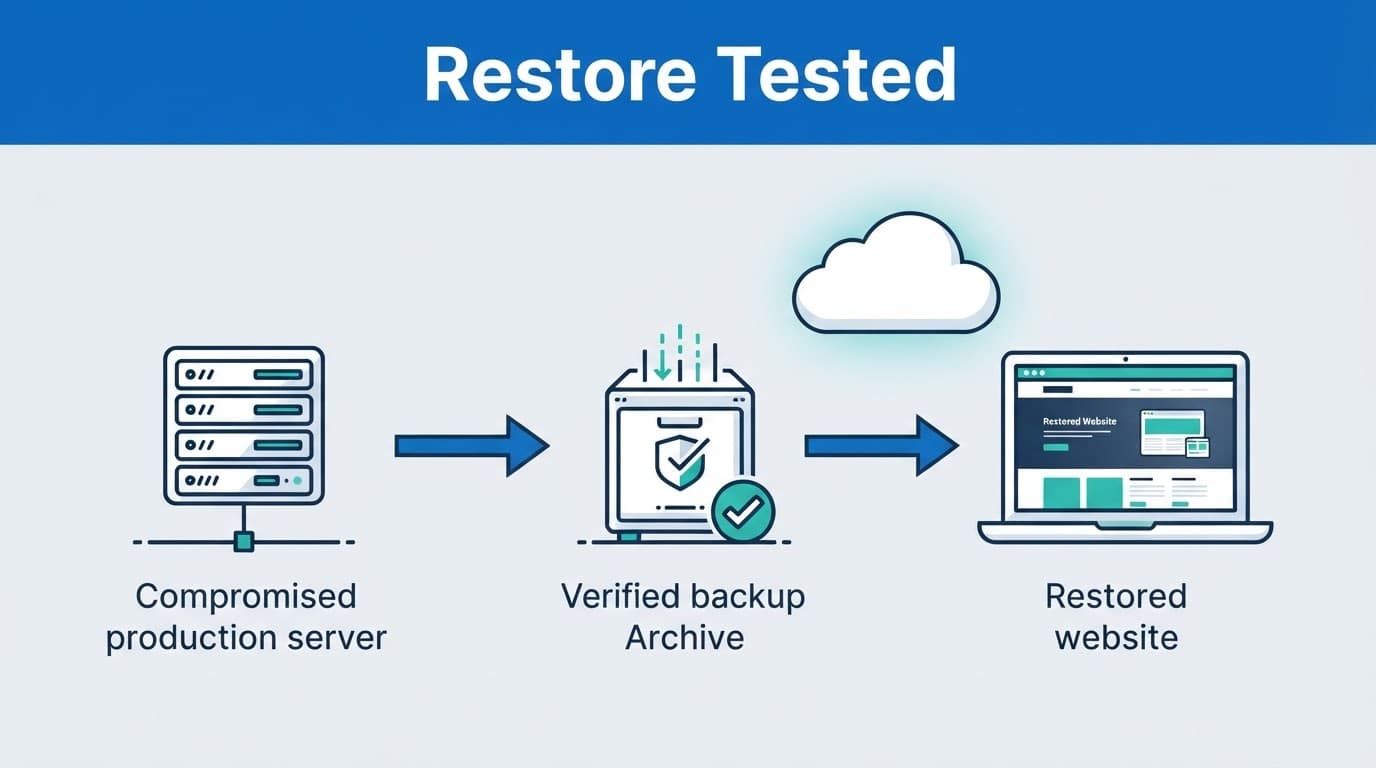
A successful backup message isn’t enough. I test the archive in a staging environment or a separate hosting account before trusting it to restore your site.
A backup is only reliable when you can locate it, open it, and restore it.
Restore files and the database separately
For a cPanel recovery, use the host’s restore tools when available. A full-account restoration may require hosting support, while partial restores can replace selected files or databases.
To restore a WordPress database with phpMyAdmin, I use this sequence:
- Confirm the WordPress database name and user from
wp-config.php. - Create a copy of the current database if the site still loads.
- Open phpMyAdmin through cPanel and select the correct database.
- Select the existing tables and drop them when replacing a damaged database.
- Open the Import tab, choose the
.sqldatabase export file, and start the import. - Restore the matching website files separately through cPanel or SFTP.
Dropping tables removes the existing database, so I confirm the database name before proceeding. Large SQL files can hit upload limits or time out in phpMyAdmin. When that happens, I ask the host about a server-side import or use an available command-line method.
A database import won’t restore themes, plugins, images, or custom code. The WordPress database and its corresponding file archive must come from a compatible recovery point.
If I use Jetpack Backup, I test a representative restore point instead of trusting a success notification alone.
Audit the recovered site
After restoration, I check the homepage, important service pages, admin login, images, menus, redirects, and SSL certificate. I also submit a test contact form and confirm that the message reaches the correct inbox.
For an online store, I test product pages, cart functions, checkout, payment connections, order emails, and customer account access. I also check stock updates, shipping calculations, refunds, and order status changes. Then I clear caches, save the permalink settings, review error logs, and run a malware scan.
The FTP and SFTP restoration guide also highlights why file restoration requires care. A staging environment is safer than testing an uncertain archive on the public site.
Assign Ownership and Review the Plan
Every backup strategy needs named owners for failure alerts, storage credentials, restoration approval, and outage communication. Write down who receives alerts, who can access storage, who approves restoration, and who contacts the host during an outage.
Ask your hosting provider direct questions
I ask:
- How often do automated backups run?
- Are backups stored on separate infrastructure?
- How long are copies retained?
- Can I download my backups?
- Can the provider restore an individual file or a WordPress database?
- What happens if the hosting account is suspended or the server fails?
The answers should be part of your business records and a short disaster recovery runbook. Your host may offer useful tools, but you still own the responsibility for recovering your website and customer data.
A managed maintenance plan can help when no employee has time to monitor updates, backups, forms, and security. DMNet Solutions describes managed website maintenance that includes regular backups and WordPress support. Ask whether the plan documents alerts and restore procedures for Jetpack Backup. If you need help reviewing your current setup, Contact Us for a website and SEO consultation.
Keep a simple test log
Record the backup date, source, storage location, file size, result, and restoration test date. Add notes when you change plugins, hosting, domains, or database settings.
I test a normal business site at least quarterly and test more often when the site processes frequent orders or lead submissions. After each test, I update the recovery instructions while the steps are still fresh.
Frequently Asked Questions
How often should I back up my website?
The right frequency depends on how often your site changes and how much data you can afford to lose. A brochure site may need weekly file backups and daily database backups, while an online store may need hourly or real-time database copies.
What should a WordPress backup include?
A complete WordPress backup includes both the website files and the database. Files contain themes, plugins, media, and custom code, while the database contains posts, settings, users, orders, and form entries.
Are hosting provider backups enough?
No, a hosting provider backup should not be your only recovery source. Keep independent copies in offsite storage because account problems, server failures, malware, or provider errors could affect both your live site and its local backup.
How can I tell whether a backup works?
Restore the backup in a staging environment or separate hosting account and check that the site functions correctly. Test important pages, logins, forms, images, emails, checkout, payment connections, and other business-critical features.
What should I do before updating plugins or changing a theme?
Create a fresh manual backup immediately before the change so you have a known recovery point. For high-risk updates, test the changes in a staging environment before applying them to the public website.
Conclusion
Website backups protect a business only when they include both files and the database. Keep backup copies outside the hosting account, and test a restoration before an emergency.
A weekly backup may suit a simple brochure site, while an active store needs much more frequent database copies. The strongest recovery plan is one you can access, understand, and use before a failed update or server problem turns into lost business.