

A missing WordPress password reset email usually means the message went to the wrong address, failed during sending, or hit a mailbox filter. I recommend separating account recovery from email troubleshooting so you can regain access without waiting for delivery.
For a business website, the same sending problem may also affect customer inquiries and order notifications. Repeatedly clicking the Reset Password button won’t repair a delivery failure.
Start with the account and inbox checks below, then repair the delivery path or use a recovery method that doesn’t require email.
Key Takeaways
- Reset messages go to the email address attached to your user account, which may differ from the site’s administration email.
- Authenticated SMTP improves sending reliability, but successful sending doesn’t guarantee inbox placement.
- Another administrator, your hosting account, WP-CLI, or a careful database edit can restore access without email.
Check the Reset Request and Destination First
If you’re not receiving reset email, first rule out a request sent to the wrong account or mailbox.
Request one fresh reset email
Open your site’s standard login page, usually at /wp-login.php, and choose “Lost your password?” A custom login page may show a “Lost Password link” instead of the familiar “Lost your password?” prompt. Enter your username or account email, then select “Get New Password.” The official WordPress password reset instructions describe this recovery route.
Use your username if you’re unsure which email address the account contains. Allow a few minutes for delivery. If nothing arrives after about 15 minutes, move to troubleshooting rather than repeatedly requesting messages.
Keep any existing signed-in session open. It may be your easiest route to changing the password.
Search every mailbox location
Search for your site’s name and “password reset.” In Gmail, check Spam, also called the spam folder, along with Trash and All Mail. For business email, also look at quarantine, forwarding rules, and mailbox storage limits.
WordPress sends the message to the account’s user_email value in the users table. Changing Settings > General > Administration Email Address doesn’t change that user’s address.
If another trusted administrator can sign in, have them inspect your account under Users > All Users. An old employee address or a typo can explain the missing message.
Why WordPress Password Reset Email Delivery Fails
Once the recipient address is correct, follow the message’s path through WordPress, the sending server, and the receiving mailbox.
The website can’t send the message
WordPress normally sends email through wp_mail(). Without a configured mail integration, WordPress may rely on the host’s PHP mail() setup.
Some hosts restrict that route. Others accept messages locally but can’t deliver them reliably because of server configuration, sending limits, or reputation problems.
Plugins can also interrupt password recovery. A security plugin, custom login page, or membership extension may replace the standard process. If the request produces an error, inspect the corresponding PHP or security log before disabling protections.
The receiving provider rejects or filters it
A message can leave your server and still fail to reach the inbox. The receiving provider may reject an unauthenticated sender, quarantine the message, or classify it as spam.
SPF authorizes sending systems. DKIM adds a domain signature. DMARC evaluates whether authenticated sending aligns with the visible From domain.
I recommend fixing those records alongside the mail connection. SMTP authentication alone doesn’t resolve every domain-authentication or reputation problem.
Configure Authenticated SMTP After Regaining Access
If you’re locked out, use a recovery method below before installing or changing plugins. Otherwise, configure one mail integration, such as WP Mail SMTP.
Avoid running multiple plugins that control outgoing mail. Their settings can conflict and make diagnosis harder.
- Install and activate your chosen plugin through Plugins > Add New. Open its settings and select a supported provider integration or manual connection option.
- Set the From address to an address on your business domain that the sending service authorizes. Enable the option to enforce that address when appropriate.
- For a direct mail connection, enter the sending service’s hostname. Match the encryption and port to its connection settings, commonly TLS with port 587 or SSL with port 465.
- Turn on authentication and enter the assigned username and credential. Some services require an application password or dedicated sending credential instead of your normal mailbox password.
- Add the sending service’s DNS authentication records. Keep a single SPF record for each hostname, include all authorized senders, and enable DKIM.
- Send a test message, then request a fresh password reset. Confirm that both reach the intended mailbox.
Never disable TLS certificate validation to silence connection errors. Repair the hostname, certificate, or server connection instead.
Keep credentials out of screenshots and support tickets. I favor provider-supported OAuth or API integrations when available because they can avoid storing a primary mailbox password in WordPress.
Use Logs to Locate the Delivery Failure
A successful test helps, but logs distinguish a website failure from a receiving-mailbox problem.
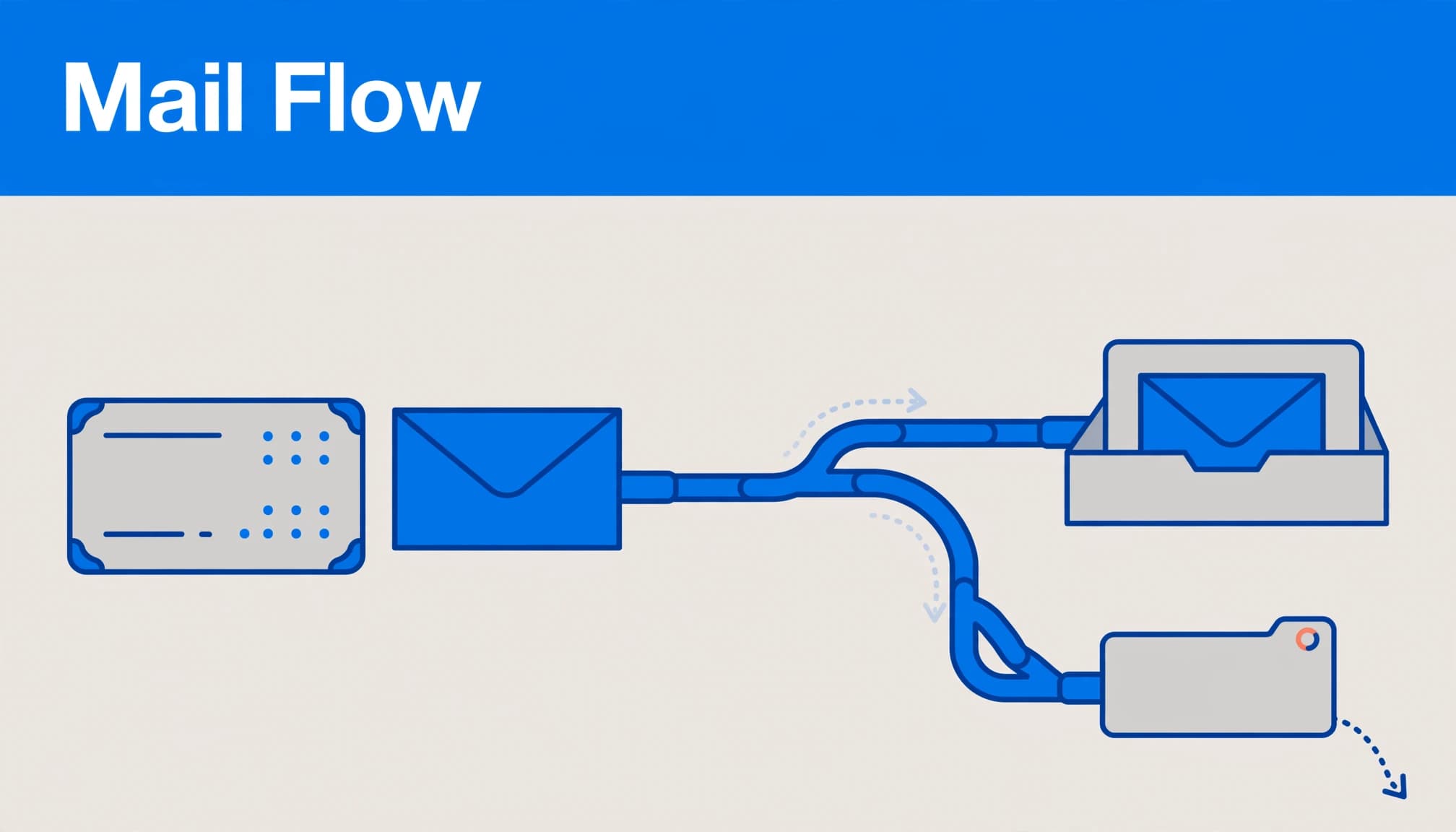
Compare the request with the sending record
Enable the logging available in your mail integration or sending service. Record the reset request time, recipient, and any message ID.
With logging active, no corresponding event points toward the reset workflow, plugin behavior, or an error before sending. An authentication or connection error points toward credentials, encryption, ports, or outbound network restrictions.
A successful
wp_mail()result means WordPress handed the message to its sending mechanism. It doesn’t prove delivery to the recipient’s inbox.
Avoid retaining complete reset emails in logs. Their links grant account-recovery access, so restrict log access and remove sensitive diagnostic content afterward.
Follow delivery, rejection, or quarantine events
A transactional mail service may report accepted, delivered, deferred, bounced, or suppressed messages. “Delivered” generally means the receiving server accepted the message, not that someone can see it in their inbox.
If only Gmail recipients fail, investigate Gmail-specific rejection details and authentication results rather than assuming WordPress stopped sending.
When business email lives elsewhere but the website server tries local delivery, incorrect mail routing can also interfere. Hosting mail logs can reveal that mismatch.
Regain WordPress Access Without Email
Use the least invasive method available. I wouldn’t restore an entire database to solve one account problem because that could erase newer orders or inquiries.
Use another administrator or hosting access
A trusted administrator can open Users > All Users, edit your account, and set a new password. Exchange temporary credentials securely, then replace them after signing in.
If your hosting control panel includes WordPress Toolkit, its account-management tools may offer a password reset without email. Hosting support can also perform an authorized reset after confirming account ownership.
Your hosting, WordPress, and mailbox passwords are separate credentials. Changing one doesn’t automatically change the others.
Reset the password with WP-CLI
With authorized SSH access, open the correct WordPress installation directory. Confirm the path before running WP-CLI, and use wp user list to identify the account. Only use SSH access you’re authorized to use.
Then run wp user update ID --prompt=user_pass, replacing ID with the account’s numeric ID. The interactive prompt avoids putting the password directly into the command itself. The WP-CLI password reset walkthrough also explains command-line recovery.
WordPress handles password hashing through this route. After the WP-CLI update, verify the login at /wp-admin before ending the recovery session. Keep the SSH session open until the login test succeeds.
Use phpMyAdmin as a last resort
In phpMyAdmin, export the database before editing. Read DB_NAME in wp-config.php to identify the database, then locate the wp_users table. Its prefix may differ from wp_.
Find the correct account by checking user_email, edit only user_pass, choose MD5 in the Function column, enter a strong temporary password, and save. In phpMyAdmin, verify that the change was saved.
WordPress retains compatibility with legacy MD5 passwords and upgrades the hash after successful login. However, MD5 is weak, so immediately change the password again through WordPress.
Experienced administrators can use a backup and authorized FTP access to add a temporary, guarded wp_set_password() call to the active theme’s functions.php. Remove the code from functions.php immediately after the authorized request. Leaving it in place is unsafe.
Don’t drop tables, import an old database, or edit other users as a shortcut.
Prevent Another Lockout and Test Business Emails
Once you’re back in, correct the account email under Users > Profile. WordPress may require confirmation at the new address, so finish that process before assuming the change took effect. The WordPress profile settings documentation explains these account controls.
Next, test customer-facing messages. A broken reset email can share its cause with missing inquiries, so I recommend testing contact form delivery after the repair.
Protect privileged accounts with unique passwords and WordPress two-factor authentication. Store recovery codes securely outside the website.
Finally, keep hosting and email recovery details accessible to an authorized business owner. A recovery plan shouldn’t depend entirely on the mailbox that has stopped receiving messages.
Frequently Asked Questions
How long does a WordPress reset link last?
WordPress reset links expire after 24 hours by default, although plugins or custom code can change that period. Requesting a new reset invalidates the previous key. Use the newest password reset link, since delivery delays can make older messages arrive later.
Can a password reset fix two-factor authentication problems?
Changing the password doesn’t normally remove a separate two-factor requirement. Use your authenticator’s recovery method or saved backup codes. If those are unavailable, an authorized administrator may need to handle recovery through the installed security plugin.
What if the account email changed without permission?
Treat an unexplained email change as a possible compromise. Preserve relevant records, inspect privileged accounts, and secure hosting and email access as well as WordPress. My hacked WordPress recovery guidance covers the broader response.
Does this reset a business mailbox password?
No. A WordPress password controls your website account. Reset a mailbox password through its email administration or hosting panel. If you can’t access that mailbox, use a website recovery method that doesn’t depend on receiving email.
Restore Access, Then Repair the Sending Path
A missing reset email needs two outcomes: a working login and reliable delivery. I recommend recovering access through the safest available route, then tracing the message until you identify the failure.
Before closing the issue, request one fresh reset and test your business notifications. That confirms the repair reaches beyond the login screen.
Acts 2:42 in the Amplified Bible describes believers devoted to teaching, fellowship, and prayer. Ask for patience and wisdom as you restore email delivery, and consider the people who rely on your site.
If you need help with your website’s recovery and email setup, Contact Us for a free consultation.