

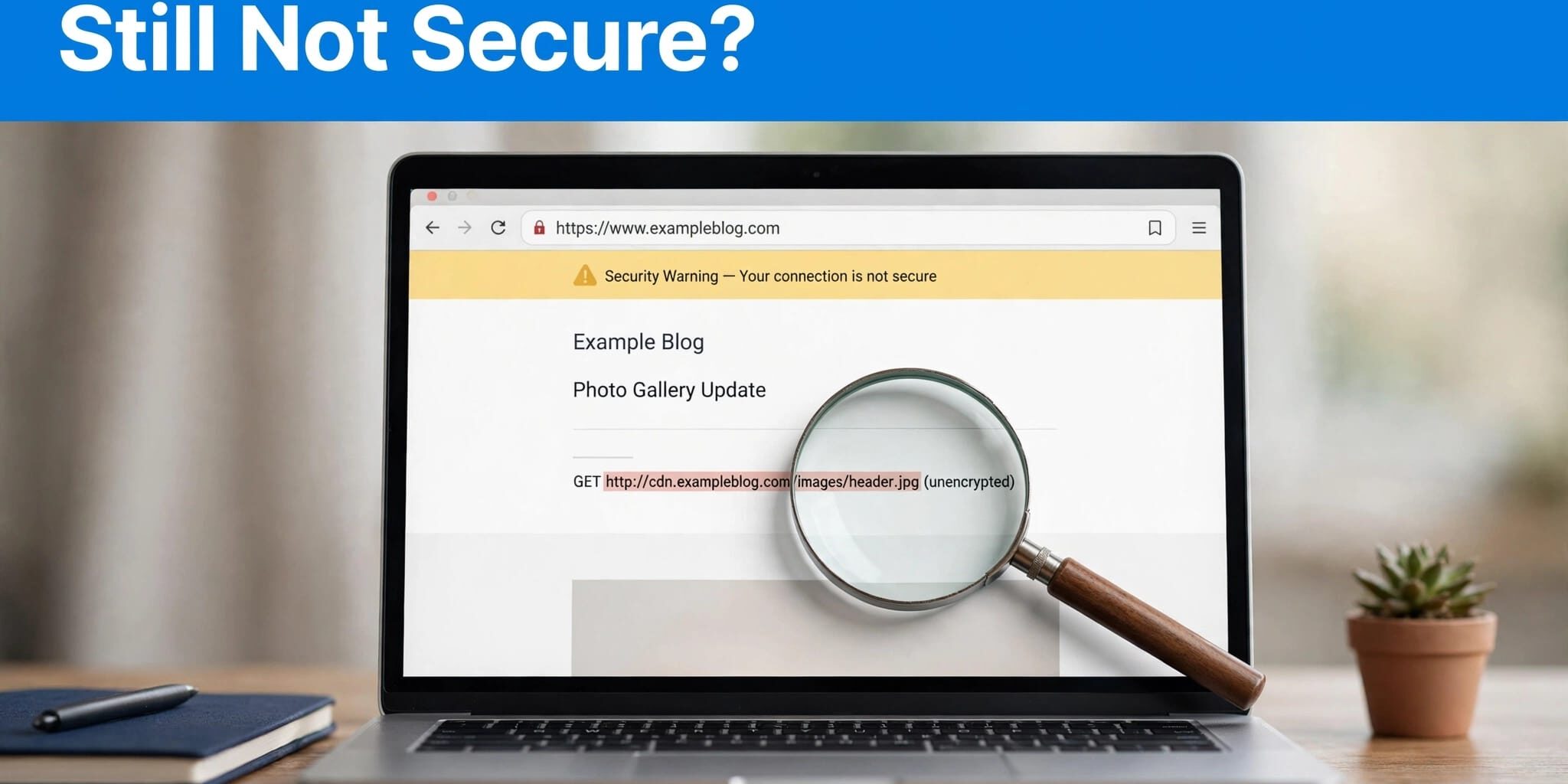
A WordPress site can still show a security warning after SSL installation because some requests remain unencrypted. Other causes include incorrect redirects, TLS configuration errors, or cached pages.
I recommend identifying the warning before changing settings. A valid TLS configuration protects the connection, but it doesn’t automatically repair every insecure resource inside your website. Start by separating a connection-validation issue from a page-content problem.
Key Takeaways
- HTTPS pages can still request insecure images, scripts, stylesheets, or downloads.
- Back up files and the database before installing plugins, replacing URLs, or changing redirects.
- Confirm the connection through browser security details, not just an old screenshot showing a padlock.
1. Identify Which Security Warning You Have
For a site with SSL already installed, investigate these causes in order:
- Look for HTTP assets embedded in a secure page.
- Check WordPress addresses and missing redirects to HTTPS.
- Compare cache, CDN, or proxy behavior when only certain visitors report problems.
- Investigate installation, renewal, or TLS validation errors if the browser blocks entry.
Mixed Content Affects Resources Within the Page
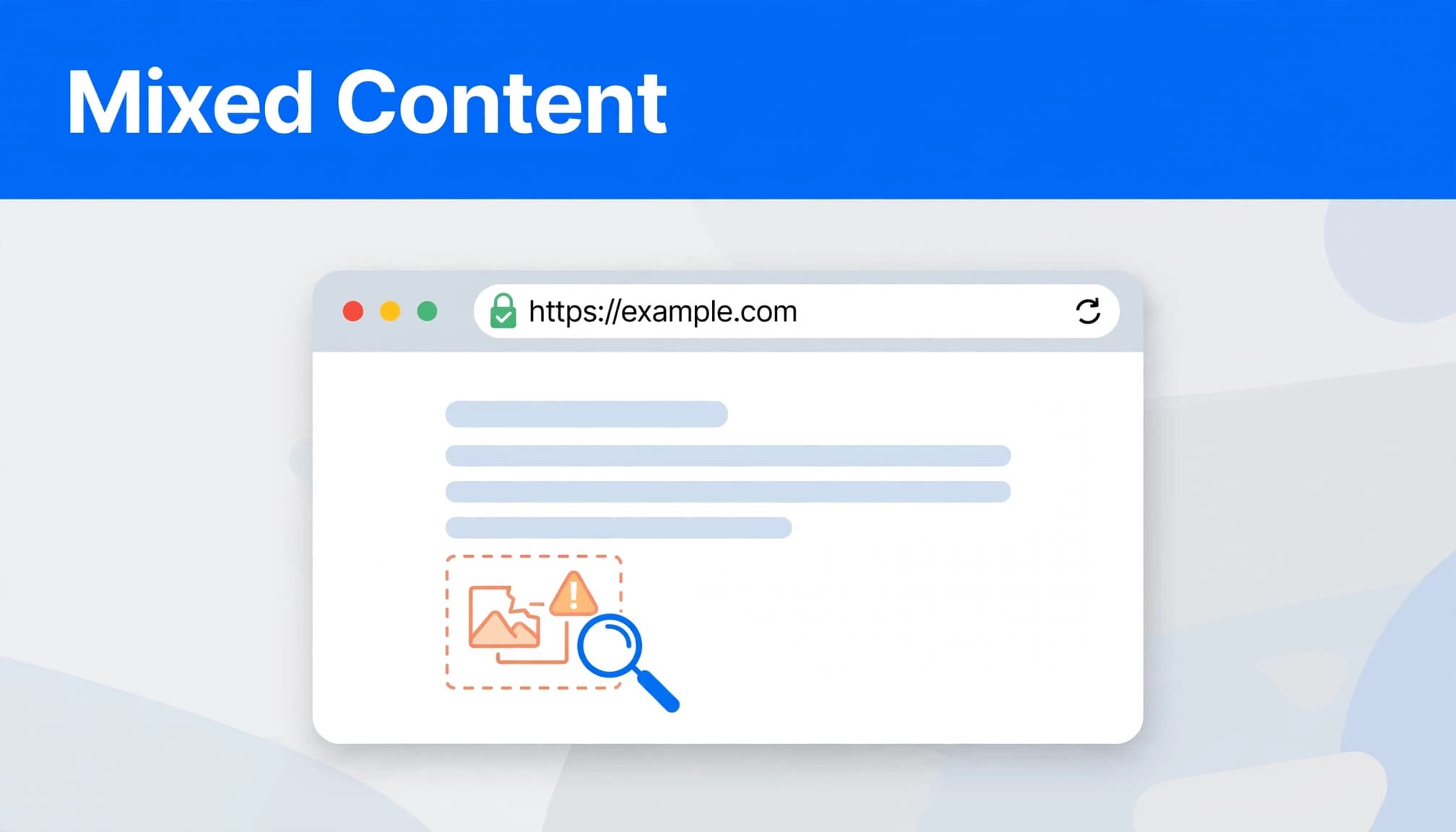
Mixed content occurs when an HTTPS page requests resources through HTTP. Images, fonts, scripts, and stylesheets are assets that may retain old addresses after a migration or SSL installation, triggering a WordPress SSL not secure warning.
Browsers may upgrade some requests automatically or block others. A page can appear normal while its console reports insecure requests.
A single insecure resource can matter. An HTTP file download can also trigger a download-specific warning.
An ordinary outbound link to an insecure destination doesn’t automatically make the current secure page insecure. Embedded resources and insecure downloads require separate investigation.
Certificate Errors Affect the Connection Itself
A full-page “Your connection is not private” warning points toward TLS validation rather than ordinary mixed content. The browser may also show a “connection not secure” warning.
Read the error code. An expired credential, missing chain, or hostname mismatch needs a hosting or TLS configuration repair.
For example, a credential covering the non-www hostname might not cover www. A content-fixing tool won’t repair that mismatch.
2. Find the HTTP Request in Chrome
Open the exact page customers reported, rather than testing only your homepage. Right-click the page, select Inspect, and open the Console tab. Reload with developer tools open.
Look for messages containing “Mixed Content.” These usually identify the insecure URL and explain whether Chrome blocked or upgraded it.
Next, open Network, reload again, and inspect the affected request. The Initiator information can point to the stylesheet, script, or document that requested it.
I recommend recording the resource URL and where it originates before editing anything. A background image may come from page-builder settings, while a font request may originate in theme CSS.
Also test interactive features. A page can load securely before a form or integration makes a delayed HTTP request. This HTTP AJAX troubleshooting discussion illustrates why those requests can fail on an HTTPS page.
Run the affected address through Why No Padlock, too. It can help identify TLS validation and content problems.
However, a clean scanner result doesn’t rule out visitor-specific failures. Scanners may miss logged-in pages, delayed requests, location-dependent content, or resources loaded only after an interaction. Reproduce the affected visitor’s page and action whenever possible.
3. Back Up and Correct Your WordPress URLs
Preserve a Recovery Point First
Before installing a plugin or making replacements, back up both the WordPress files and database. Save a separate copy of existing redirect rules before changing them.
For a business website, include recent orders, inquiries, and other changing data in your recovery planning. Restoring an older database can erase transactions created afterward.
I prefer testing configuration changes on staging when the site handles bookings, payments, or custom integrations. Our website maintenance and backup support provides ongoing help with updates and recovery preparation.
Set the Intended HTTPS Addresses
Open Settings > General in the WordPress dashboard and review WordPress Address (URL) and Site Address (URL). Both should use https for their intended locations.
The paths can legitimately differ when WordPress lives in a subdirectory, so don’t make them identical blindly.
As ManageWP’s WordPress SSL guidance explains, WordPress settings and mixed-content cleanup are separate parts of secure-site configuration.
If those fields are locked, configuration constants or hosting controls may manage them. Avoid forcing dashboard changes that conflict with that setup.
4. Try the Insecure Content Fixer Plugin
Install the Plugin and Start With Defaults
After backing up, use the dashboard’s add-new screen to install plugin protection by searching for SSL and Secure Content Fixer.
Activate SSL and Secure Content Fixer, also known as SSL Insecure Content Fixer. The default Simple option usually handles common insecure-content cases.
Open Settings > SSL Insecure Content to review its options. Menu wording can vary with the installed release.
Plesk’s mixed-content guidance also describes this plugin-based approach. It’s useful when you need to correct generated page output while locating the stored source.
Increase the Fix Level Gradually
If Simple doesn’t resolve the affected page, try Content, then Widgets, then Capture, and finally Capture All.
Change one level at a time. After each change, clear the relevant cache and repeat the same browser test. Keep the least aggressive option that resolves the problem.
Broader capture controls process more output, so test forms, navigation, and checkout before leaving them enabled.
I wouldn’t install several overlapping SSL-fixing tools. Competing secure-connection detection and redirect controls make the cause harder to isolate. These fixers can’t make an external insecure-only service support secure connections.
5. Repair Stored URLs and HTTPS Redirects
Replace Insecure Addresses Safely
For a permanent repair, update the source of each insecure address. Common locations include media references, widgets, page-builder configuration, theme options, and custom CSS.
A serialization-aware tool such as Better Search Replace can find and replace stored URLs. Run its dry-run option first and target your own old insecure address.
Don’t replace every insecure address across the database. External destinations may not support secure connections, and unrelated values can change.
Manual database replacement can corrupt serialized settings when text lengths change. A mistake without a usable backup can seriously damage the site.
Send HTTP Requests Directly to the Final Address
Test both http://yoursite.com and http://www.yoursite.com, substituting your domain. Each should reach the preferred secure hostname and preserve the requested page path.
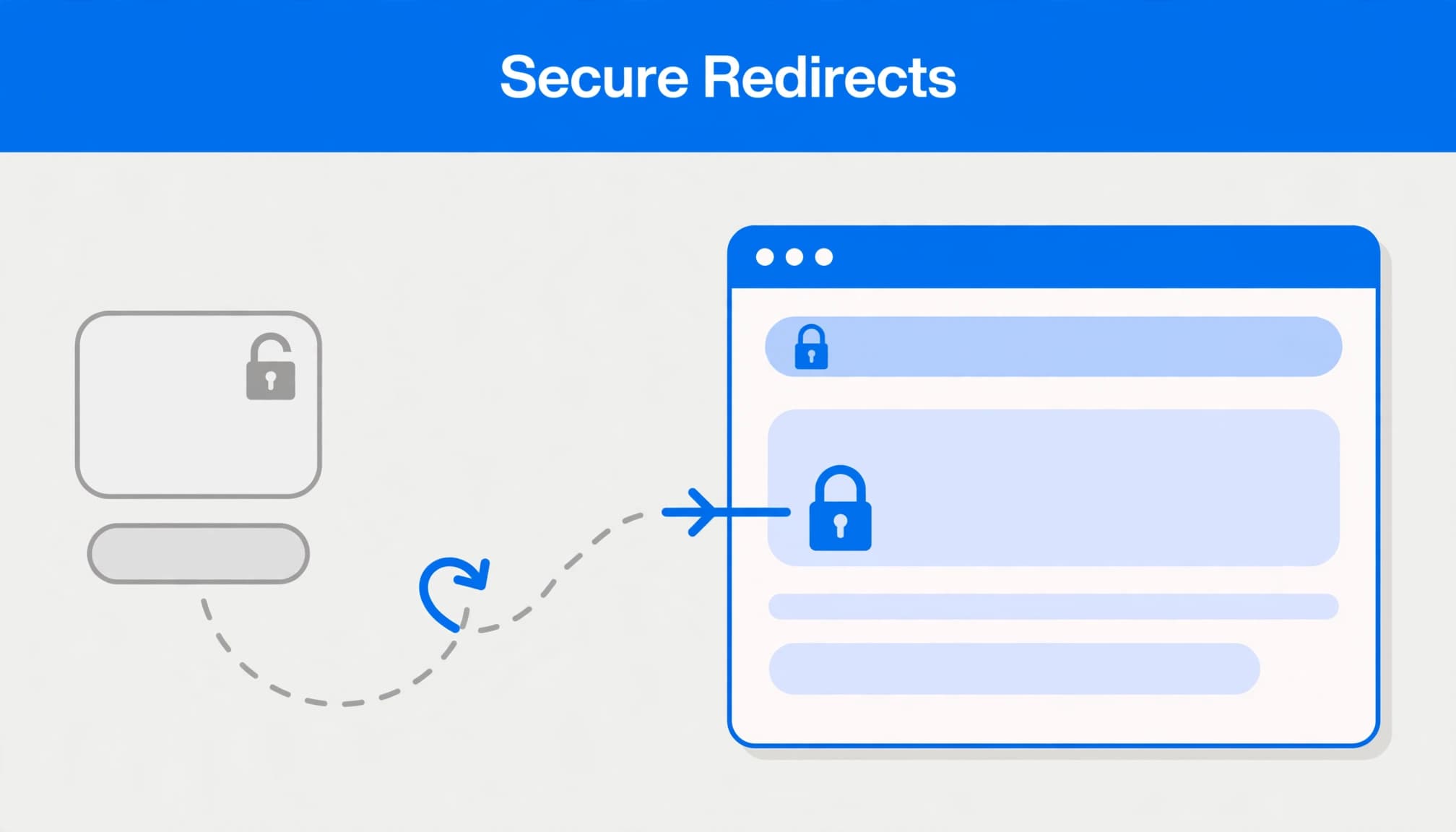
Configure an HTTP redirect to HTTPS with a 301 redirect for the permanent move. Really Simple SSL, now named Really Simple Security, includes controls for this in its settings.
Avoid separate hops for the secure hostname, www, and a renamed page. Send each original request directly to its final destination wherever practical.
Update internal links, canonical tags, and XML sitemap entries to use that same final URL.
Before editing server rules, preserve them. Apache may use .htaccess; Nginx doesn’t. Check CDN and plugin configuration for redirect loops. Don’t delete older redirects indiscriminately because bookmarks, advertisements, and backlinks may still depend on them.
6. Clear Caches and Verify Customer-Facing Pages
Purge WordPress page caches, hosting caches, CDN caches, and any generated CSS cache your page builder uses. Then refresh the affected page in a private browser window.
If only certain customers see the warning, ask them to retry after clearing the site’s browser cache. Have them temporarily disable browser extensions, then test again. A different browser or device helps separate a local issue from a site-wide fault.
In Chrome, select the site-controls icon beside the address and open the connection details. Look for “Connection is secure.” Older browsers and some other browsers may display a padlock; modern Chrome doesn’t use the traditional padlock as its default security indicator.
Next, repeat the Console inspection. Test contact forms, checkout, PDFs, mobile navigation, and campaign landing pages.
Keep your PHP version on a supported release and maintain WordPress, themes, and plugins. However, upgrading PHP alone doesn’t replace insecure asset references.
Compare the CDN edge and origin configurations, including the CDN’s encryption mode and proxy status. Confirm each layer serves the correct hostname. Check the certificate’s expiry and renewal status, then verify its installation and full chain at both layers.
Finally, retest after CDN, hosting, SSL, or redirect changes. Those layers can change which content and security settings visitors receive.
Frequently Asked Questions
Why Do Only Some Customers See “Not Secure”?
They may reach a different hostname, follow an older insecure link, receive cached content, or use an extension that changes requests. Different devices can also encounter different certificate-chain problems.
Ask for the exact address, browser version, warning text, and screenshot. Those details narrow the investigation more than a general report that the site looks insecure.
Can an SSL Plugin Fix Every Security Warning?
No. A content fixer can repair certain unencrypted requests in generated output. It can’t fix an expired TLS configuration, add missing hostname coverage, or repair an external service that sends data without encryption.
I use the warning itself to choose the repair rather than assuming another content fixer is necessary.
How Do You Confirm the Fix in Safari?
Open the affected page, inspect Safari’s connection or security details, and repeat the same customer action. A secure homepage doesn’t prove that a download, form, or checkout path works securely.
Also test on a real phone when the original report came from mobile.
Restore a Secure Connection Without Guesswork
A working TLS setup is only one part of a secure WordPress connection. Match the repair to the cause, then test the exact page and action that produced the warning.
I recommend keeping changes reversible and removing unnecessary redirect hops. That protects customer access while you correct insecure resources.
If you need help with WordPress configuration, redirects, or maintenance, Contact Us for a free website and SEO consultation.
Read Acts 16:25 in the Amplified Bible, then take a moment to pray for patience and wisdom as you diagnose the issue.