

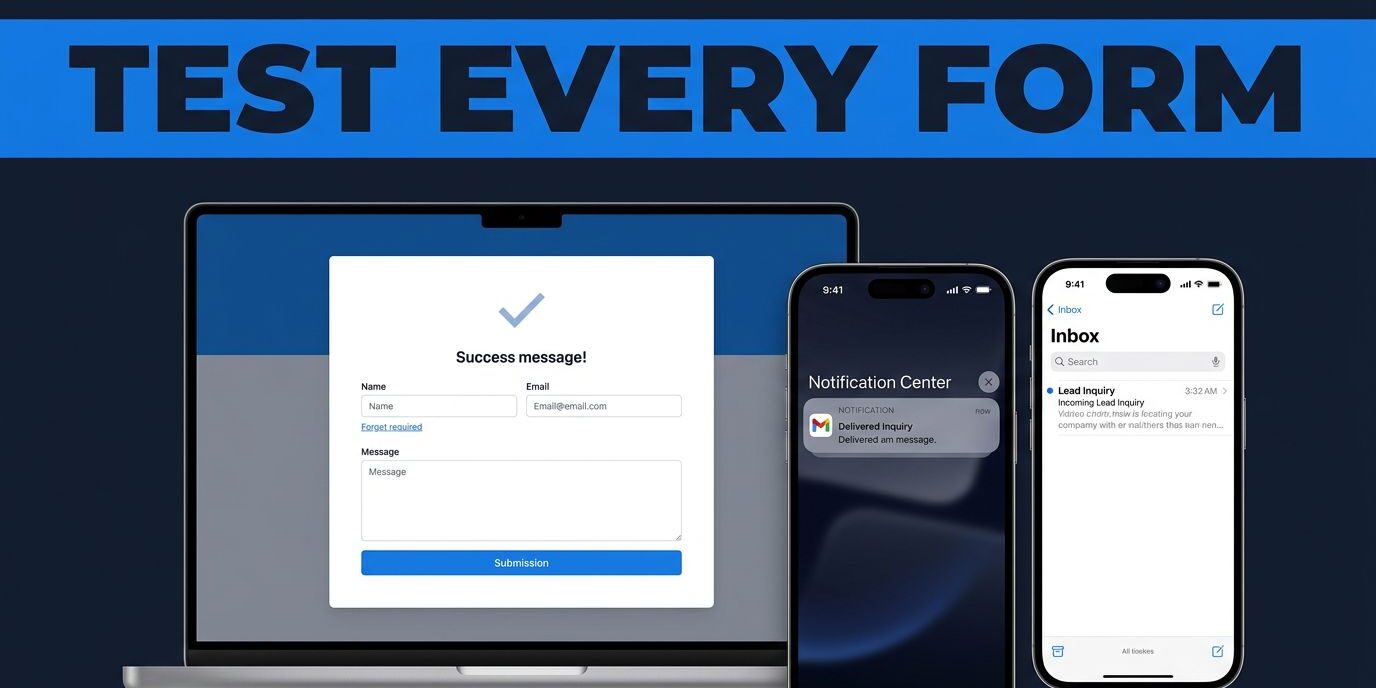
A broken contact form can waste a valuable lead generation opportunity without showing any warning. When online forms fail, a visitor fills out every field, clicks send, and assumes your business will respond. Meanwhile, the message may never reach your inbox, the confirmation may fail, or a required field may block the submission on mobile.
I treat contact form testing as a regular business task, not a one-time website launch step. A reliable test checks the customer experience, email delivery, lead records, mobile behavior, and follow-up process. These are the checks I use to find problems before they cost another inquiry.
Key Takeaways
- I test all online forms after every website update, plugin modification, hosting migration, or email configuration change.
- Seeing a successful screen message does not guarantee that the lead reached the right inbox or that email delivery was actually completed.
- Testing must include mobile devices to ensure a seamless user experience, along with real email accounts, spam folder checks, and failed submission scenarios.
- I keep a backup record of leads in a CRM, database, or secondary notification system to prevent data loss.
- Form performance improves when I actively track submissions instead of relying on memory or basic alerts.
Why Contact Forms Fail Without Warning
Contact forms usually fail in one of three places: the visitor’s browser, the website server, or the notification system. A form can look normal while the underlying form functionality has stopped working.
For example, the form may accept the submission but fail to send an email. A WordPress update can change how your online forms and plugins handle mail. A hosting provider may restrict PHP mail delivery. An email provider may send the message to spam or reject it because the sending domain lacks proper authentication.
Some failures are easier to spot. If the layout and design are off, a button may do nothing, a loading icon may spin forever, or the page may show a technical error. Other problems are more dangerous because the visitor sees a success message even though nobody receives the inquiry.
I also check for less obvious issues. A form may send the message to an employee who left the company. The notification may use an outdated email address. The customer’s phone number may arrive with missing digits because the field accepts invalid entries. A form may record the lead but fail to show the customer’s selected service.

I review the full path, not only the form itself. The message should reach the right person, include the submitted details, and give the visitor a clear next step. Proper form responsiveness also matters because service leads often contact businesses from phones.
A form that works on a desktop computer but fails on an iPhone is still a broken form. The same applies when a customer submits successfully but receives no confirmation, which negatively impacts the user experience.
My Contact Form Testing Process
I start with a fresh test submission that uses realistic information. I do not use the owner’s personal email for every test because that can hide delivery problems. Instead, I send a test form submission to at least two monitored accounts, preferably with different email providers.
I record the exact time of each submission. Then I check the inbox, spam folder, email subject, sender address, message body, and reply-to address. The email notifications should make it obvious that a new service inquiry needs attention.
My basic testing sequence for online forms looks like this:
- I open the page in a private browser window and complete the form as a new visitor.
- I test valid information in every field, including a real phone number and service request.
- I perform the form submission and record the confirmation message or destination page.
- I check every inbox and spam folder for email notifications.
- I reply to the notification to confirm that the reply reaches the customer address.
- I review the lead capture record in the website dashboard, CRM, or connected system.
- I repeat the test with missing and invalid information.
The last step matters because data validation affects conversions. I remove the email address, enter an invalid phone number, leave the message blank, and test unusually long entries. Each of these validation messages should explain what needs correction without erasing everything the visitor already typed.
I also inspect the email itself. Does it include the customer’s name, phone number, service, and message? Does the subject identify the form? Can I reply directly without searching for the customer’s address?
For WordPress sites, I check the form plugin, SMTP plugin settings, website hosting, and connected email account. I also review the site’s stored submissions when that feature exists. A form that stores a lead gives me a second record when email delivery fails.
Clear labels and short forms help reduce friction, but the form still needs enough information to qualify the request. These contact form best practices cover useful details such as descriptive field labels and limiting unnecessary questions.
Test Mobile Forms and Real Customer Conditions
I never treat desktop testing as complete testing. I verify device compatibility by opening the form on an iPhone and an Android phone, using both Wi-Fi and cellular data when possible. I test common browsers such as Chrome and Safari because form behavior can vary between them.
On a smaller screen, I check whether the fields are easy to tap and read. The keyboard should not cover the active field, and the submit button should remain visible after the customer finishes typing. I ensure proper form functionality by testing that dropdown menus respond correctly to touch and the layout does not require awkward horizontal scrolling.
I also test the form at different screen widths in a desktop browser. A responsive layout should keep labels, fields, error messages, and buttons in the correct order. If the page jumps when an error appears, a visitor may miss the message, which negatively impacts conversion rates and causes them to abandon the form.
Slow connections reveal problems that a fast office network hides. I use browser developer tools to simulate slower network conditions and watch what happens after the form submission. The visitor should see a clear progress state, and the form should not appear frozen for an unreasonable length of time.
Accessibility is a critical part of this review to ensure a positive user experience. I move through the fields with the Tab key, confirm that each field has a visible label, and check that error messages are easy to identify. I also verify that contrast and font sizes make the form readable for all visitors.
Spam protection requires its own test. CAPTCHA tools and security filters can stop automated spam, but an overly aggressive spam filter can block legitimate inquiries. I submit the form in a private window and try a normal service message. If the test fails, I check the security logs before adding more restrictions.
The page should also work after a visitor returns using the browser back button. I test whether old form data creates duplicate submissions or whether the confirmation page allows another inquiry. These small details affect the experience when someone compares service providers and returns later.
Check Lead Tracking and Follow-Up
Email delivery is only one part of lead management. I also check whether the website correctly records a form submission as a conversion, as this data is essential for maintaining accurate conversion rates. Without proper tracking, I might see traffic and phone calls but miss the fact that the form produces qualified service requests.
I use the website’s form analytics setup to confirm that a successful submission creates the correct event or goal. A simple button click is not enough because someone can trigger the button without actually completing the form. I prefer tracking a confirmed success page or a verified form submission event to get the most accurate data.
Next, I compare the incoming information with the internal lead record to ensure the data matches, which helps keep conversion rates stable and reliable. If the CRM shows a customer’s name but drops the message, my sales process starts with incomplete information. If a lead appears twice, I investigate whether the email notifications are duplicating or whether a staff member entered the data manually.
I also test every connected automated workflow. Some forms send leads directly to a CRM, email marketing platform, calendar, text notification, or help desk. Each connection creates another possible failure point. A website update can leave the form working while a third-party connection stops receiving data.
For service businesses, a fast response rate matters. I submit a test inquiry outside of normal office hours and confirm that the right person receives it. If the business promises a callback, the confirmation message should include clear calls to action that state exactly what happens next without making a promise the team cannot keep.
I write down the expected result for each test as part of my conversion optimization strategy. My record includes the form URL, test date, recipient addresses, tracking result, delivery result, and any changes made. That record makes future troubleshooting faster, especially when several people manage the website.
A form can be attractive and easy to use, yet still fail to produce useful data. I review common WordPress contact form mistakes when a site has missing fields, confusing layouts, duplicate records, or inconsistent notifications.
How Often I Test Contact Forms
I test a contact form after every major website change. That includes WordPress core updates, plugin updates, theme changes, hosting moves, domain changes, SSL changes, email address changes, and edits to the form itself.
I also test after changing DNS records or moving business email to a new provider. Email authentication records, including SPF, DKIM, and DMARC, can affect whether reliable email delivery occurs. If delivery changes without an obvious form error, I ask the hosting or email provider to review those records.
For an active service website, I schedule a full round of contact form testing at least once each month. A quick test checks the normal submission path. A deeper quarterly review covers mobile browsers, error messages, spam filtering, analytics, CRM connections, and A/B testing to compare different form variations for better conversion rates.
I keep a separate test label or subject line so staff will not mistake a test inquiry for a real customer. After testing, I remove the test record from the CRM if the system allows it, but I keep the test date and result in my maintenance notes.
I also inspect the online forms when leads suddenly decline. A drop in submissions may come from lower traffic, but it may also indicate a broken button, a technical barrier in your calls to action, a rejected email, a new required field, or a tracking error. Comparing analytics with actual inbox activity helps separate a marketing problem from a technical one.
If I find repeated failures or missing leads, I ask for help before changing several systems at once. Contact Us to discuss website testing, form tracking, hosting, and support for a service business.
Frequently Asked Questions
How often should I test my contact form?
You should perform a full test of your contact form after every significant website update, such as plugin changes, hosting migrations, or DNS modifications. Additionally, I recommend a routine, comprehensive check at least once a month to ensure your lead generation process remains functional and reliable.
Why does my form say “Success” even if I don’t receive the email?
A success message only confirms that the website’s front-end code processed the user’s input, not that the back-end successfully delivered the notification. Failures often occur in the server’s mail delivery settings, spam filters, or incorrect email routing configurations that operate entirely behind the scenes.
Should I use my main business email for testing?
No, it is better to test using at least two different external email providers to ensure deliverability across various platforms. This approach helps you identify if specific providers are flagging your notifications as spam and prevents cluttering your primary business inbox with test data.
How do I test my form on mobile devices?
You should manually open your website on both an iPhone and an Android device to verify that buttons are tappable and fields are easy to read. You should also check the mobile experience on both Wi-Fi and cellular data to ensure the form loads correctly under different connection speeds.
Conclusion
A contact form earns its place on a service website only when it reliably powers your lead capture efforts. I test the visitor path, the notification email, the stored lead, the tracking event, and every connected system to ensure nothing slips through the cracks.
The strongest routine is simple: submit realistic test messages, check delivery in more than one inbox, test mobile behavior, review failures, and repeat the process after any website or email changes. By verifying that your systems effectively handle customer feedback, you protect the leads your website worked hard to attract. Consistent contact form testing is a vital, low-effort component of any successful conversion optimization strategy.