

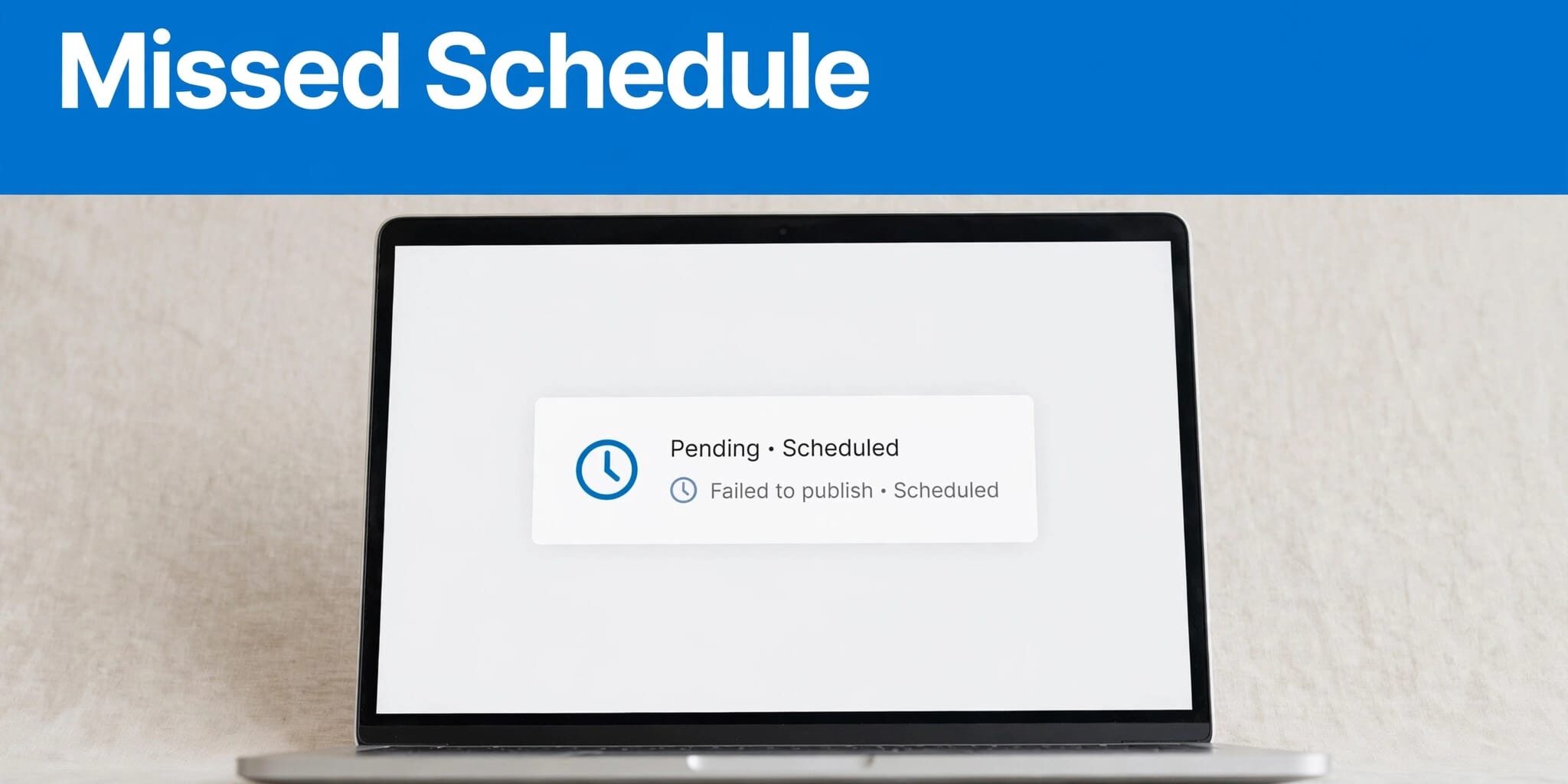
A WordPress missed schedule error leaves scheduled posts unpublished after their scheduled time, usually because WP-Cron didn’t run successfully. WordPress displays Missed Schedule, but doesn’t send a built-in notification.
If a missed schedule affects urgent content, publish it manually, then diagnose the scheduling failure. Start with the trigger and timezone before installing a recovery plugin.
Key Takeaways
WP-Cron depends on requests reaching WordPress, so low traffic and aggressive caching can delay publishing. Recovery plugins publish overdue content, while a server cron removes the dependency on visitors. Neither approach fixes underlying PHP errors.
Why WordPress Posts Miss Their Schedule
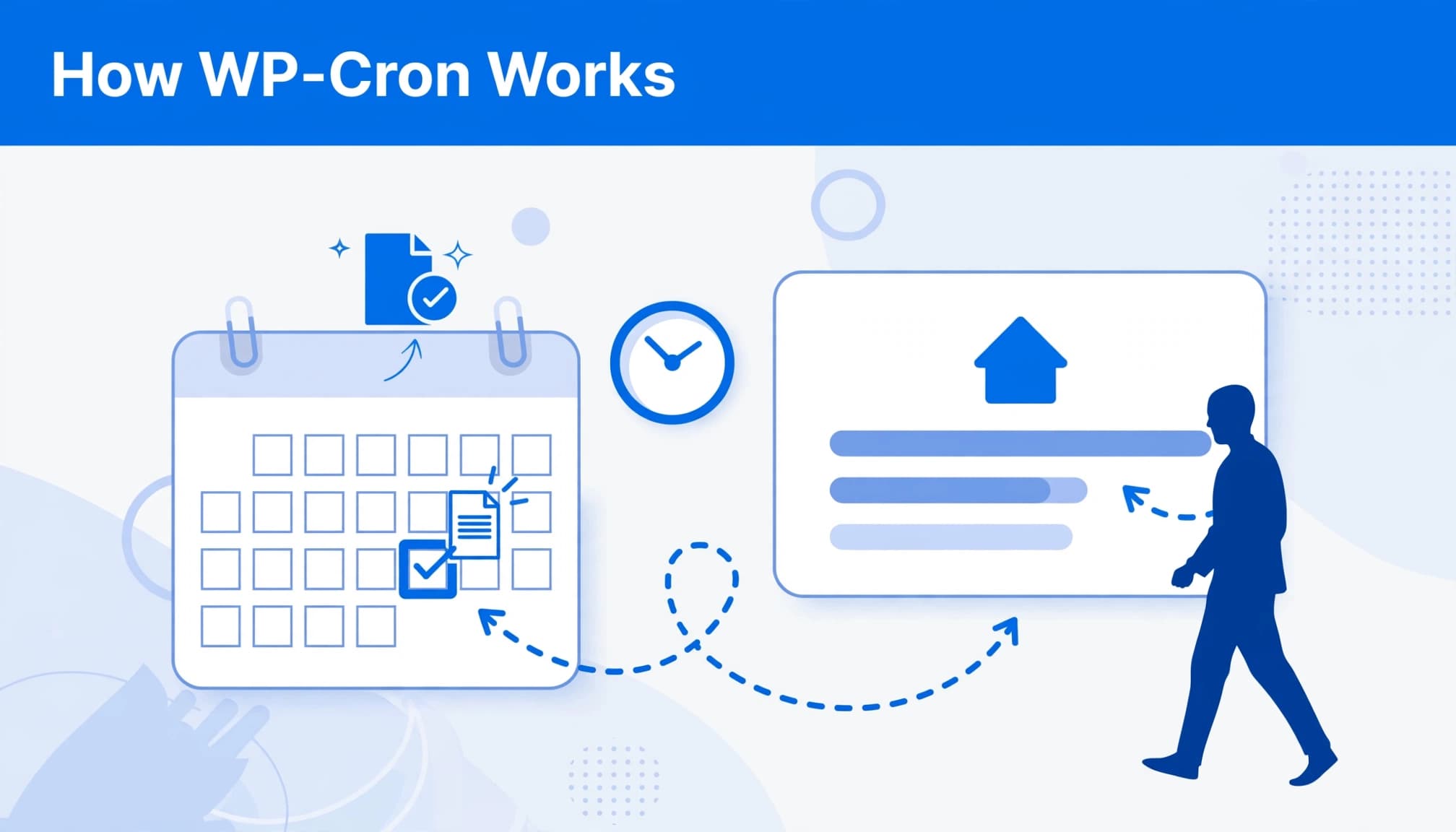
WP-Cron is a pseudo-cron: the WordPress cron system checks for due tasks during page visits instead of running continuously. ColonelServer’s WordPress cron guide explains its background scheduling role.
Without a request near publication time, your post stays unpublished. A later successful run normally processes overdue tasks, so the post isn’t lost.
This affects low-traffic sites and off-peak publishing most often. Caching plugins, aggressive caching, or firewall rules can prevent WordPress from receiving the request, even on busy sites.
A page view served entirely from cache doesn’t necessarily give WordPress an opportunity to run scheduled tasks.
Diagnose the WordPress Missed Schedule Error
Check the Timezone and Cron Trigger
First, open Settings > General and set Timezone to your intended publishing location. Choose a city, such as New York, so daylight saving changes apply automatically. An incorrect setting shifts your publishing schedule; an inaccurate server clock also needs correction.
Next, inspect wp-config.php. Setting DISABLE_WP_CRON to true disables visit-triggered cron. Without a replacement scheduler, due tasks can sit untouched.
WP Rocket, W3 Total Cache, and Cloudflare don’t automatically break scheduling. However, aggressive caching can bypass PHP, while security rules can block wp-cron.php. Investigate those paths rather than disabling every cache.
Inspect Events and Error Logs
Install WP Crontrol through Plugins > Add New. Under Tools > Cron Events, WP Crontrol lists events you can view, edit, delete, or run immediately, and it warns about cron-system problems.
Look for the publish_future_post event when diagnosing scheduled future posts. Use WP Crontrol to run it manually; if it fails, inspect PHP logs for failed cron jobs. Memory-exhaustion messages justify investigating memory limits, but a higher allowance won’t repair faulty code.
I recommend testing suspected plugin conflicts individually on staging. Our safe plugin update guidance covers backups and controlled testing. Keep error display off, then disable temporary debugging and secure the logs afterward.
Recover Overdue Posts Without Editing Code
Install Missed Schedule Post Publisher
Use Plugins > Add New to install and activate plugin-based recovery with Missed Schedule Post Publisher. Open its settings in the admin panel and choose a check interval: 5, 10, 15, 20, 30, or 60 minutes.
It checks scheduled posts for overdue posts and publishes the missed posts it finds. Since version 2.0, the plugin supports all public custom post types, including WooCommerce products and events.
Version 2.3 detects disabled WP-Cron and switches to page-visit fallback mode, which still depends on site activity. It uses intelligent throttling and displays an admin notice when the mode is active.
For occasional posts, I’d choose 15 minutes if that delay is acceptable. Shorter intervals don’t create visits on an idle site, so a post may wait if you’re on vacation.
Understand the Older WP Missed Schedule Option
WP Missed Schedule is a separate plugin. Its documented workflow requires downloading the ZIP from its GitHub repository, then opening Plugins > Add New > Upload Plugin to install and activate it.
It repairs up to 10 overdue posts per session, every 15 minutes. I wouldn’t install both recovery plugins because overlapping checks add complexity without fixing the underlying trigger failure.
Use a Server Cron for Dependable Publishing
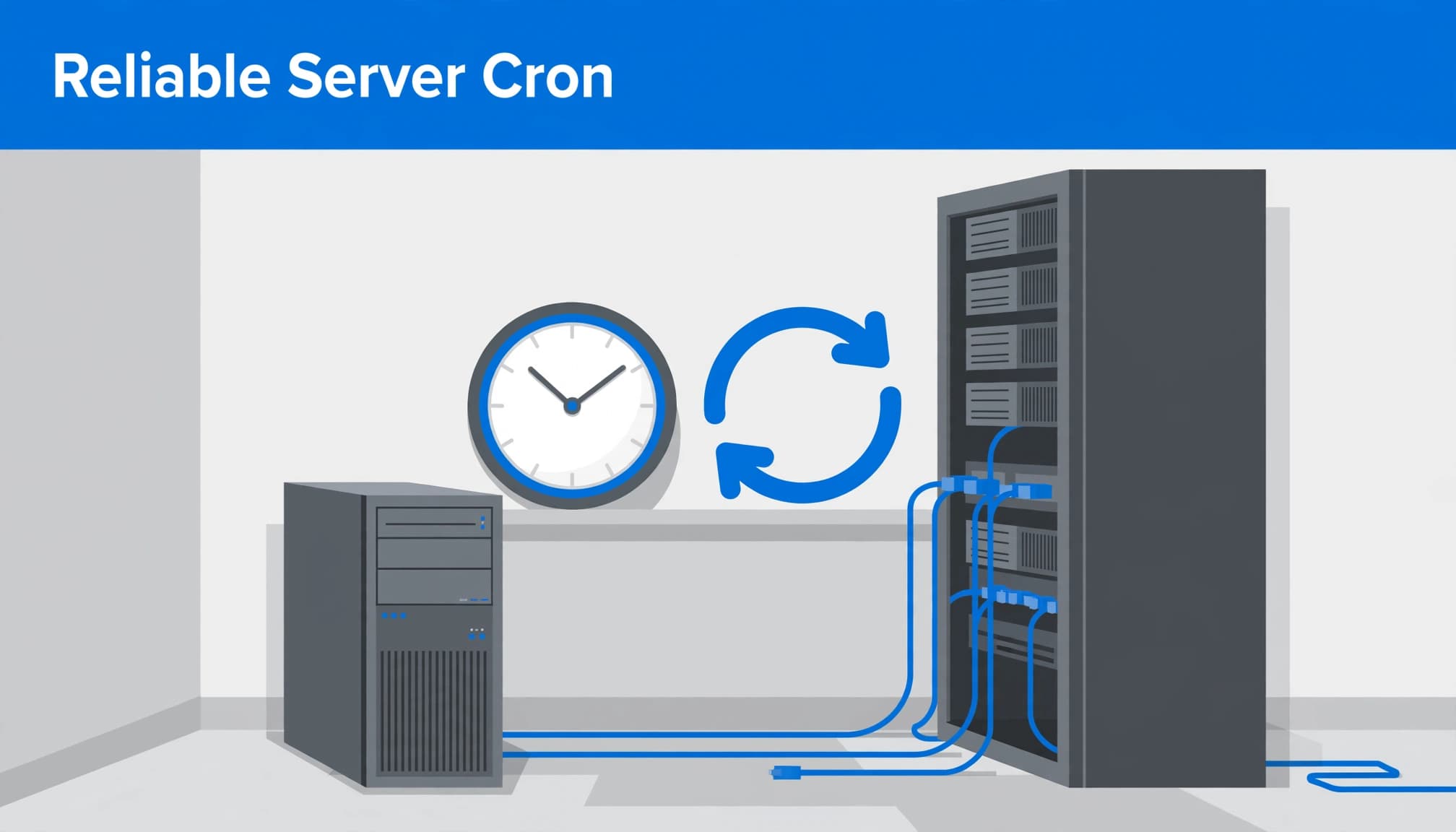
A real server cron job runs on the host’s clock, independently of visitor activity. It’s the lasting fix for traffic-dependent scheduling, although PHP failures still need repair.
HostGator’s server cron setup instructions cover disabling virtual cron and configuring its replacement through cPanel.
I recommend this sequence:
- Back up
wp-config.php, then adddefine('DISABLE_WP_CRON', true);above the stop-editing comment. If that constant already exists, update it rather than duplicating it. - Open your hosting panel’s Cron Jobs section. Set a five-minute schedule, expressed as
*/5 * * * *, and configure it to execute your installation’swp-cron.phpusing the correct PHP executable and absolute filesystem path. - Run the task once, then inspect its output or hosting logs for failed cron jobs. Create a test post among your scheduled future posts, then confirm it publishes after the next scheduled run without relying on a front-end visit.
If your host manages scheduled tasks for you, ask its support team to configure the same recurring execution. Keep the server job enabled after disabling virtual cron.
Frequently Asked Questions
Can Scheduled Posts Publish Without Visitors?
Yes, a server cron or external scheduler can trigger automatic publishing without relying on site activity. Default visit-triggered WP-Cron alone can’t guarantee scheduled posts publish when the site receives no requests.
Does a Recovery Plugin Guarantee Exact Publication?
No. Its interval adds potential delay, and a page-visit fallback still needs activity. For a time-sensitive business announcement, I recommend server cron plus monitoring.
Restore Publishing, Then Remove the Cause
A WordPress missed schedule error usually leaves your content intact. Restore publication first, then check whether timing, blocked requests, or PHP errors caused the failure.
For dependable publishing, I favor server cron over traffic-dependent execution. If you need help diagnosing recurring failures or configuring scheduling, Contact Us for a free consultation.