

To recover hacked WordPress safely, don’t stop at a malware scan. Contain the breach, preserve files and logs, and verify a “clean backup.” Then remove malware safely, rotate every credential, update WordPress and extensions, check for persistence, and harden the site before reopening it.
I’ve seen site owners delete visible spam pages before preserving evidence. That can destroy clues about how attackers entered and what they changed.
A scan is useful, but it isn’t proof of recovery, and files should never be deleted blindly. Start with containment, then follow the cleanup steps in order to protect your content and reduce reinfection risk.
Key Takeaways
- Contain the breach first, preserve files, databases, and logs, and avoid deleting suspicious items before you document them.
- Rotate every credential that could reopen the site, including WordPress, hosting, database, email, domain, FTP, and API access.
- Restore only a verified pre-breach backup; when trust is uncertain, rebuild with fresh WordPress core, themes, and plugins while preserving reviewed content.
- Clean and test both files and the database, then check users, redirects, scheduled tasks, forms, logins, caches, and public pages before reopening the site.
- Harden the recovered site with current software, least-privilege access, two-factor authentication, separate tested backups, and ongoing monitoring.
Spot the Warning Signs Early
A hacked WordPress site doesn’t always show a defaced homepage. Attackers may add hidden SEO spam pages, create new admin accounts, redirect mobile visitors, or place backdoors where they’re hard to notice.
Watch for visible changes
Common warning signs include browser warnings, suspicious redirects, unfamiliar ads, and mobile-only redirects. Pages may also load differently on phones than desktops. Customers may report being sent to another website after clicking a search result.
Search your brand name and a few service-related terms. Strange foreign-language pages, pharmacy offers, gambling content, or copied business pages often point to an infection.
Check the places customers cannot see
Review your WordPress user list, hosting file manager, email notifications, and website analytics. Compare those signals with Search Console and hosting activity, since no single signal proves a compromise.
A sudden traffic spike to pages you did not create deserves attention.
WordPress recommends documenting what you found, when you found it, your time zone, and recent site changes. Its official hacked-site recovery FAQ is an authoritative source for documenting timestamps, recent plugin changes, theme edits, and widget changes.
Keep a record before deleting anything. It may reveal how the intruder entered.
How to Recover Hacked WordPress Safely
The safest WordPress malware removal process follows a strict order. Contain the breach first, preserve evidence, restore trusted code and content, then test every public path.
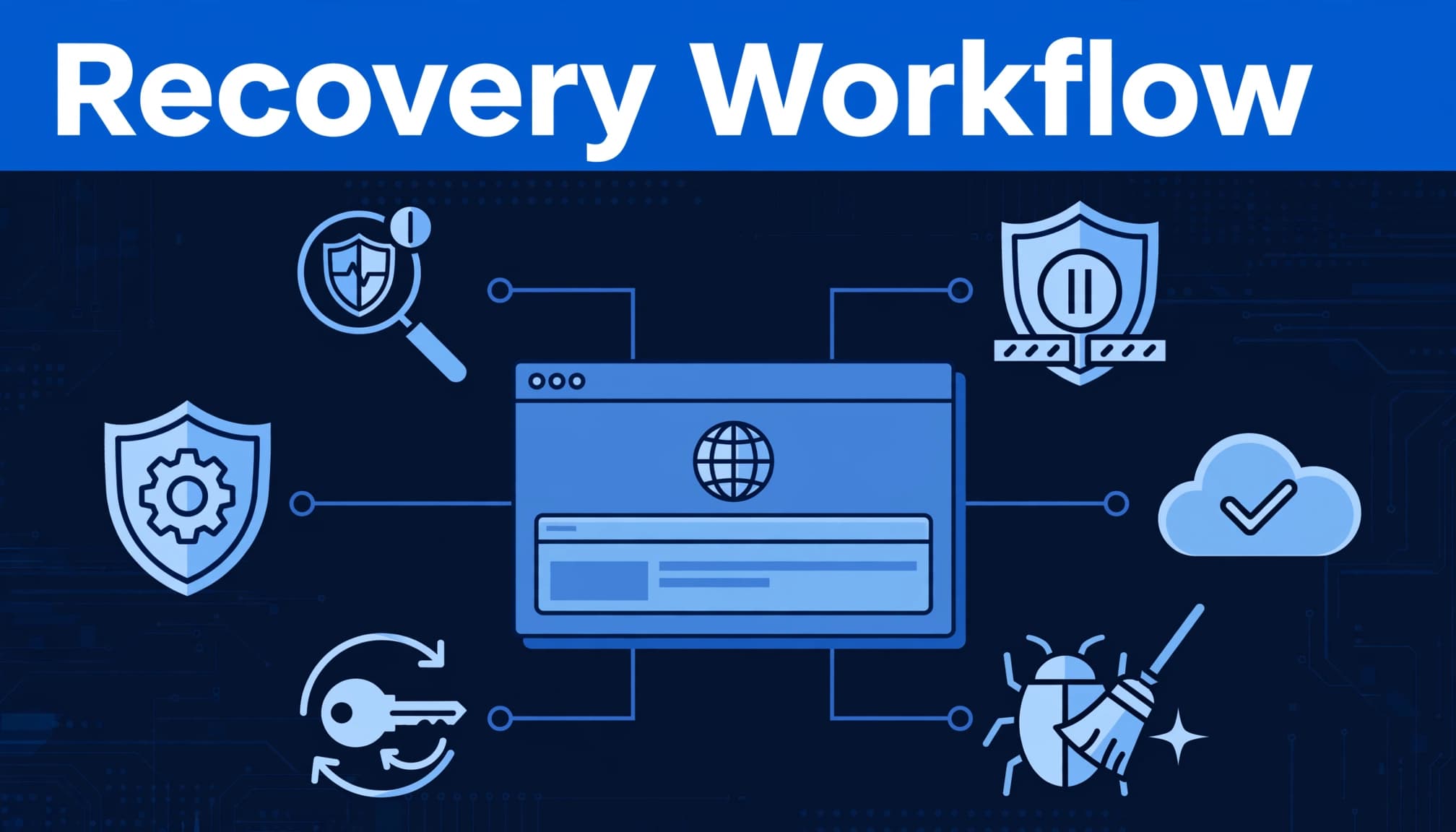
I use this sequence because rushed cleanup can destroy evidence or spread the problem. A security plugin supports detection, but it isn’t a complete recovery plan. The steps are designed to prevent reinfection by checking access, content, persistence, and public behavior:
- Document symptoms, suspicious changes, and recent admin activity.
- Put the site in maintenance mode or isolate it through your host.
- Preserve a full copy of files, the database, and available logs.
- Rotate every credential, including hosting, database, SSH, FTP, email, and admin access.
- Verify a clean pre-breach restore, or choose a rebuild if none exists.
- Replace untrusted core files and reinstall trusted themes and plugins.
- Perform database cleanup without deleting legitimate content.
- Scan and test public pages, forms, logins, redirects, and scheduled tasks.
- Investigate persistence, including hidden users, cron jobs, and server access.
- Harden the site and request search review if needed.
A backup made after the infection appeared is evidence, not a clean restore point.
Do not treat a single cleaned file as proof that the site is safe. Attackers often leave multiple routes back into the server.
Contain the Breach Before Cleaning
Your first goal is to stop visitors and attackers from interacting with the compromised website. Activate maintenance mode or use a temporary host-level holding page before investigating. Keep maintenance mode active until you’ve preserved the evidence and your host confirms isolation.
Notify your hosting company
Contact your host’s security team right away. Check the hosting control panel for suspicious processes, file changes, outbound spam, or activity affecting other sites on the same account.
Request recent server access logs if they’re available. Those logs can show unusual login attempts, unknown IP addresses, file uploads, and the first signs of malicious activity.
Preserve the current state
Before updating plugins or deleting files, download a full backup of the account. Include the database, WordPress core files, uploads, configuration files, server access logs, and error logs.
Don’t change plugins, WordPress, or any files until this evidence copy is secure. Keep it separate from your normal backup storage. If you later discover that an old backup contains malware, this incident copy can help identify when the compromise began.
If your business depends on online forms, bookings, or sales, test those channels after isolation. Email accounts and payment integrations may remain exposed even when the front end is offline.
Reset Every Account That Could Open the Door
Changing only the WordPress administrator password isn’t enough, so reset and review all privileged admin accounts. A stolen hosting password, old FTP login, or compromised employee email account can let an attacker return after cleanup.
After containment, I rotate credentials in this order:
- WordPress administrator, editor, and other privileged user accounts.
- Hosting control panel, SFTP access, FTP, database, and backup-service accounts.
- Domain registrar, DNS provider, CDN, and website email accounts.
- Payment processors, API keys, form integrations, and connected marketing tools.
If restoration or rebuilding leaves any uncertainty, rotate these credentials again afterward.
Use a password manager to create unique passwords. Then turn on two-factor authentication wherever it’s available, starting with hosting, domain, email, and WordPress administrator access.
Remove unfamiliar users rather than simply changing their roles. Review legitimate staff accounts, SSH/SFTP keys, application passwords, API tokens, and email-forwarding rules for anything unfamiliar or outdated.
A compromised local computer can reintroduce stolen credentials. Run a malware scan on every computer used to manage the site before anyone logs in again.
Choose Between a Restore, Cleanup, and Rebuild
A verified restore is often the fastest route back online, but only when it predates the breach. Restoring an infected backup returns you to the starting line.
Use this practical decision guide before you recover a hacked WordPress site.
| Site condition | Safest response | Why it fits |
|---|---|---|
| You have a verified backup from before the incident | Restore a clean backup, then update and secure everything | It must predate the first compromise, not merely be recent, to remove altered files and database changes |
| Your content is current, but software or settings changed | Rebuild with fresh trusted copies and retain reviewed content | It protects recent work without trusting altered software |
| You find signs of reinfection, unknown accounts, or multiple compromised sites | Get professional help and consider a controlled rebuild | The original entry point or persistence may still be active |
Restore only verified backups
Check backup dates against your notes, server logs, and the first security warning. A backup from yesterday is unsafe if spam pages first appeared last week.
After restoration, review admin accounts and reset every credential again. Update WordPress core, plugins, and themes before opening the site publicly.
Rebuild when trust is gone
Choose cleanup only when you understand the infection’s scope and entry point. Otherwise, rebuilding is safer.
I favor a rebuild when the site has obsolete plugins, years of unknown changes, recurring infections, uncertain backups, or possible persistence. Replace altered core files, plugins, themes, and configuration with fresh trusted copies. Don’t delete files blindly, since legitimate code or content may be lost.
Rebuilding doesn’t mean losing your pages. Export and review legitimate content, then move it to a clean installation.
The official WordPress hacked-site FAQ and Hardening WordPress documentation can help you compare your recovery plan with common infection points.
Scan Files and Replace WordPress Core
WordPress malware removal requires more than running a scanner. A security plugin such as Wordfence Security can flag altered files, malicious code, suspicious redirects, and known malware patterns. It may also expose clues linked to a possible backdoor installation, but it can’t guarantee every threat is gone.
Verify each finding before removal. Legitimate custom code can look unusual.
Look beyond the obvious folders
Review the root directory, wp-admin, and wp-includes for unexpected changes to core files. Then inspect theme folders, plugin folders, and wp-content/uploads.
Attackers sometimes hide PHP code in upload directories or disguise scripts as image files. Look for random names, unknown scripts, odd file permissions, and timestamps that match the incident. Compare active themes and plugins with clean copies from official WordPress and developer sources. Check file integrity where possible, but verify each clue before deletion.
Replace, do not patch, compromised code
Download a fresh copy of the current WordPress release. Replace compromised core files rather than patching suspicious fragments. Preserve only reviewed configuration and content, including wp-config.php and wp-content.
Don’t overwrite wp-content blindly. Remove inactive plugins and themes, then reinstall required ones from their official developer sources. Review any custom theme, child theme, or custom plugin before restoring it.
Check uploads for disguised scripts, and scan safely in a staging or isolated copy when possible. Never delete files blindly, especially when legitimate custom components may be involved.
For a second perspective during manual cleanup, Elementor’s hacked WordPress restoration guide reinforces the value of replacing untrusted code instead of editing around it. WordPress.org hardening guidance and Wordfence documentation can provide additional reference points.
Clean the Database Without Deleting Good Content
WordPress stores posts, pages, users, settings, and plugin data in the database. A site can appear clean while malicious code remains in a widget, option, post, scheduled task, or rogue user account.
Perform this database cleanup only after creating a separate export, and document each change. Create the export in phpMyAdmin before changing anything. Label it clearly and store it away from production backups.
Audit users, settings, and content
Start with the users table, often named wp_users, although your site may use another table prefix. Review all admin accounts and identify any unauthorized admin account before deleting it. Reset passwords for every legitimate administrator.
Next, use phpMyAdmin to review options, widgets, posts, post metadata, comments, scheduled events, and plugin tables for injected scripts, redirect URLs, spam, and other malicious code. Remove tasks tied to software you no longer use, and remember that phpMyAdmin doesn’t detect malware itself.
Remove only verified malicious entries
Do not run broad database search-and-replace commands during a panic. They can damage serialized settings, page-builder data, or WooCommerce records.
Instead, compare suspicious records with a known-good export or backup whenever possible. If custom fields, page-builder data, WooCommerce records, or complex plugin data are affected, I recommend bringing in a database specialist before deleting anything.
Test the Site Before Reopening It
After cleanup, clear every cache layer, including your WordPress caching plugin, CDN cache, browser cache, and host cache. Keep the site in maintenance mode until you confirm it returns a clean response. After file and database work, run a security plugin scan, then combine its results with manual checks and functional testing.
Open the site in a private browser window and test it on a phone. Check representative pages, navigation, forms, click-to-call links, login screens, checkout steps, redirects, canonical URLs, and customer-facing integrations. Confirm that confirmation emails arrive and display correctly.
Review your XML sitemap before submitting it again. Remove hacked URLs, temporary pages, redirect chains, and accidental duplicates. It should list canonical, indexable pages. A sitemap helps search engines discover valid pages, but it doesn’t guarantee indexing.
Remove Google Warnings and Restore Search Visibility
A Google Safe Browsing warning can block visitors, even after visible signs of the hack disappear. Search traffic may also fall when Google detects injected spam pages or suspicious redirects.
Open Google Search Console and review the Security Issues report. Google states that sample URLs aren’t a complete inventory, so check the entire site and every affected URL pattern.
Request review only after full cleanup
Google’s Security Issues report guidance is clear: fix all listed problems across affected pages before selecting Request Review.
Before requesting review, remove malicious pages and redirects. Replace compromised software, delete unauthorized users, rotate credentials, and patch the entry point. Describe these cleanup steps accurately in your request. Don’t submit repeated requests while a review is pending.
Monitor the business impact
Watch Search Console impressions, clicks, and indexed pages after Google clears the warning. Then compare form submissions, phone calls, and sales activity with the period before the incident.
Search visibility can return before customer trust does. Confirm that branded searches, service pages, and contact paths all work correctly. Continue checking indexing, sitemap, mobile, and conversion issues as traffic returns.
Prevent a WordPress Reinfection
Recovery isn’t complete until post-incident security hardening closes the weakness that caused the breach and helps prevent reinfection. Outdated plugins and themes often become targets once public vulnerabilities are known. Current software, input validation, secure configuration, and a web application firewall help reduce SQL injection and Cross-Site Scripting risks.
Reduce your attack surface
Delete unused plugins, themes, user accounts, old staging sites, and forgotten access paths. Outdated extensions can expose plugin vulnerabilities.
Keep WordPress core, PHP, themes, and active plugins current. Use a staging site and maintenance mode to test or deploy updates around custom features.
Limit administrator access to people who need it, and give staff the lowest role that lets them work. Protect core files and require two-factor authentication for privileged accounts. Review your WordPress plugin update risks before outdated extensions pile up.
Build backups you can trust
Keep automated backups in a location separate from your live hosting account. Test restoration at least a few times each year. A backup is useful only if it restores correctly and contains clean data.
Ongoing website security and backup support can include a security plugin for monitoring, login protection against brute force attacks, and firewall rules. These tools don’t replace updates, backups, or account reviews, especially when daily operations leave little time for technical checks.
Know When to Call a Recovery Professional
A hacked WordPress site can sometimes be handled safely in-house. Others put too much at risk for trial and error.
Professional services are appropriate when malware keeps returning, customer data or payment settings may be exposed, unauthorized admin accounts appear, or several sites share an infected hosting account. A WordPress multisite network also needs extra care because one weak site can affect the others.
I also recommend experienced help when you don’t control your domain, hosting, database, email, and payment accounts. Recovery often requires coordinated ownership and access across all of them. Ownership gaps can turn a short cleanup into a lengthy business interruption.
If you need help assessing a compromised site, Contact Us for a free consultation about WordPress security recovery.
Frequently Asked Questions
Can a security plugin fully recover a hacked WordPress site?
A security plugin can identify known malware, altered files, suspicious redirects, and some backdoors. It is not proof of recovery, so combine its results with manual file, database, account, log, and functional checks.
Should I restore a backup after my WordPress site is hacked?
Restore only a backup that you can verify predates the compromise. If the backup may contain malware or the infection timeline is unclear, rebuild with fresh trusted software and move reviewed content to the clean installation.
What should I do before deleting hacked WordPress files?
Put the site in maintenance mode or isolate it through your host, then preserve a full copy of the files, database, and available logs. Document suspicious changes first, because deleting files blindly can destroy evidence or remove legitimate custom code.
Which passwords need to be changed after a WordPress hack?
Change every credential that could provide access, including WordPress, hosting, SFTP or FTP, database, email, domain, DNS, CDN, payment, backup, and API accounts. Remove unfamiliar users and keys, enable two-factor authentication, and rotate credentials again after rebuilding if any uncertainty remains.
A Clean Site Needs Ongoing Care
Safe recovery is a complete process: contain the breach first, preserve evidence, and verify a clean backup. WordPress malware removal then uses preserved evidence to guide visible malware cleanup, clean code, database review, and credential rotation. Clean or rebuild based on trust before moving forward.
Update WordPress and extensions, check for persistence, and test every public path before reopening the site. Ongoing monitoring, tested backups, and security hardening help prevent reinfection and keep future emergencies manageable.