

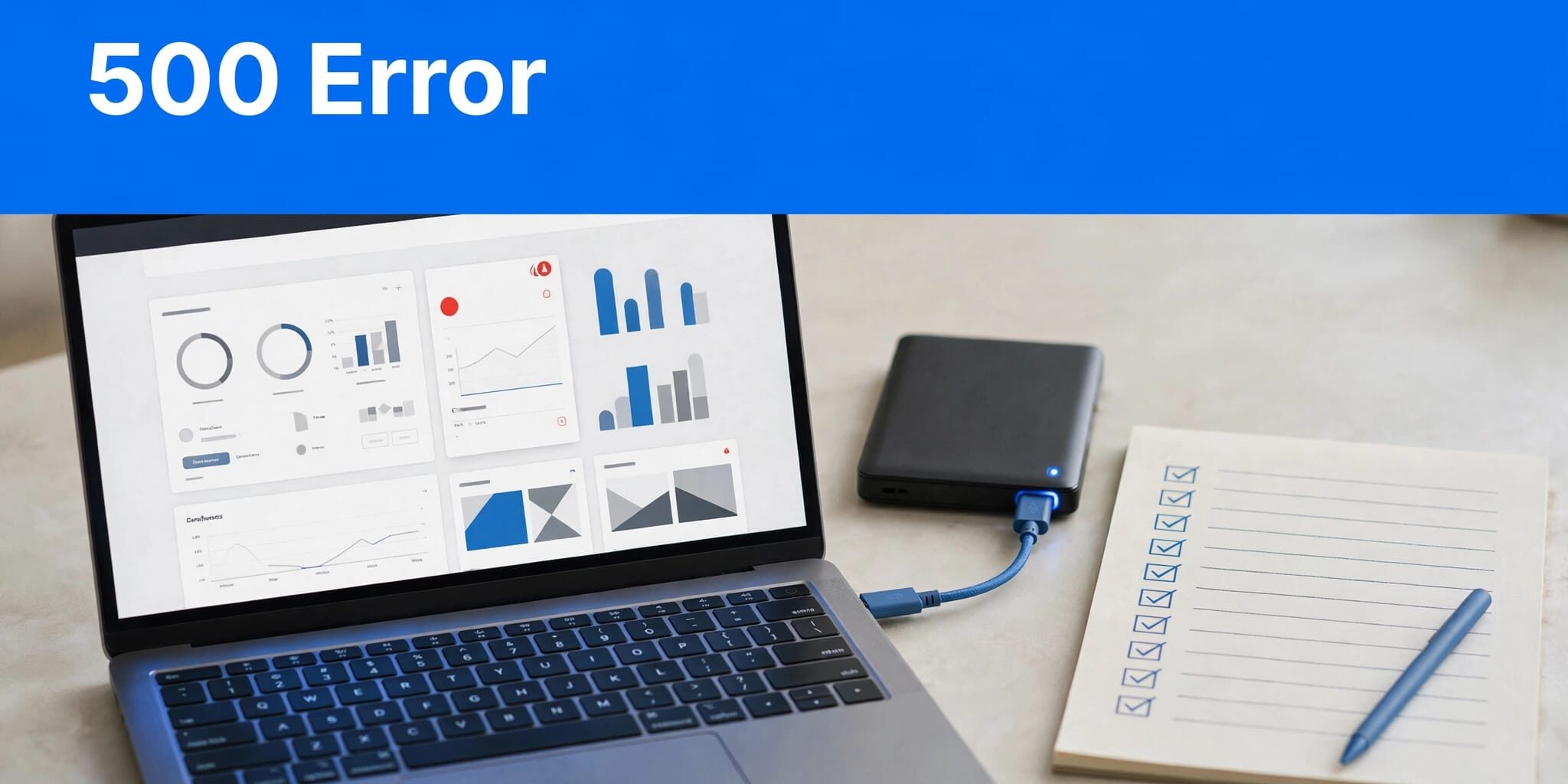
A 500 internal server error means the server couldn’t complete a request, but the message doesn’t identify the cause. Start with logs, a backup, and one reversible change at a time.
If your website handles orders or bookings, a rushed database restore can cause more damage than the outage. Protect current records first, then follow the checks below in order.
Key Takeaways
- Match the error timestamp and failing request to recent log entries before changing settings.
- Back up files and the database, then isolate configuration, plugin, and theme problems reversibly.
- Increase memory only for confirmed exhaustion, and involve hosting support when server-level failures remain.
1. Protect Your Site Before Troubleshooting
Open your homepage, an internal page, and /wp-admin/. Record which requests fail, when they fail, and what changed recently. Plugin updates, theme edits, migrations, and PHP upgrades are useful clues.
Before editing anything, preserve current files and the database. My website backup and recovery guidance covers why both matter. Download separate copies of configuration files you’re about to change.
Next, clear browser cache and site-specific cookies, then hard-refresh with Ctrl+F5 where supported. Cookies may require you to sign in again. Also clear the WordPress cache, along with any accessible hosting and CDN caches.
Browser cache rarely causes a genuine server failure, but cached responses can hide recovery. Use private browsing for repeat tests, and reproduce risky changes on protected staging whenever possible.
2. Find the Cause of the WordPress 500 Error
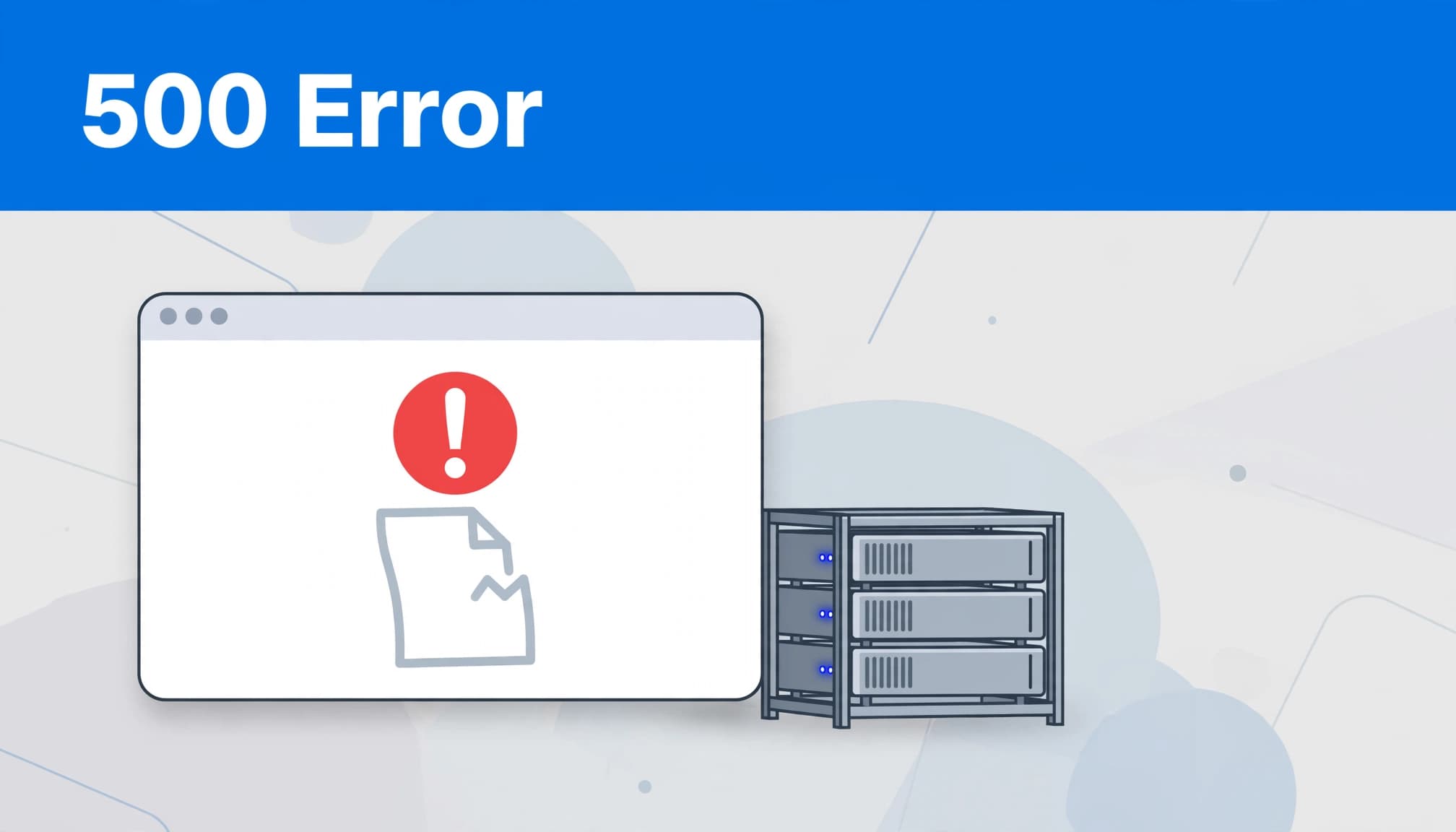
Enable temporary, private logging
Check your hosting provider’s server error logs first. If they don’t identify the cause, temporarily enable WordPress logging, preferably on staging.
In wp-config.php, before the comment containing “That’s all, stop editing!”, add or update these definitions:
define('WP_DEBUG', true);
define('WP_DEBUG_LOG', true);
define('WP_DEBUG_DISPLAY', false);
Replace existing definitions rather than duplicating them. Use straight quotes because curly quotes copied from web pages can cause PHP syntax errors.
WordPress debugging documentation explains these settings. Keep PHP error display disabled too, and avoid leaving diagnostics exposed on production.
Match fresh entries to the failure
Repeat the failing request, then open wp-content/debug.log through SFTP or your hosting file manager. Match the timestamp, file path, and line number.
“Allowed memory size … exhausted” indicates PHP memory pressure. A parse error points to invalid syntax. A plugin path identifies implicated code, although another component may trigger it.
If no log appears, return to hosting logs. Some failures occur before WordPress logging starts.
After diagnosis, set WP_DEBUG and WP_DEBUG_LOG to false. Secure or remove generated logs because they can expose sensitive details.
3. Test .htaccess and Server Rules
On Apache installations, a malformed directive can leave a corrupted .htaccess file and trigger a WordPress 500 error.
Download the existing file from your WordPress root directory. Enable hidden-file visibility if necessary. Rename it to .htaccess.disabled, then test the site in private browsing.
If the error clears, open Settings > Permalinks and select Save Changes without changing the structure. WordPress can regenerate its rewrite rules when the directory is writable.
Preserve the old file separately because it may contain redirects or security rules. Restore necessary custom rules carefully, testing after each addition. If renaming changes nothing, restore the original filename.
Nginx doesn’t read this file, so skip this test on Nginx-only hosting. Ask hosting support to inspect rewrite configuration, the document root, and PHP-FPM errors instead. Avoid restarting services blindly on a live business website.
4. Isolate Plugin and Theme Conflicts
Disable ordinary plugins reversibly
If the dashboard works, record active plugins, then deactivate plugins and repeat the failing request to identify a plugin conflict. Keep security-related downtime brief.
Without dashboard access, use SFTP or File Manager to rename wp-content/plugins to plugins.renamed. This prevents ordinary plugins from loading without deleting their files.
If access returns, visit the Plugins screen while the folder remains renamed. WordPress registers missing plugins as deactivated. Then restore the folder name to plugins and reactivate previously active plugins individually, testing each time.
Alternatively, an experienced administrator can export the database, open phpMyAdmin, and change active_plugins in wp_options to a:0:{}. Use your site’s actual table prefix. Multisite network activation requires separate handling.
Must-use plugins and drop-ins remain outside this ordinary-plugin test. Don’t rename unfamiliar hosting components blindly. Once recovered, use safer plugin update practices to reduce repeat failures.
Switch to an installed default theme
If the plugin test doesn’t find a cause, check for a theme conflict with an installed default theme such as Twenty Twenty-One.
Without dashboard access, an experienced administrator can update the template and stylesheet options in the site’s options table. Both should match the installed default theme’s folder name, such as twentytwentyone.
Export the database and record the original values first. Don’t enter a theme name whose files aren’t installed. Test the failing request, then restore the original values if the theme wasn’t responsible.
5. Fix PHP Memory, Compatibility, and Timeouts
Increase memory only for confirmed exhaustion
Raise the PHP memory limit only when logs confirm exhaustion, since a higher limit won’t fix syntax errors. First, find an “Allowed memory size … exhausted” entry matching your failed request.
The familiar define('WP_MEMORY_LIMIT', '64M'); requests 64 MB. It won’t help a task already exhausting 128 MB.
For a justified workload, replace the existing definition with define('WP_MEMORY_LIMIT', '256M'); before WordPress loads. The WordPress configuration reference explains this setting.
Hosting settings may permit 256M or 512M. With server access, memory_limit = 256M belongs in the active php.ini. A WordPress constant cannot bypass a hosting cap.
Afterward, compare the effective PHP limit in Site Health and repeat the failed action. Repeated exhaustion deserves investigation.
Use a supported, compatible PHP version
If failure followed a PHP upgrade, inspect logs for incompatible plugin or theme code. Test repairs on staging.
Older guidance describes upgrading PHP 5 to PHP 7 for compatibility and speed gains. Both families are obsolete now. Choose a release listed among PHP’s supported versions, then test your installed components.
An undefined function such as each() points to outdated code, not insufficient memory.
Treat slow external requests separately
A slow external service can consume PHP execution time. Where hosting supports a phprc file, max_execution_time = 120 permits up to 120 seconds.
Raise it only when logs justify that runtime. PHP-FPM and gateway timeouts may impose separate limits, so a longer PHP allowance alone may not resolve the failure.
6. Check Permissions and Restore Core Files
Correct permissions without weakening security
Incorrect file permissions or ownership can block PHP execution. Typical WordPress permissions are 755 for directories and 644 for files, subject to the host’s ownership model. Some sensitive configuration files may require stricter permissions.
Inspect recently uploaded or migrated files first. Don’t apply blanket recursive changes without understanding ownership, and never use 777 as a troubleshooting shortcut. If files already have expected permissions, hosting support should investigate ownership and server security restrictions.
Replace damaged core files carefully
An interrupted update or incomplete upload can leave WordPress core files damaged or missing.
Download a clean copy of the same WordPress version from WordPress.org. After backing up, replace wp-admin and wp-includes through FTP, SFTP, or File Manager. Leave wp-content and wp-config.php untouched. Replace only affected files rather than reinstalling WordPress without evidence that a full reinstall is needed.
The official manual WordPress update instructions explain core-file replacement. If logs implicate a root-level core file, replace that file from the matching package too. Avoid mixing versions or overwriting configuration with a sample file.
7. Review Migration Changes and Escalate Early
Compare the old and new environments
A 500 error after migration often involves incomplete uploads, different PHP settings, incompatible .htaccess directives, ownership changes, or an incorrect document root.
Compare PHP versions, enabled extensions, and memory limits between environments. Inspect wp-config.php for damaged syntax and database settings.
If the message explicitly says “Error establishing a database connection,” follow database connection troubleshooting instead. Increasing PHP memory won’t repair incorrect database credentials or an unavailable MySQL service.
Give hosting support useful evidence
Contact your hosting provider immediately when logs show server configuration failures or several sites fail together. Also escalate when reversible application checks don’t identify the cause.
Provide the affected URL, timestamp and time zone, recent changes, log excerpt, and tests already completed. Ask support to inspect PHP-FPM, resource limits, disk capacity, permissions, and upstream failures.
If you’d rather have help with recovery, Contact Us for a free consultation about your website needs.
Frequently Asked Questions
Can a 500 error be fixed without wp-admin?
Yes. SFTP, File Manager, hosting logs, and phpMyAdmin provide recovery routes. Start with logs and reversible file changes. Database edits require an export and careful attention to the site’s actual table prefix.
What if Elementor fails but other pages load?
Record the exact action that fails, such as opening the editor or saving. Match it to fresh logs, then test Elementor add-ons, compatibility, and memory only as evidence directs. A working homepage doesn’t prove editor requests work.
Is a 503 error the same problem?
No. A 503 means the service is unavailable, often temporarily. A 500 indicates an unexpected server-side failure. Resource pressure can contribute to either, but the number alone doesn’t identify the repair.
Restore Service Without Losing Business Data
I recommend letting fresh log evidence guide every repair. Preserve current orders and bookings before any database rollback, then make the smallest change that addresses the identified fault.
After recovery, test uncached business functions, including login, forms, and checkout. A cached homepage isn’t enough. Disable temporary debugging, secure logs, and record the fix before normal operations resume.