

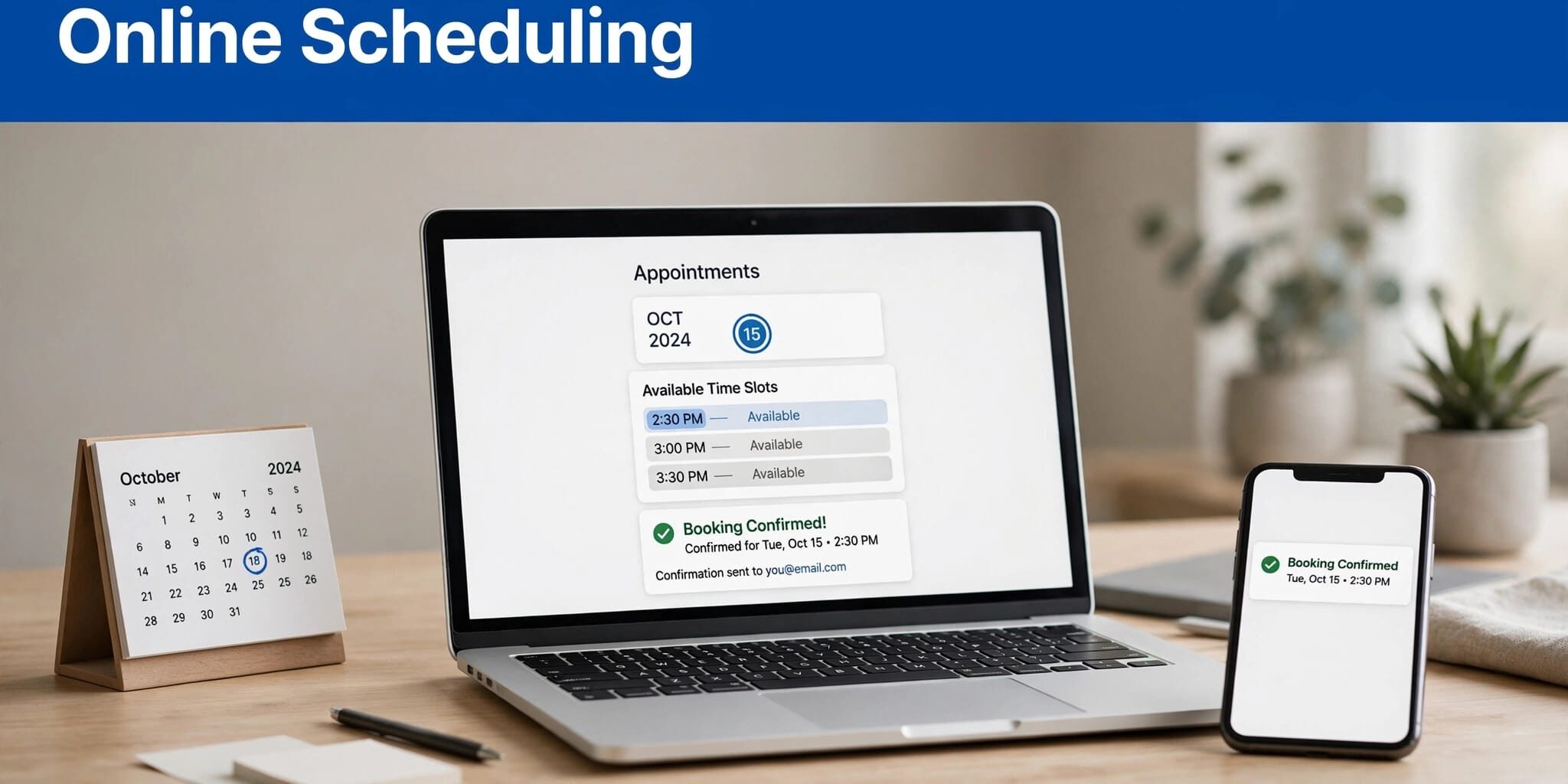
To add online scheduling to your small business website, choose a scheduling tool, connect your calendar, and publish its booking link or embed. You can usually add this feature without rebuilding your site.
I recommend starting with one service and a direct booking path, rather than a complicated menu of appointments. Your customers should see available times, understand what they’re booking, and receive confirmation without calling your office.
First, separate customer appointment booking from other kinds of scheduling.
Key Takeaways
- Connect your working calendars before publishing a booking page so existing commitments block unavailable times.
- Choose software around your services, staff count, payment needs, and reminder requirements.
- Test the complete booking process, including customer confirmation, staff notifications, calendar entries, and cancellation links.
What Online Scheduling Does for Your Business
Online scheduling software supports appointment scheduling by displaying real-time availability and letting customers reserve appointments without email or phone back-and-forth.

A timetable maker, such as Canva, creates a visual schedule. A staff-planning spreadsheet organizes shifts. Neither automatically reserves customer appointments or blocks a newly booked time.
For customer bookings, I prioritize two-way calendar sync, automatic confirmations, and clear cancellation rules. The software should read busy periods and write new appointments to your calendar.
Choose support for your existing calendar, whether that’s Google Calendar, Outlook, Microsoft 365, or iCloud. When comparing tools such as Cal.com, check their integrations and plans. Connecting only your booking calendar can leave personal commitments invisible and create a double booking.
Scheduling Tools for Consultants and Small Teams
These tools support meeting scheduling for consultations, virtual meetings, and shared availability. I would choose based on the booking pattern rather than brand recognition alone.
Calendly: Straightforward Consultation Booking
Calendly’s free plan allows one event type, which suits a single consultation offering. Paid plans add multiple event types, group events, and reminder workflows.
Its strength is a clear booking experience with calendar connections and time zone handling. The free-plan limitation matters when you need separate discovery calls, paid sessions, and follow-ups.
Cal.com: Flexible Solo Scheduling
Cal.com’s free plan includes unlimited event types, multiple calendar connections, workflows, and payment processing.
Cal.com is a good fit when one business owner offers several appointment formats. Its flexibility can also mean more configuration decisions. The Cal.com pricing comparison outlines how its individual and team offerings differ.
Doodle: Finding a Time for a Group
Doodle lets participants vote on proposed meeting times without creating accounts. I would use it for committee meetings or occasional group coordination.
Its free plan displays ads and includes group-poll, booking-page, and one-to-one scheduling options. A poll requires participants to respond, so it’s less direct than booking an appointment through a booking page.
YouCanBook.me: Customizable Booking Communications
YouCanBook.me supports Google, Apple, and Microsoft calendars. Professional and team features include customizable email and SMS reminders, workflows, and round-robin scheduling.
Its free plan connects one calendar. Professional costs $13 monthly, while Teams costs $18 per member monthly. More calendar connections and customization can justify upgrading, but increase the recurring bill.
Scheduling Tools for Appointment-Based Businesses
For salons, instructors, and other service businesses, staff calendars and payment collection often matter more than meeting links.
Setmore: A Small Staff Booking Page
Setmore’s free plan supports up to four staff logins and unlimited bookings. SMS reminders aren’t included in free.
Setmore supports payment options including Square, Stripe, and PayPal. Setmore’s Pro and Team plans are listed at $5 per user monthly with annual billing. The Setmore and Calendly comparison helps distinguish staff-and-service booking from meeting-focused scheduling.
Acuity Scheduling: Intake Forms and Paid Services
Acuity combines appointment booking with intake forms and payments through Stripe, Square, and PayPal.
Starter supports one calendar; Standard supports up to six and adds text reminders where available. There’s a seven-day trial without a credit card, but no permanent free plan. I’d shortlist it for businesses collecting detailed information before paid appointments.
Zoho Bookings: Connected Business Workflows
Zoho Bookings combines appointment scheduling, calendar synchronization, and payment collection.
Its free plan covers one user. The main appeal is connecting appointments with an existing Zoho business workflow. However, a business that only needs a simple booking button may prefer a smaller setup.
Appointy: A Limited Free Starting Point
Appointy’s free plan includes one staff member, five services, and 100 appointments per month.
It offers reminders, Google Calendar synchronization, and payment integrations. That free allowance can suit a low-volume solo business. However, the appointment cap creates a clear upgrade point as bookings increase, and additional staff require a different plan.
Budget for Staff Seats and Payment Fees
Pricing snapshot: October 2026. The amounts below are in US dollars.
I separate software subscriptions from implementation, payment processing, and messaging costs. A low advertised rate doesn’t describe the entire booking system.
Setmore provides a straightforward one-person versus five-person comparison:
| Setup | Software cost | Billing commitment |
|---|---|---|
| One person using Free | $0 | No subscription payment |
| One paid user | $5 monthly equivalent | $60 annually |
| Five paid users | $25 monthly equivalent | $300 annually |
The fifth staff member exceeds Setmore’s four-user free allowance. Therefore, staff count can change your budget even when appointment volume stays steady.
Payment processors charge separately from scheduling subscriptions. SMS allowances, CRM connections, and website implementation can also add costs.
The free scheduling app comparison highlights common upgrade limits to compare across tools, including Cal.com. I’d budget around the feature you need immediately, such as SMS reminders or another staff calendar, rather than hypothetical future requirements.
How to Add Online Scheduling With Calendly
Calendly is a useful starting point for appointment scheduling with one consultation type. The same general setup applies to most booking platforms.
Connect Calendars and Define the Appointment
First, connect Google Calendar or Outlook through Calendly’s calendar settings. Select which connected calendars should block busy times and where new appointments should appear.
Next, create an event type with a recognizable service name, duration, and location. Specify whether customers will meet online, visit your office, or receive a phone call.
I recommend setting weekly availability, date-specific exceptions, minimum booking notice, and buffers before publishing. A 15-minute buffer is a practical starting point when you need preparation or cleanup between appointments.
Add only necessary intake questions. A name, email address, and reason for the appointment may be enough for an initial consultation.
Add a Link or Embed to Your Website
A booking button is the simplest installation: link it directly to the published booking page using HTTPS.
For an on-site experience, Calendly offers an inline embed, pop-up widget, or pop-up text link. In WordPress, provider embed code typically goes into a Custom HTML block. Other website builders offer equivalent embed elements.
Place booking buttons beside the relevant service description and within clear website navigation. Keep a direct booking link available if the embedded calendar fails to load.
Configure Reminders, Deposits, and Team Assignment
Publishing available times is only the beginning. Your booking rules should match how your business delivers the service.
Use Reminders and Clear Payment Terms
Where your plan supports it, schedule an email reminder 24 hours before the appointment. Add an SMS reminder closer to the start time when customers have agreed to receive texts.
Appointy claims reminders reduce no-shows and cancellations by up to 55%. Chili Piper reports roughly a 92% inbound-meeting show rate with configured reminders. These are vendor-reported results, not promises for your business.
Collecting a deposit through Stripe, PayPal, or Square can reduce last-minute cancellations. However, explain the cancellation deadline, refund terms, and remaining balance before customers pay.
A deposit policy belongs before checkout, where customers can read it before committing to the appointment.
Match Assignment Rules to Your Team
Round-robin scheduling distributes appointments across available team members, with assignment rules or priorities where supported.
That works for interchangeable consultations. For services requiring a particular specialist, offer staff selection or route bookings by service instead.
Calendly supports sales scheduling and paid routing capabilities. YouCanBook.me emphasizes booking pages and scheduling workflows. Chili Piper provides more extensive sales operations, including lead qualification, Salesforce-object routing, and SDR-to-AE handoffs.
I wouldn’t treat those products as equivalent simply because each can book a meeting.
Test the Booking Path Before Sending Customers
Your booking page should display the business name, service, price, duration, location, and available times. Use consistent service names across your website and scheduler.
I recommend testing on both iOS and Android, plus a desktop browser. Calendar controls should remain visible, fields should be easy to tap, and the page should work without unnecessary account barriers.
Make a complete test booking. Then inspect the confirmation screen, customer email or text, staff alert, calendar entry, and CRM record if connected.
Also cancel or reschedule the appointment. The original time should become available again, and the relevant people should receive updates.
For virtual appointments, time zone detection should display the booker’s local time. The confirmation must also make the meeting location or joining link clear.
Finally, connect the direct scheduling URL to eligible Google Business Profile booking links. Eligibility depends on profile verification, category, and region.
Track completed appointments and cancellations rather than button clicks alone. Repeat your booking test after staff changes, website updates, or switching scheduling providers.
Frequently Asked Questions
Can Online Booking Work Without a Website Redesign?
Yes. A direct booking button usually requires only a link change. An embedded calendar needs a suitable website block or embed area, but doesn’t normally require rebuilding the entire site.
Does Calendar Sync Stop Every Double Booking?
Calendar sync blocks commitments the scheduling tool can see. It won’t catch appointments stored in an unconnected calendar or commitments nobody entered. Connect the relevant calendars and maintain accurate busy-time settings.
Is Doodle a Good When2Meet Alternative?
Yes, for group availability polling. However, I would choose Calendly, Cal.com, or a service-booking platform when customers need to reserve an appointment immediately.
Make the Next Appointment Easy to Book
I recommend starting with one service, accurate calendar connections, and a tested booking path. Add payments, staff routing, and extra reminders when your business needs them.
Acts 2:46-47 in the Amplified Bible (AMP) describes people sharing meals with gladness and sincere hearts. Consider how you can serve customers thoughtfully and make each appointment easy to book.
Customers should know what they’re booking and receive clear confirmation. If your website needs help supporting that experience, Contact Us for a free consultation about your website and SEO needs.