

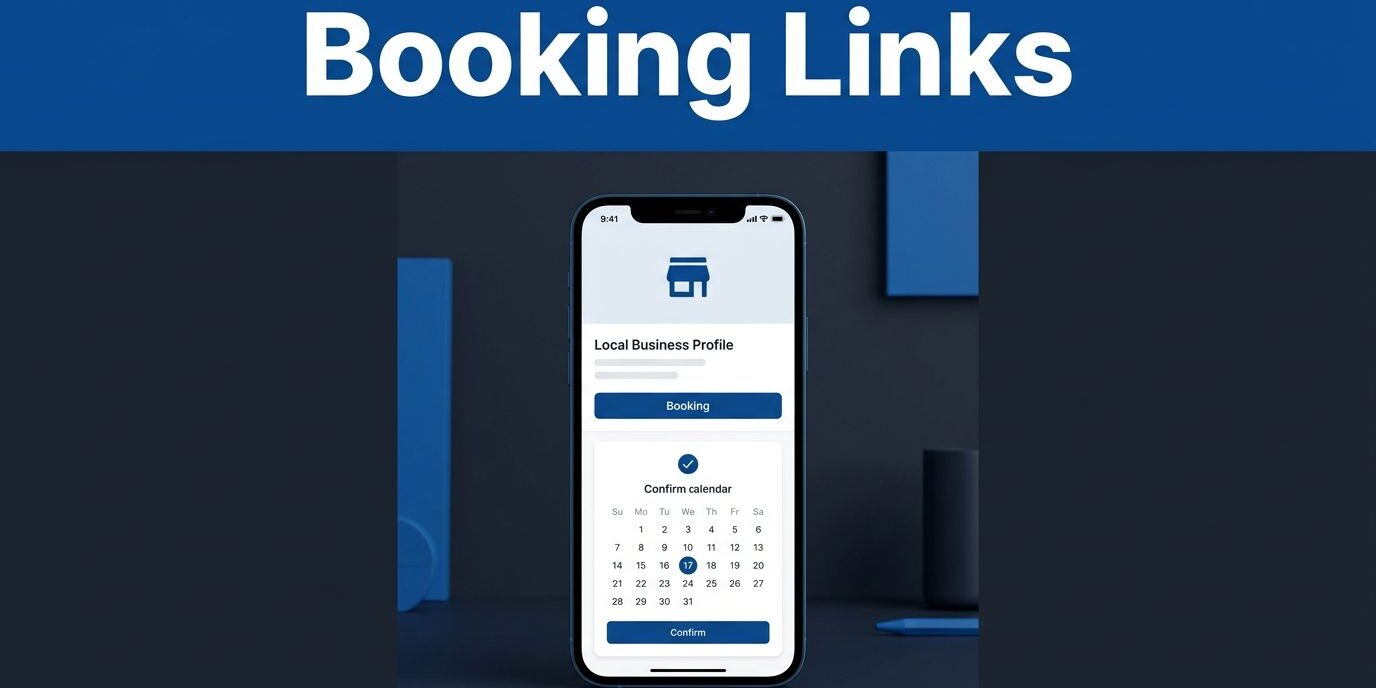
A customer might find your company on a Google Business Profile, trust your reviews, and still leave before scheduling a visit if the next step is hard to find. For appointment-based businesses, I use Google Business booking links to place an appointment path directly on a profile, where customers are already searching for local services.
The setup usually takes a few minutes, but the destination page matters as much as the button. I recommend using a direct booking page, checking the link on a phone, and testing the full appointment process before sending customers there.
Key Takeaways
- You can manage your booking links directly through Google Search, Google Maps, or the Business Profile manager.
- The URL must use HTTPS and lead visitors directly to a functional booking page on your Google Business Profile.
- Google may offer a direct provider connection or an option for you to add your own custom booking URL.
- The ability to display these links depends on your business category, region, and whether you have a verified profile.
- Always test the button after saving and monitor your analytics to see how many customers complete their appointments.
Check Your Google Business Profile First
Before I add an appointment link, I confirm that the Google Business Profile is fully updated and represents a verified profile. The business name, phone number, address, service area, hours, and website must match the details customers see in local search results and across other platforms.
Google may not show booking tools for every business category or location. If the booking button is missing, I first confirm that the business has a verified profile and check whether Google currently supports an appointment link for that specific industry.
The scheduling page also needs to meet a few basic technical requirements:
- It should use an HTTPS address for security.
- It should open directly to your online scheduling software.
- Customers should be able to choose a specific service or appointment type.
- Available dates and times should appear clearly.
- The system must prioritize mobile optimization to work on common handheld browsers.
- The booking process should show a clear confirmation after submission.
A standard homepage is rarely the best destination. If someone clicks the link and must search through several menus, many visitors will leave immediately. I always prefer a direct URL that leads the user straight to the scheduling calendar or form.
For a service business, I also check whether the booking page reflects current availability. An outdated calendar can create more frustration than having no booking button at all. If your website needs a technical review, responsive website and SEO support can help keep your scheduling path usable after future updates to your Google Business Profile.
Add a Booking Link Through Google Search or Maps
Google regularly updates its interface, so I look for similar settings under different labels to manage my Google Business Profile. As of July 2026, I can typically manage my settings by searching for the business name on Google Search or by opening the profile directly in Google Maps.
I follow these steps to add an appointment link:
- Sign in to the Google account that manages your Google Business Profile.
- Search for your business name on Google Search, or open the listing in Google Maps.
- Select Edit profile.
- Open the Bookings tab, or check the Contact or Website sections depending on the current interface.
- Find the setting labeled appointment link or online booking.
- Choose Add link or Add another link to input your URL.
- Paste the full HTTPS address for your booking page.
- Select Save.
Google’s booking setup instructions also describe the provider connection process if you prefer to use a third-party service.
On a desktop computer, the configuration may appear under Edit profile, followed by the Info section and the appointment link field. In Google Maps, I open Your Business Profile, select Edit profile, and navigate through the business information and contact settings.
The wording may vary because Google tests and updates the management experience frequently. If I do not see a dedicated Bookings tab in the main menu, I check the Contact or Website sections before assuming the feature is unavailable.
After saving, I search for the business on Google and Maps to verify the changes. I look for a visible Book Online button or a similar call to action. Keep in mind that the link may not appear publicly right away. Standard links can take 24 to 48 hours to show, while some provider connections may require a longer review process.
Choose a Provider or Add Your Own Booking URL
Google offers two primary ways to connect appointments to your Google Business Profile. The first is through Reserve with Google, which uses supported scheduling providers. The second approach allows you to paste a direct scheduling link from your own booking system.
With a Reserve with Google connection, you simply select your scheduling company from the list provided and follow the authorization steps. Because this integration is part of the Reserve with Google ecosystem, your services, availability, and appointment information may sync automatically. This option often reduces manual maintenance because the scheduling platform manages the calendar in real time.
A custom link is ideal when your business uses a proprietary online booking system or a provider that is not currently part of the Reserve with Google partner network. In this case, select the option for booking tools, choose Add a link, and paste your direct scheduling link into the field.
Google’s booking link editing guide covers the best practices for adding, changing, or removing these connections.
Before saving your changes, verify the URL to ensure it functions correctly. The address should lead directly to a scheduling page where a customer can book an appointment, rather than a sign-in screen that might block new visitors. If your system requires an account, confirm that a new customer can create one easily without confusion.
Appointment-based businesses may occasionally need more than one booking destination. For example, a salon might offer separate pages for hair services and consultations, while a contractor may use one page for estimates and another for paid appointments. While your Google Business Profile can accommodate multiple links, keep the choices clear and limited. Providing too many options can overwhelm customers and cause them to hesitate instead of booking.
Finally, ensure you label services consistently across both Google and your scheduling platform. If your profile lists “Initial consultation” but the calendar lists “New client meeting,” customers may feel uncertain about whether they have selected the correct service. Utilizing Reserve with Google can help keep these details synchronized, but manual verification remains a best practice.
Make the Booking Page Easy to Use
Adding the appointment link is only the first part of the process. I judge the entire experience as a customer would, starting with the Google Business Profile and ending with the confirmation message. To drive better results, you must provide a frictionless booking experience that converts casual visitors into scheduled clients.
The booking page should display the business name, service details, pricing, expected appointment duration, and real-time availability. Customers should not have to call your business for basic information that could easily appear beside the calendar. Providing this transparency is a proven way to boost your conversion rates.
Mobile testing is essential because many local searches occur on smartphones. I open the Google Business Profile on both iOS and Android devices to ensure the booking page loads quickly, fields are easy to tap, and the calendar remains visible during the input process.
I also test the form with realistic details. A successful booking should trigger:
- A confirmation message on the screen.
- A confirmation email or text, if the system offers one.
- Automated reminders to help reduce no-shows.
- A calendar entry and a record in your CRM or scheduling software.
If the appointment reaches the calendar but no staff member receives a notification, the setup needs adjustment. I test the notification inbox, staff alerts, and any connected CRM separately.
Your appointment link also needs regular maintenance. When staff schedules change, services are renamed, or a booking provider updates its page address, I update the profile and test the button again. A broken link can remain unnoticed for weeks, costing you valuable leads.
Finally, keep your website and profile information consistent. Edits to your Google Business Profile can sometimes remain pending or revert when other directories contain conflicting details. Consistent business information across your website, online directories, and your booking platform creates trust and reduces user frustration.
Troubleshoot Missing or Broken Booking Links
When the booking button does not appear, I follow a systematic approach to resolve the issue.
First, I confirm that I saved the correct URL and that it begins with HTTPS. Next, I open the link in a private browser window. This confirms that a customer can successfully navigate the page without being signed in to the business account.
If the Bookings tab is absent, I check the Google Business Profile verification status and the selected business category. I also look under the Info section, specifically checking the Website and appointment link fields, as Google sometimes categorizes these settings in different areas.
A provider connection for Reserve with Google can take longer to appear than a manually added URL. I wait for the stated review period before making repeated changes, as multiple edits in a short time can make it harder for the system to process the connection. If you are using Reserve with Google, ensure your third party provider has fully synced with your account.
When I need to replace an existing link, I open the Google Business Profile editor and select the pen icon beside the current appointment link. I remove the outdated address, add the new booking page URL, and save the change.
If Google rejects the link, I check whether the page redirects to an unrelated homepage, requires unusual permissions, or fails to load on mobile. I also verify that the landing page actually accepts appointments. A page that only displays service information does not meet the requirements for a functional appointment link.
After Google approves the update, I verify the changes by checking the local search results rather than relying only on the editor. The public view is the best way to see exactly what your customers experience when they visit your profile.
Track Appointments After You Add the Link
I record the date I add or change the booking URL, then test it again after the public button appears on my Google Business Profile. When possible, I use a dedicated source label in the scheduling system so staff can identify appointments that originated from Google. This data is vital for local SEO, as it helps service-area businesses understand which digital channels drive the most qualified leads.
The profile itself may show basic interaction data, but the booking provider usually gives more granular insights into completed appointments, cancellations, and abandoned bookings. By monitoring these metrics, you can refine your scheduling process, implement automated reminders to reduce no-shows, and ultimately improve your overall conversion rates. I compare those results with website traffic and phone inquiries instead of judging the link by clicks alone to get a complete view of how your Google Business Profile performs.
A monthly check is enough for many small businesses. I test the button, select a real service, review available times, and confirm that the notification reaches the right person. I repeat the check after a website redesign, hosting change, plugin update, or scheduling system migration to ensure everything is functioning correctly.
If your online booking process needs a broader review, Contact Us for a consultation about website and SEO needs.
Frequently Asked Questions
Why is the booking button not appearing on my Google Business Profile?
If the button is missing, first verify that your business profile is fully updated and active. It is also possible that your specific business category or geographic region does not currently support Google’s booking features, or your scheduling link may not meet technical requirements like HTTPS security.
Can I add more than one booking link to my profile?
Yes, Google allows you to manage multiple links if your business offers distinct services that require separate scheduling pages. However, it is best to keep the number of options limited so customers do not feel overwhelmed when trying to make an appointment.
How long does it take for my booking link to show up publicly?
Standard manual links often appear within 24 to 48 hours after you save them in your profile settings. If you are using a provider through Reserve with Google, the process may involve a longer review period before the button becomes visible to customers.
Should I link to my business homepage instead of a booking page?
It is generally better to use a direct URL that leads users straight to your scheduling calendar or booking form. If a customer has to click through multiple menus on your homepage to find the booking tool, many will abandon the process entirely.
Conclusion
A Google Business Profile booking link works best when it leads directly to a current, mobile-friendly scheduling page. By verifying your listing, adding the correct HTTPS URL, and utilizing integrations like Reserve with Google, you ensure a seamless transition for your customers. I recommend testing the public button periodically to verify the complete appointment flow.
The button may take time to appear, and Google’s menu labels may vary. Still, the customer experience remains smooth when the link opens the right service, displays real-time availability, and confirms the booking without unnecessary steps. Taking the time to properly configure your appointment link is one of the most effective ways to convert searchers into paying clients.