

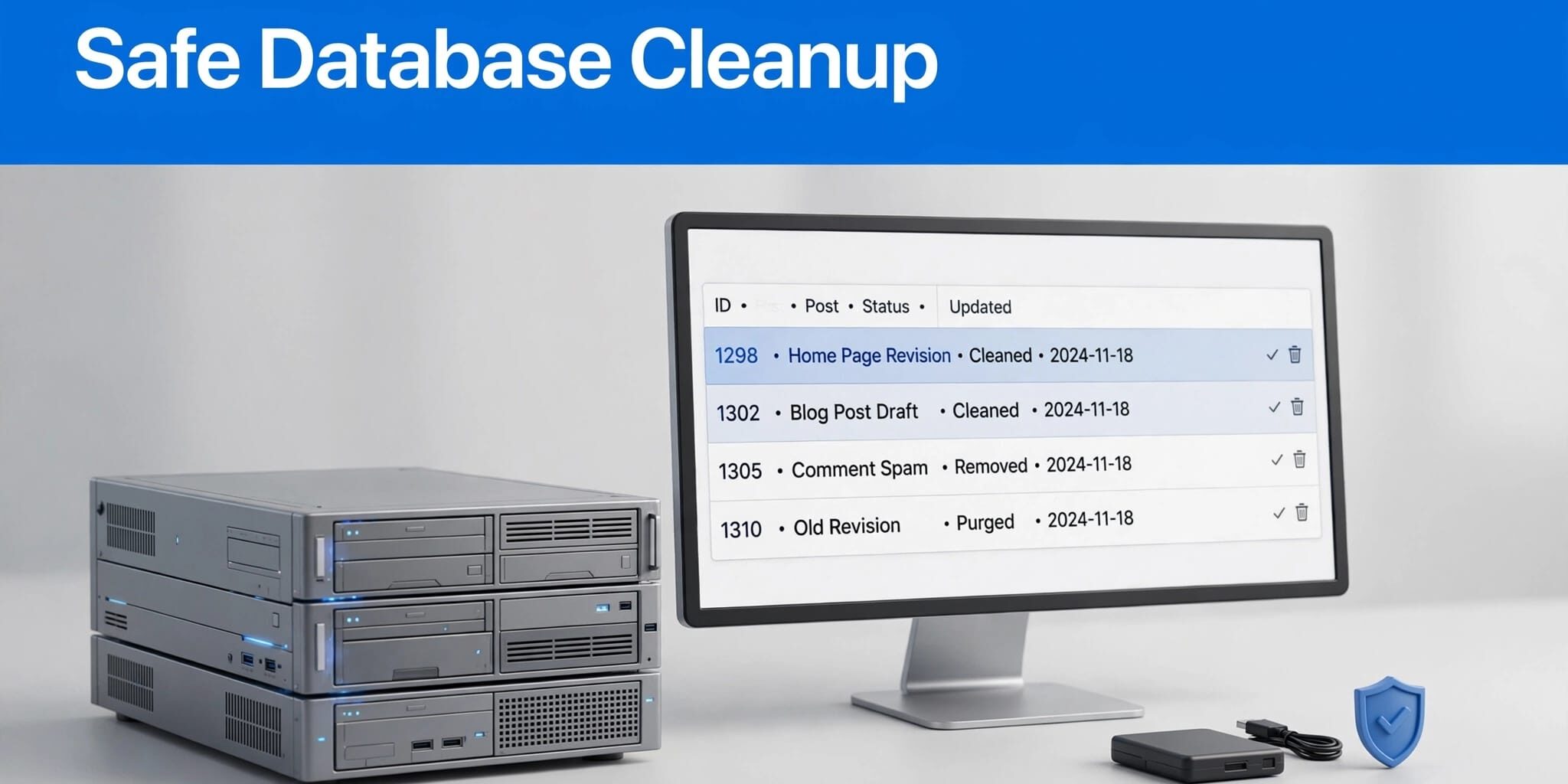
Deleting the wrong database records can cost you customer inquiries, orders, or hours of editing work. I approach this work with one priority: protect business data.
Old revisions, expired temporary records, and abandoned plugin data deserve attention. Removing unnecessary records may reduce database bloat and free space, but it doesn’t guarantee a faster website. Start with a recovery plan, then work through clearly defined cleanup targets.
Key Takeaways
- Create a fresh database export and matching file backup before making changes.
- Remove only records you understand, and preserve revision history your team still needs.
- Treat unfamiliar plugin tables and suspicious records as investigation tasks, not automatic deletion targets.
- Test forms, logins, bookings, and checkout after cleanup, then document the results.
Back Up Before Changing Database Records
Create a Fresh, Complete Recovery Point
I first confirm the database name in wp-config.php. Your hosting account may contain several databases, so guessing is risky.
In phpMyAdmin, select the correct database and create an export before editing anything. Include every relevant WordPress and plugin-created database table. Label the export with the site name and date, then store this recoverable database backup securely outside the hosting account.
With WP-CLI, wp db export before-cleanup.sql creates a database export. Keep that file outside publicly accessible folders.
Also back up website files, uploads, and configuration. A database export won’t restore themes, plugins, or images.
Verify Recovery Before Testing Cleanup
I check the backup timestamp, file size, and restore permissions. Then, when possible, I test restoration on a private staging site.
Staging should use a separate database and restrict access because copied customer information remains sensitive. A staging copy doesn’t replace an independent backup.
For a live store or booking site, choose a low-traffic maintenance window. New orders and inquiries can arrive after the backup, so agree on how to preserve them during recovery.
If nobody owns this process, daily website backups and maintenance can give it a clear owner.
Remove Post Revisions Without Losing Useful History
Revisions preserve earlier versions of posts and pages. I consider them useful editorial records until the business decides otherwise.
Review Existing Revisions Before Deleting
First, ask whether staff still need earlier wording, pricing, or page layouts. Then choose a retention policy that fits your editing workflow.
Before running a cleanup plugin such as WP-Sweep, inspect its revision settings and deletion scope. Check whether it deletes every revision or lets you retain selected versions.
Deleting revisions removes rollback history, even when the current page remains intact. Back up the database, test the cleanup on staging, and review important pages afterward.
For direct SQL work, have a developer handle related records. A broad deletion query can bypass WordPress cleanup routines.
Limit Future Revisions in Configuration
WordPress defaults to keeping revisions enabled. An integer value for WP_POST_REVISIONS sets a per-post or per-page limit.
For example, define( 'WP_POST_REVISIONS', 3 ); sets the limit to three revisions. Choose that number only if three versions meet your team’s needs.
Place the setting in wp-config.php before WordPress loads, and check for an existing definition first. Back up the file before editing it.
This setting controls revision retention going forward. It doesn’t immediately purge older records already stored.
Revision history can contain approved wording that no longer appears on the live page. Confirm retention needs before deleting it.
Clear Expired Data and Review Disposable Content
I separate temporary cache records from content because each needs a different review.
Delete Expired Transients, Not Every Temporary Record
Transients hold temporary data with expiration rules. The WP-CLI command wp transient delete --expired targets expired transients.
I prefer this narrower command for routine maintenance. Removing active cached values can force plugins to rebuild or request data again.
Also check whether the site uses a persistent object cache, such as Redis. Temporary data may live outside the database, so a database inspection alone won’t show every cache layer.
Expired transients belong in a broader WordPress database maintenance routine, alongside draft and comment reviews.
Inspect Drafts, Comments, and Scheduled Tasks
Review auto-drafts, spam comments, and trashed content before permanent removal. Your team may still need an unfinished page or a comment incorrectly flagged as spam. Sample-check spam comments for legitimate replies before bulk deletion.
WP-Sweep can help review selected disposable categories, but check each selection before removal.
Pingbacks and trackbacks also deserve a business decision rather than automatic deletion. Keep them if they support your publishing workflow.
Next, inspect scheduled tasks tied to retired software. Confirm that a task belongs to an unused plugin before removing it.
WooCommerce records, form submissions, payment tasks, and booking data need extra caution. Age alone doesn’t prove a record is disposable.
Choose a Cleanup Method You Can Control
For most business owners, I favor an understandable interface over direct database editing. However, familiarity doesn’t remove the need for backups.
These methods fit different levels of technical responsibility.
| Method | Suitable situation | Main caution |
|---|---|---|
| Cleanup plugin | Reviewing defined cleanup categories in WordPress | Check exactly what each action deletes |
| WP-CLI | A developer running repeatable, scoped tasks | Verify the installation and database first |
| phpMyAdmin | Inspecting records or performing a controlled export | Direct changes can bypass WordPress safeguards |
The safest choice is the method your administrator can explain and reverse.
Names you’ll encounter include WP-Optimize, Advanced Database Cleaner, WP-Sweep, and Transients Manager. Before choosing, review each tool’s current documentation, including WP-Optimize, and check compatibility, deletion scope, and recovery options. WP-Sweep and other plugins can differ in the cleanup categories and controls they offer.
For a comparison of available approaches, InstaWP discusses manual cleanup with phpMyAdmin or WP-CLI. Avoid running several cleanup tools against the same categories.
Start with one category on staging. Record the settings and result before repeating the approved action on production.
Investigate Orphaned Metadata and Unfamiliar Tables
Orphaned data has lost its parent record. For example, post metadata may remain after its associated post disappears.
However, an unfamiliar table isn’t automatically orphaned. Plugins may intentionally retain settings, transaction history, or shared records after deactivation.
I compare database table names with installed, inactive, custom, and must-use plugins, including uninstalled plugins. Then I check developer documentation and examine sample records before approving removal. Table prefixes can differ from wp_, so never copy instructions without checking your installation.
Review autoloaded data because it can affect request processing. An unfamiliar option name alone doesn’t make autoloaded data safe to delete. Check its ownership and purpose first.
If you find injected scripts, unknown administrators, or suspicious redirects, stop routine cleanup. Preserve a separate evidence export and investigate a possible compromise.
phpMyAdmin doesn’t detect malware itself. Avoid broad SQL or search-and-replace operations because they can damage serialized settings, page-builder data, and store records. Complex custom fields or uncertain relationships warrant specialist help.
Separate Table Optimization From Data Cleanup
Deleting records and optimizing database tables are different operations. The first changes stored content; the second asks the database engine to perform table maintenance.
The WP-CLI command wp db optimize runs mysqlcheck with optimization enabled. I treat it as database maintenance and verify the selected database, backup, and maintenance window first.
Don’t assume database optimization will improve site performance or reduce database size. MyISAM and InnoDB handle table optimization differently, and changes to storage space depend on the engine and configuration.
Likewise, optimization and defragmentation aren’t interchangeable promises. Ask your host what the proposed operation does and whether it needs additional disk space or may interrupt writes.
Hostinger’s WordPress database optimization guide covers multiple maintenance approaches. For persistent query performance issues, investigate slow database queries, hosting limits, plugins, and caching separately.
Test Functionality and Track Database Growth

Verify the Paths That Generate Revenue
After cleanup, clear relevant WordPress and host caches, plus CDN caches when applicable. Then test in a private browser window and on a phone.
I check representative pages, navigation, administrator login, search, and contact forms. For stores or booking businesses, test checkout or reservations and confirm the expected emails arrive.
Also exercise uncached pages. A cached homepage can conceal a broken dynamic feature.
If something fails, stop further cleanup and preserve the current database. Restore the affected data or the verified recovery point with your administrator’s help.
Record Results and Plan Recovery
Before and after maintenance, record database size, largest tables, cleanup settings, database optimization work, and functional test results. Keep monthly snapshots so you can identify which tables repeatedly grow.
Track database queries and response times separately. Database size alone doesn’t establish website performance.
If a full restore becomes necessary, confirm the database name before importing anything. Replacing tables is destructive, and a restore can overwrite orders received after the backup.
Use compatible database and file recovery points. Large SQL imports may need server-side assistance from your host.
When reviewing managed WordPress hosting options, ask who handles restores and preserves recent business transactions.
Frequently Asked Questions
How Does Cleanup Work on WordPress Multisite?
I separate site-specific records from network records. Run expired-transient cleanup for each site’s context, and use wp transient delete --expired --network for network transients.
Shared users and network settings require additional care. A single site’s export isn’t a complete network backup, and database-wide optimization can affect more than one site.
How Often Should Database Cleanup Run?
I base the schedule on observed growth, publishing activity, and trends in database queries rather than a universal interval. Review low-change service sites monthly; inspect busy stores or publishing sites more often.
Use automatic cleanups only for categories you’ve tested and understand. Keep a current recovery point before each run, and periodically review whether the rules still fit the business.
Keep Cleanup Controlled and Recoverable
I judge WordPress database cleanup by whether useful records remain intact and the site still works. A tested recovery plan matters more than how many records disappear.
Start with a verified backup, remove understood targets, and document each change. For help planning safe maintenance for your Fort Myers, Lehigh Acres, or other business website, Contact Us for a free website and SEO consultation.
As a brief reflection, read a passage from Acts in the Amplified Bible and pray about responsible stewardship.