

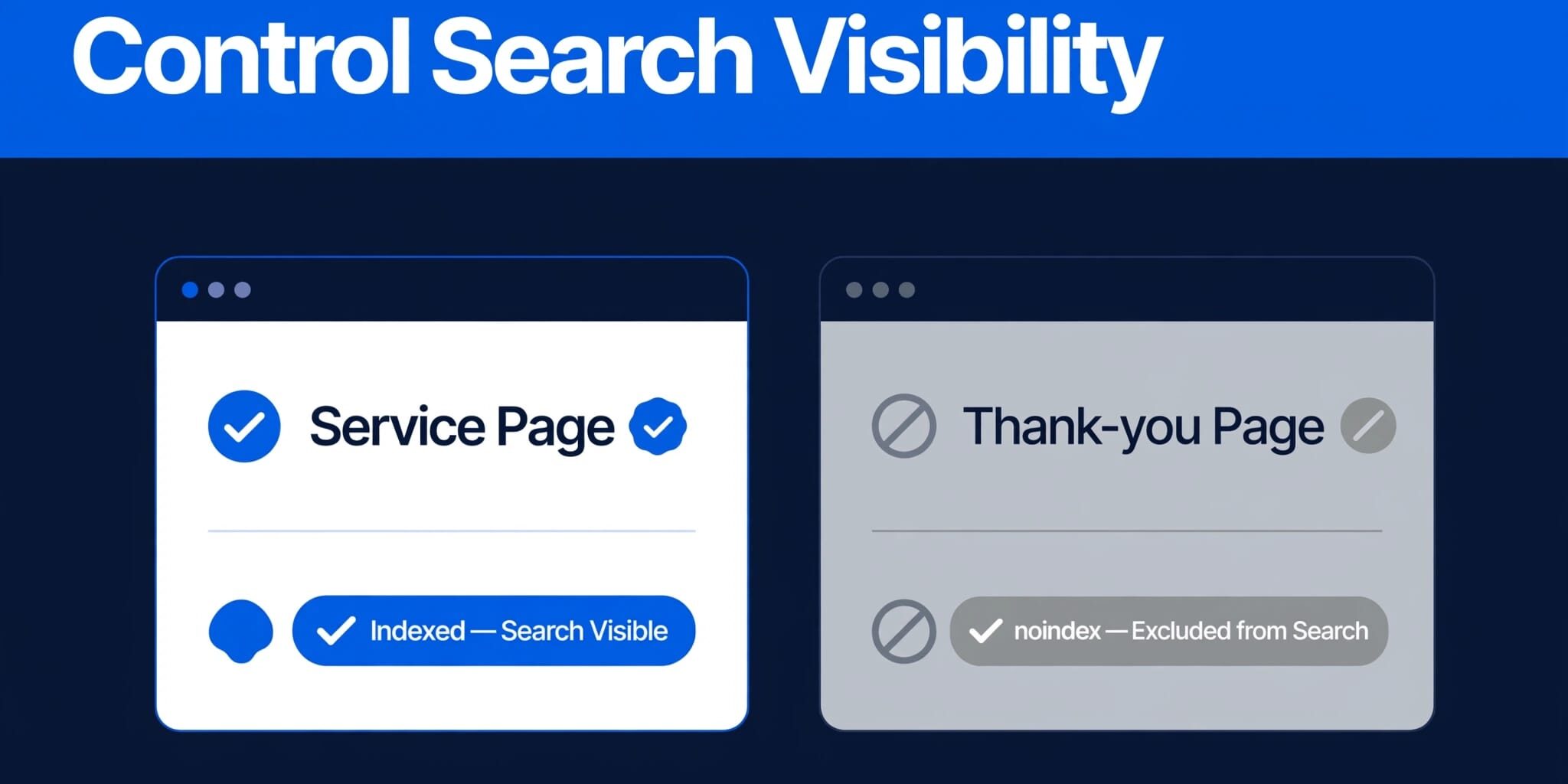
A single misplaced setting can keep your best service page out of search engine results. At the same time, a thank-you page or an empty search-results page may have no reason to appear there. Noindex tags help you make that distinction without taking a page offline.
I treat index control as a business decision first: which pages should help customers find you and attract organic traffic? That answer is part of sound technical SEO, and it makes the technical steps easier to get right.
What noindex tags actually do
A noindex directive keeps a URL out of the search engine index. Visitors can still open the page through a direct link, and search engine crawlers, including Googlebot and other search bots, must be able to fetch it and read the directive. If Google has already indexed the URL, it must revisit the page and read the directive before the listing can disappear.
Search visibility is not access control
I use noindex for public pages that don’t belong in search, never for confidential information. Someone with the URL can still visit a noindexed page. A customer portal, private file, or employee area needs authentication or server-side access restrictions.
Google’s guide to blocking search indexing also makes an essential condition clear: Google must be able to crawl a page to see its noindex instruction.
Noindex and nofollow do different jobs
Noindex concerns whether a page appears in results. Nofollow concerns whether a crawler follows links on that page. Nofollow links don’t determine whether the page itself appears in results. Most small businesses don’t need to add nofollow when excluding a page.
I also wouldn’t rely on a permanently noindexed page as the main route to important service pages. Link to those services directly through your navigation and relevant content instead.
Choose pages worth keeping out of search
Before changing a setting, I sort URLs by purpose. Your homepage, useful service pages, genuine location pages, and helpful articles usually deserve a chance to appear in search. A high count of excluded URLs matters less than one missing page that should bring in leads.
Good candidates for noindex
A post-purchase or form thank-you page can remain available to customers without appearing in results. Internal search results pages are different from useful public landing pages and may be excluded. The same may apply to empty filter pages or thin archives generated automatically by WordPress.
Thin or duplicative URLs can contribute to index bloat, but assess their value to customers before excluding them. A category archive with helpful descriptions and useful links may deserve indexing, while an empty archive probably doesn’t. If a page is weak but targets a valuable service, improving it may bring in organic traffic, making that a better choice than hiding it.
Duplicates need a different decision
A tracking-parameter URL might create duplicate content by showing the same page as your clean service URL. If both must remain accessible, canonical tags can identify the preferred version. Canonicals are hints for consolidating signals, including potential link equity, not guaranteed substitutes for choosing the right URL. Google treats them as strong hints and weighs other signals too; its canonical URL guidance explains how those signals interact.
For a page that has permanently moved, I use a redirect to its relevant replacement. I reserve noindex for a public URL that should remain usable but shouldn’t appear in search. Combining directives without deciding the URL’s purpose can send mixed signals.
Add a noindex directive to an HTML page
For a standard web page, add a robots meta tag inside the HTML head section. You can do this through your website’s code or a WordPress SEO plugin. Either way, check the live page, not just the setting you saved.
Place the tag in the page head
The basic instruction is <meta name="robots" content="noindex">. Place it between the opening and closing head tags, before the page body. Google’s robots meta tag specifications describe supported directives and where to place them.
I check the published page’s source afterward. Themes, plugins, and templates can affect the final output. A tag in a draft or admin preview doesn’t prove that a logged-out visitor or Googlebot receives it on the public URL.
Use a WordPress SEO plugin
In the Yoast SEO plugin, open the relevant page or post and find the option in its advanced SEO settings that controls whether search engines can show it in results. Set that option to No, update the page, and confirm the published source contains noindex.
All In One SEO also provides robots settings for individual content and, depending on your setup, content types. Find the page’s advanced robots controls, select No Index, save, and check the live result. Plugin menus change, so verify the resulting directive rather than relying on a button label.
Be careful with WordPress’s site-wide search visibility setting under Settings > Reading. A staging-site setting accidentally carried into production can affect far more than one page.
Use an HTTP header for PDFs and other files
A PDF doesn’t have an HTML head where you can place a robots meta tag. For non-HTML resources, use an X-Robots-Tag HTTP response header with a noindex value. The file can still load for anyone with its link.
Set the rule at the right level
Your developer or hosting provider can configure the header through the server, an application, or another part of the delivery setup. Apache and Nginx support response-header configuration, but the right rule depends on your hosting setup.
I’d scope the rule to the intended file or URL pattern. A broad rule for a downloads directory could hide useful brochures or other resources you want customers to find.
Test the final response
Request the live file and inspect its response headers. Look for X-Robots-Tag: noindex on the final URL after any redirects. Also confirm the file returns a successful response and isn’t blocked from crawling.
This matters when a WordPress media URL, a content delivery network, or a redirect serves the file. The setting you changed and the response Google receives may come from different places.
Keep crawl rules and sitemaps consistent
A noindex instruction only works when a crawler can reach the page. A common mistake is blocking the same URL in the robots.txt file, which can prevent Google from seeing its noindex directive.
Let Google read the directive
The robots.txt file, part of the Robot Exclusion Protocol, controls crawler access. If it disallows a URL, Google may not see the meta tag or HTTP header on that page. Google may still discover the blocked URL through links without seeing its noindex instruction.
I check crawler rules before applying noindex, especially after a redesign or staging-site launch. My robots.txt guidance for service pages covers another costly mistake: accidentally blocking the pages that should generate leads. Google’s introduction to robots.txt explains why that file isn’t a way to hide private content. Noindex isn’t a way to manage crawl budget by preventing crawling; crawlers must fetch a page to discover the directive.
Clean up discovery signals
To limit index bloat, an XML sitemap should generally list preferred, indexable URLs, not pages you’ve deliberately noindexed. I remove excluded URLs from the sitemap but leave them crawlable when Google needs to read their directive.
I also review internal links. Keep links customers need, such as a link to a useful account page, but don’t make a noindexed page the sole path to an important service. For sitemap setup and cleanup, see my XML sitemap guide for small businesses.
Verify the change in Google Search Console
Saving a noindex setting doesn’t instantly remove a listing. Google Search Console helps you distinguish what the live URL says now from what Google saw on its last crawl.
Inspect the exact URL
In Google Search Console, open the URL Inspection Tool in the correct property and enter the full address. Check its current indexing status and last crawl information. Then run Test Live URL to examine the page Google can access now.
I compare that result with the page source or response headers. Google Search Console’s Pages report under Indexing > Pages can reveal patterns, but it may lag behind a live test and isn’t a real-time inventory. An intentional “Not indexed” result isn’t a problem; a noindexed service page is.
If you need a broader review, my index coverage audit guide explains how to prioritize exclusions by business value.
Allow time for recrawling
Google has to fetch the URL again before a new directive can affect its results. That may take days or weeks, so I don’t promise a removal date. A live test confirms today’s response, while the indexed result may still reflect an earlier crawl.
Search Console’s Removals tool can temporarily hide a URL when speed matters, but it isn’t a permanent replacement for noindex or access controls. I fix the lasting condition on the site as well.
Troubleshoot pages that stay indexed or disappear by mistake
When a result doesn’t match your intention, I test one affected URL before changing a whole template. The difference between a page-level error and a shared setting determines how many pages need attention.
When noindex appears to be ignored
First, confirm you’re inspecting the exact URL Google shows, including its protocol, hostname, path, and trailing slash. Then check the live robots.txt rules under the Robot Exclusion Protocol, the final HTTP status, rendered HTML, and response headers.
If the directive is present but Google hasn’t recrawled the page, monitor it instead of repeatedly changing settings. If a redirect leads elsewhere, inspect the destination too. For groups of affected URLs, comparing templates and headers can reveal a shared technical SEO issue.
When a valuable page is excluded
If a page that drives organic traffic is excluded, remove any unintended noindex instruction from the live page or header. Check for a site-wide WordPress setting, a plugin content-type rule in All In One SEO, or a staging configuration copied to production. Confirm the page is crawlable and its canonical points where you intend.
Only then would I request indexing through the URL Inspection Tool. That request can’t fix a blocked page, server failure, or conflicting URL signals. After a migration or major update, I sample the homepage, service pages, location pages, and contact page. One successful test doesn’t cover the whole site.
Key Takeaways
- Use noindex to keep accessible public pages out of search results and limit index bloat.
- Keep noindexed URLs crawlable so search engines can read the instruction.
- Choose canonicals for accessible duplicates and redirects for permanent moves.
- Check the live tag or header, then monitor Search Console as Google recrawls.
- Review high-value pages first. An accidentally excluded service page matters more than dozens of intentionally excluded utility pages.
Frequently Asked Questions
Can customers still visit a noindexed page?
Yes. Noindex affects search appearance, not direct access. Customers can still follow a link or enter the URL. Use authentication when the content must be private.
Will noindex remove a page from Google immediately?
No. Google must revisit the URL and process the directive. A live test can show the current instruction before Google’s search results reflect it. The Removals tool offers temporary hiding when waiting isn’t practical.
Should every low-traffic page get noindex?
No. Low traffic alone doesn’t tell you whether a page is useful. I check whether it answers a customer question, supports a service, or has a distinct purpose before deciding to improve, merge, redirect, or exclude it.
Can All In One SEO set a page to noindex?
Yes. All In One SEO lets you set an individual page to noindex through its SEO settings. Check the page’s robots settings before publishing.
Keep the right pages visible
The setting that hides a thank-you page can also hide your most valuable service page and reduce organic traffic. I choose noindex by page purpose, test the live response, and watch the pages that matter most to the business.
Acts 17:11 in the Amplified Bible encourages careful examination. As you review your pages, pause and pray for wisdom.
If you need help checking WordPress settings or All In One SEO, or repairing an indexing mistake, Contact Us for a free website and SEO consultation.