

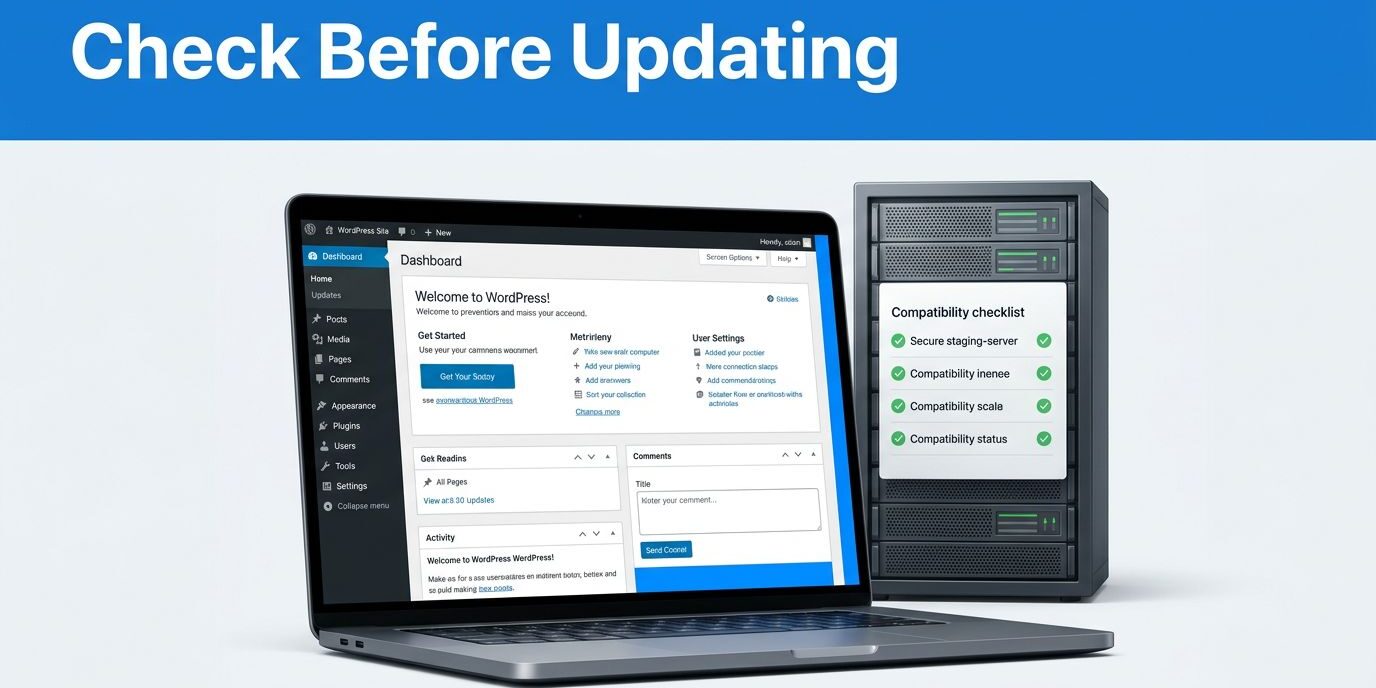
Your homepage can look fine while a PHP update breaks the form that brings in your next customer. I treat WordPress PHP compatibility as a business continuity check, because a working dashboard doesn’t prove your website still generates leads.
PHP runs WordPress on your server, and newer releases can improve security and performance. However, older plugins, themes, and custom code may behave differently after the switch.
Before a PHP upgrade reaches production, I verify the version requirements, test customer journeys, and prepare a recovery path.
Key Takeaways
- Choose a supported PHP release that works with your WordPress version, plugins, themes, and custom code.
- Verify a complete backup, then test changes on a protected staging site that matches production.
- Deploy approved changes without replacing newer customer records, and keep a tested rollback option ready.
WordPress PHP Compatibility: Choose a Supported Version
Core support and recommended versions differ
WordPress’s official PHP requirements recommend PHP 8.3 or greater. WordPress 7.0’s minimum is PHP 7.4, but that isn’t a sensible security target. Check your installed WordPress version and PHP version against the stated system requirements.
The WordPress Hosting Handbook lists these core compatibility starting points:
| PHP release | WordPress core support starts with | Security support ends |
|---|---|---|
| PHP 8.3 | WordPress 6.4 | December 31, 2027 |
| PHP 8.4 | WordPress 6.8 | December 31, 2028 |
| PHP 8.5 | WordPress 6.9, also supported by 7.0 | December 31, 2029 |
These boundaries apply to WordPress core. They don’t certify that your host, booking plugin, payment gateway, or theme supports the same release. A newer release can affect older components, so check backward compatibility.
I usually evaluate PHP 8.4 first for an upgrade in September 2026. However, I approve it only after testing the site’s complete software stack.
PHP’s support clock keeps running
According to PHP’s supported-version schedule, PHP 8.2 receives security fixes through December 31, 2026. PHP 8.3 already receives security-only support, while PHP 8.4 remains in active support through December 31, 2026. Check PHP.net to confirm a release’s active support status before planning an upgrade.
PHP 7.4 and 8.1 have passed end of life, so they no longer receive upstream security patches. Treat end of life as a signal to plan migration rather than stay on an unsupported branch.
WordPress releases and PHP support deadlines follow separate schedules. A routine WordPress maintenance update doesn’t extend PHP support or resolve third-party compatibility problems.
Check the PHP Version Your Website Uses
In your WordPress dashboard, open Tools > Site Health > Info > Server. Find the active release there, rather than assuming the hosting account’s default applies to your website.
This guide to checking WordPress’s PHP version also covers the dashboard method.
I record the current WordPress version, PHP release, active theme, and plugin versions before making changes. I also note custom plugins, child-theme modifications, and must-use plugins, which don’t appear in the normal active-plugin list.
Next, check your host’s PHP selector. Confirm the selected PHP version is supported by your installed WordPress version and hosting provider, and meets the host’s server requirements for extensions and configuration. Confirm the setup on a staging site before production changes.
Ask whether the change affects only this website or other sites sharing the account. Also confirm whether scheduled jobs and command-line tasks use the same version as web requests.
If you’re comparing managed hosting versus shared hosting, check who handles PHP testing and rollback. The word “managed” doesn’t tell you which responsibilities remain yours.
Prepare a Restorable Backup and Private Staging Site
Verify recovery before cloning
A staging copy is a changing test workspace. It doesn’t replace a restorable copy of your live website.
I start with a complete backup containing the database, WordPress files, uploads, and configuration. I also record host-level settings needed to rebuild the site.
Keep an independent backup outside the hosting account. Then verify recovery by restoring it into a non-production location and checking that the website works.
Know who can restore it, where the files are stored, and how long recovery takes. A success notification alone doesn’t prove you can recover.
For businesses without a site manager, WordPress updates, security, and backups need an assigned owner before an upgrade begins.
Match production and restrict access
Clone the live website into a separate file location and database to create a staging site. Match its plugins, theme, PHP extensions, caching configuration, and relevant server settings. Also verify plugin compatibility and theme compatibility before changing PHP.
Protect staging with authentication or access restrictions. Search-engine noindex settings alone won’t protect copied customer information.
For WooCommerce, use sandbox payment credentials and redirect or disable customer emails. Review subscription behavior, outbound webhooks, and integrations so tests don’t trigger real renewals or external actions.
If privacy requires it, minimize copied customer data. Then change PHP on the staging site only, keeping the production site unchanged.
Test Customer Journeys and Scan Custom Code
Verify actions that generate revenue
I test the site’s main customer journey on the staging site before and after the PHP switch. Comparing the results helps separate existing problems from upgrade failures.
For a service business, submit the quote form and verify delivery to the intended inbox or CRM. Check validation errors, confirmation messages, file uploads, and mobile behavior where applicable.
For a store, test checkout with sandbox payments, then inspect taxes, shipping, coupons, inventory changes, and transactional emails. Also test bookings, member access, or subscriptions if those features drive revenue.
Finally, check administrator tasks and scheduled jobs. A cached homepage can hide PHP failures, so test dynamic pages and uncached requests too.
Scan code that update buttons don’t maintain
Ask your developer to scan custom plugins, child themes, must-use plugins, and other custom code with PHPCompatibilityWP. This WordPress-specific ruleset works with PHP_CodeSniffer and accounts for compatibility functions supplied by WordPress.
Configure the scan for the target PHP version, using a maintained toolchain with coverage for that release.
Static analysis can flag compatibility issues, including removed functions and unsupported syntax. It can’t prove that a payment callback, conditional form handler, or scheduled task works.
I combine scanning with runtime tests to confirm core functionality, including forms, checkout, and scheduled actions. A clean report supports approval, but it doesn’t replace exercising the website.
Diagnose PHP Errors Without Exposing Them Publicly
Log errors on staging
On your staging site, set WP_DEBUG and WP_DEBUG_LOG to true, and set WP_DEBUG_DISPLAY to false in wp-config.php.
The corresponding settings are define( 'WP_DEBUG', true );, define( 'WP_DEBUG_LOG', true );, and define( 'WP_DEBUG_DISPLAY', false );. Replace existing definitions rather than adding duplicates, and place them before WordPress loads.
Reproduce the failing action, then inspect wp-content/debug.log. If it remains empty, check the hosting error log because some failures happen before WordPress starts logging.
Record the timestamp, error message, file path, and line number. Secure or remove logs afterward because they can reveal sensitive details. Don’t leave debugging exposed on production.
Identify the code responsible
A fatal error stops execution. A deprecation warning usually allows execution but identifies code that needs attention.
An “undefined function each()” error points to a function removed in PHP 8.0. A developer should replace that iteration logic with foreach.
A TypeError involving count() may mean code supplied null or another non-countable value. The fix should validate the value and correct its source.
PHP 8.2’s dynamic-property warnings often require declaring properties in the class. Suppressing warnings hides the issue rather than repairing compatibility.
During debugging, I use the first relevant stack-trace entry to identify the plugin or theme involved. On staging, disable that component and repeat the same action. Test a default theme when the trace points to theme code.
Check for a maintained vendor release first. If custom code needs repair, involve its developer. Avoid editing third-party files directly because updates can overwrite those changes.
Deploy the Tested PHP Version Without Losing Live Data
Schedule the PHP upgrade during a lower-traffic period and tell staff when testing will happen. Confirm the production software stack, including the WordPress version, matches the versions approved on the staging site, then capture a fresh production restore point.
Apply required code fixes or extension updates in the tested order. Next, switch the PHP version through the hosting dashboard or ask the host to change it.
A PHP-only upgrade doesn’t require replacing your live database with the staging database.
That distinction protects new leads, bookings, and WooCommerce orders received since cloning. If a software update also changes database structures, follow its documented migration process.
After switching, confirm the PHP version in Site Health and clear relevant caches. Test the production site’s customer journey again, including actual form delivery and payment behavior where appropriate.
Monitor error logs, failed requests, scheduled tasks, and business integrations beyond the initial page check. Some problems appear only when a scheduled action runs.
If the upgrade fails, use the pre-approved PHP rollback where available. Reverse accompanying code changes only through the documented recovery plan. Avoid blindly restoring an old database over newer orders or submissions.
I keep the deployment record with the selected PHP version, approved changes, test results, and recovery instructions.
Frequently Asked Questions
Does updating WordPress also update PHP?
No. WordPress updates its application files, while your hosting environment supplies PHP. You normally change PHP through the hosting control panel or support team.
However, a host may upgrade PHP independently. I recommend checking its notices and asking about deadlines before an automatic change reaches production.
Will a newer PHP version make the website faster?
A newer PHP version can help with performance optimization, but results depend on your theme, plugins, server configuration, and workload. I don’t promise a fixed speed improvement without testing.
Compare uncached page response times and important actions before and after upgrading. Large images, slow database queries, and external integrations can remain bottlenecks even when PHP is current.
Keep Customer Actions Working Through Every Update
I approve a PHP upgrade when the software is supported, customer journeys pass, and recovery is ready. A working homepage is only one part of that decision.
Keep the tested version, deployment record, and monitoring routine together so the next update starts with clear information.
For a brief reflection, read Acts 6:3-4 in the Amplified Bible, then pray for wisdom to steward your website thoughtfully and serve reliably.
For help reviewing your business website, Contact Us for a free website and SEO consultation with DMNet Solutions in the Fort Myers and Lehigh Acres area.