

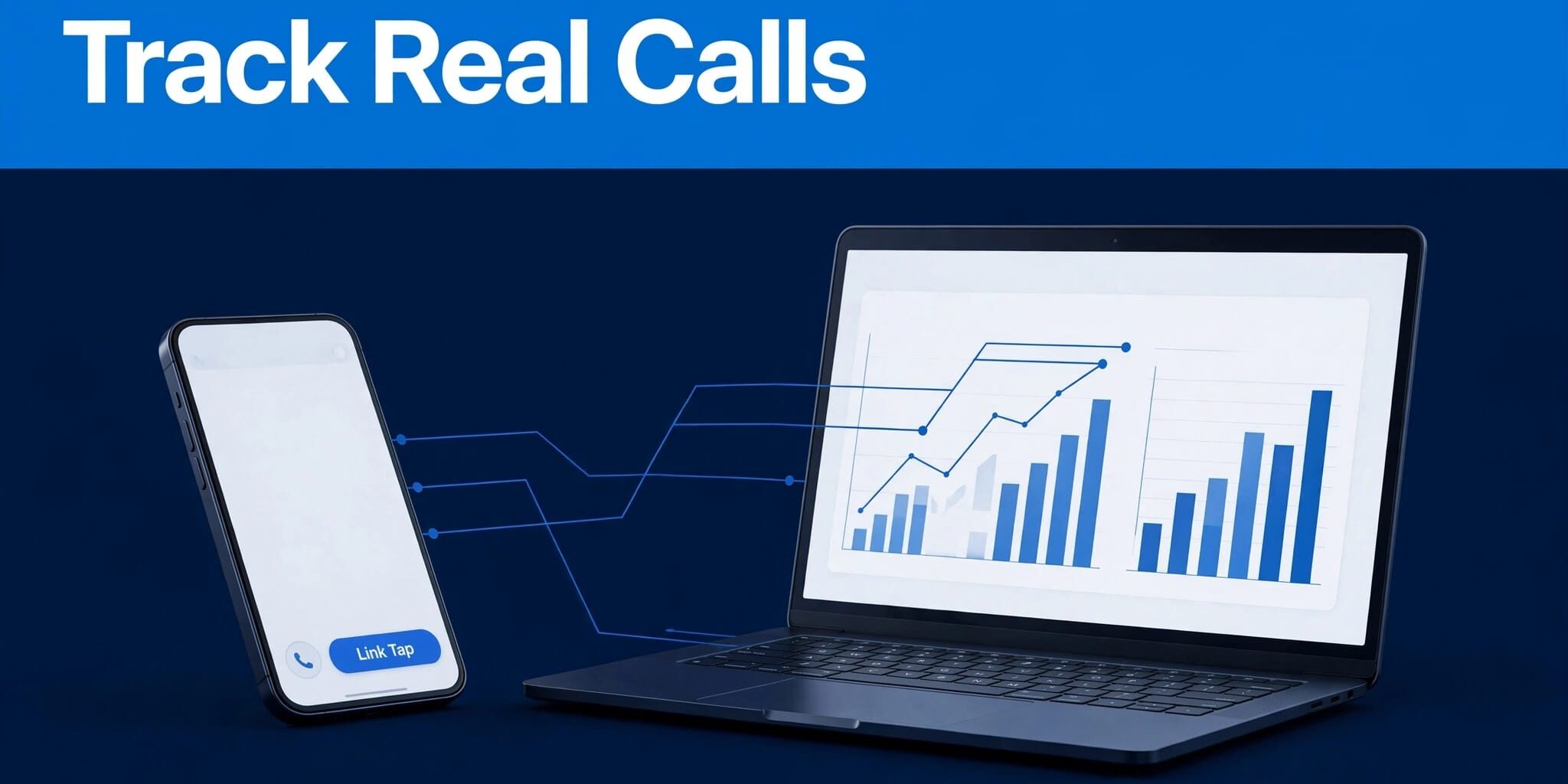
In google analytics 4 (GA4), a phone tap may look like a new lead, even when nobody reaches your business; it shows intent, not a connected call or qualified lead.
I’ve seen small businesses use inflated call counts to guide lead generation decisions, while missed calls, brief hang-ups, and sales outcomes sit somewhere else. Start with clean click tracking, then connect it to the lead process your team already uses.
Key Takeaways
- Treat a
tel:link click as phone click intent, not proof of a completed call or sale. - Use Google Tag Manager to fire a
phone_clickevent only when someone selects a phone link. - Mark meaningful events as GA4 key events after testing them in GTM Preview and GA4 DebugView.
- Track qualified calls and closed sales in your CRM or call-tracking platform, then compare those outcomes with GA4 and Google Ads.
- Keep event names simple, document the setup, and avoid duplicate tracking from both GTM and direct
gtag.jscode.
What GA4 Phone Tracking Actually Measures
Native GA4 doesn’t listen to a phone call or confirm that someone spoke with your staff. On a website, it can record an interaction with a tel: link. That signal is still valuable because it shows that a visitor took a direct contact action.
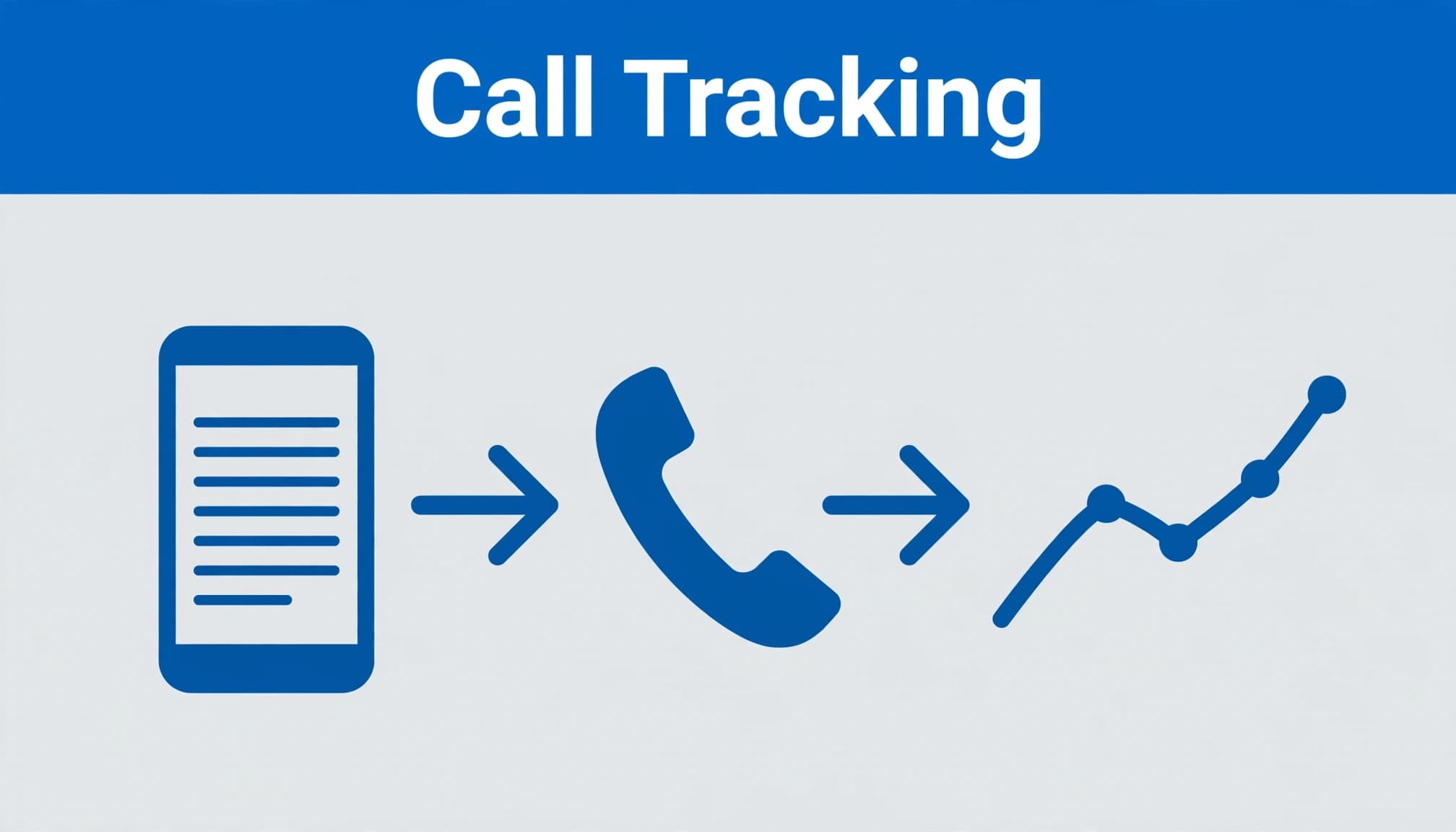
A phone click is not a completed call
A visitor may tap the number accidentally, cancel the call, reach voicemail, or call outside business hours. Desktop users may also copy the number manually, which standard click tracking can’t see.
Therefore, I use phone_click as an early lead signal. It helps me compare service pages, traffic sources, devices, and campaigns without pretending every click brought in revenue.
Low-quality events weaken decisions
If you mark every phone tap as a high-value conversion, Google Ads and GA4 reporting can overstate campaign performance. A campaign that drives many brief calls may look stronger than one that produces fewer, higher-quality inquiries.
A phone-click event measures contact intent. A qualified lead requires confirmation outside the website.
Define the Phone Lead Lifecycle Before Tagging
Before opening Google Tag Manager, decide what your team considers a lead. Event stages should mirror the customer’s journey from contact intent to revenue. For a roofer, that might be a real estimate request. For a law office, it could be a consultation call that meets intake criteria.
I usually limit a small business to three to five meaningful lead events. That keeps reports focused on calls, forms, bookings, and quote requests instead of minor engagement actions.
Use stages that reflect actual business progress
A staged event structure makes reporting more honest:
| Event | Meaning | Where it comes from |
|---|---|---|
phone_click | Visitor tapped a phone link | Website and GTM |
generate_lead | Website-side milestone after a real inquiry is confirmed | Form, booking, or validated call |
qualify_lead | Staff confirmed the inquiry fits | CRM, staff review, or call provider |
working_lead | Sales team is actively following up | CRM workflow or provider integration |
close_convert_lead | The lead became a customer | CRM or sales system |
The first event is a website interaction. generate_lead is the website-side lead milestone, and it should only fire after a real inquiry is confirmed. The remaining events are downstream operational outcomes populated through CRM workflows or provider integrations.
Qualified stages need staff confirmation, crm validation, or call-provider data instead of a browser click. Keeping these stages separate lets you see where marketing activity turns into revenue.
Keep form and call definitions consistent
A submit-button click does not prove that a form was delivered. I track forms only after a thank-you page, AJAX success callback, booking confirmation, or reliable data layer event confirms success.
The same standard applies to calls. If staff qualify leads in a CRM, use that process as the source of truth. For related setup patterns, see this guide to Google Tag Manager event tracking.
Set Up Phone Click Tracking in Google Tag Manager
Google Tag Manager detects the action, while GA4 receives and reports it. Together, they support conversion tracking for phone interactions. Google’s GA4 event setup guidance explains how events measure interactions that automatic collection does not cover.
Create a telephone-link trigger
In GTM, first enable built-in click variables, especially Click URL. Then create a new trigger with these settings:
- Choose the Just Links trigger type.
- Set it to fire on some link clicks.
- Use a condition where Click URL starts with
tel:. - Name it clearly, such as
Click - Telephone Links.
This trigger should only fire for phone number links. If your site uses a call button without a tel: link, ask your developer to add a stable CSS class or data attribute. Don’t rely on changing button text.
Send a clear GA4 event
Next, create a GA4 Event tag and connect it to the telephone-link trigger. Use the event name phone_click.
Add only event parameters that help answer a reporting question. Useful examples include link_url, page_location, page_title, or a non-sensitive placement value such as header or service_page.
Don’t send caller names, email addresses, raw phone numbers, call recordings, form details, or other personally identifiable information to GA4. Event data should describe the website action, not identify the person taking it.
A site can use a Google tag configured directly with gtag.js. It can also use a Google tag deployed through GTM with a GA4 Event tag. Don’t deploy the same base tag and phone_click event through both implementations, or you may create duplicate data.
Test before publishing
Open GTM preview mode, connect to the live page, and tap the number on a mobile-sized test screen. Confirm that one telephone trigger fires and one GA4 event tag fires.
Then open GA4 DebugView and look for one phone_click event with the expected parameters. If you see two events, investigate before publishing. A WordPress plugin, direct gtag.js installation, or second GTM tag may be sending duplicate data.
Mark the Right GA4 Events as Key Events
Google now calls important GA4 events key events. GA4 uses this terminology instead of the older term conversion events. The word “conversion” still appears in some reports, and Google Ads may still refer to conversion actions.
Wait until the event appears
Your new phone_click event must first arrive in GA4 before you can mark it as a key event. After a successful GTM Preview and DebugView test, go to Admin, then Data display, then Events.
Find phone_click and mark it as a key event. Google’s key-event instructions show the current process.
Marking an event as a GA4 key event doesn’t prove that a connected call occurred. It also doesn’t automatically make the event the right Google Ads bidding goal.
Avoid marking every interaction
After testing, select only meaningful events as key events. A phone click may deserve key-event status when calls are a major contact path for your business. Still, don’t mark scroll depth, video plays, menu clicks, and every button press as key events.
Too many low-value key events make reports harder to interpret. I prefer reports that answer practical questions: Which landing page creates calls? Which campaign brings qualified inquiries? Which device type has the weakest contact rate?
Connect Call Signals to Google Ads and Sales Outcomes
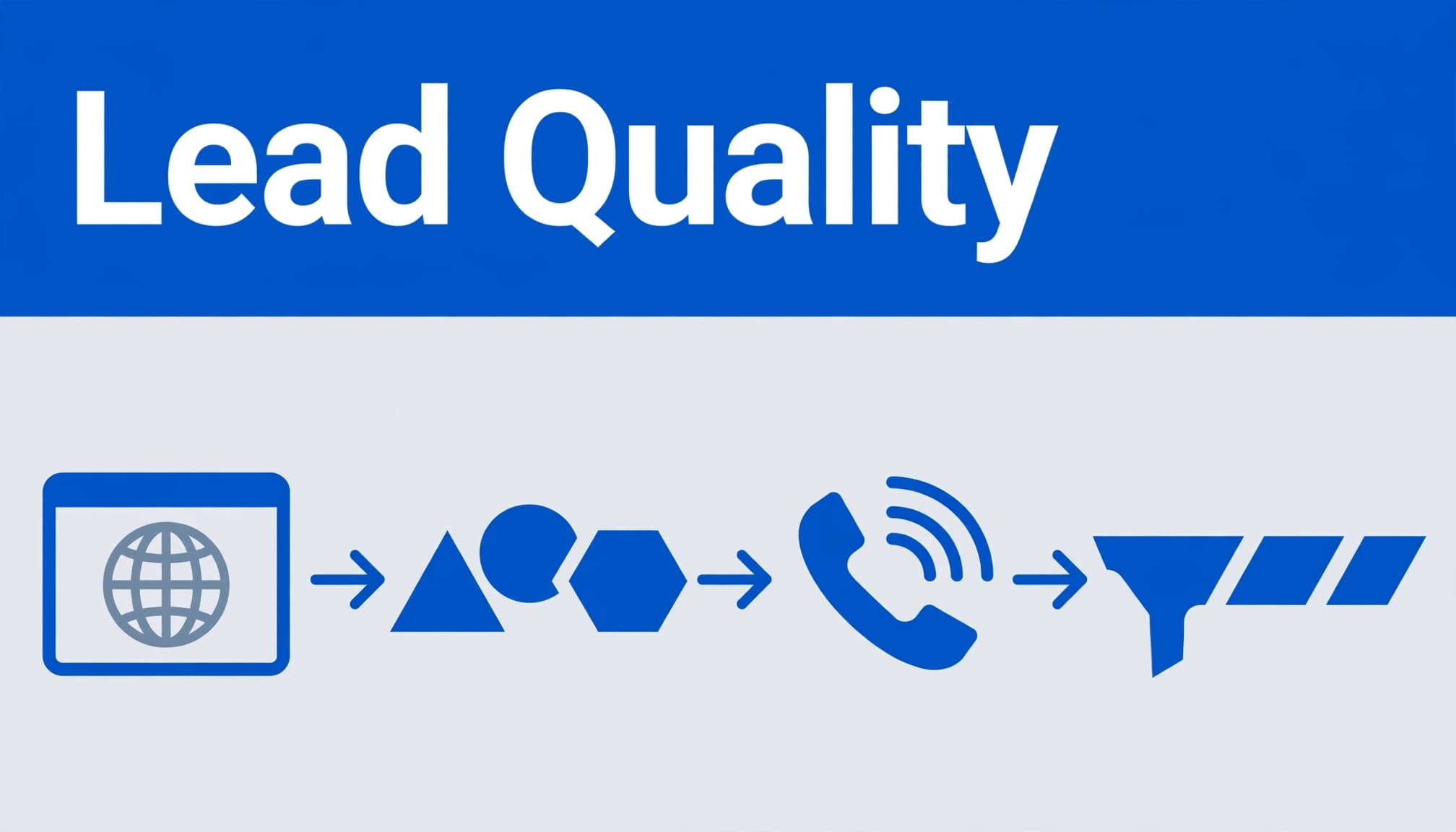
GA4 shows which campaigns created phone-click intent. It doesn’t prove a connected call or a sale. Strong marketing attribution separates the website signal, the provider record, and the CRM outcome.
Import suitable GA4 key events into Google Ads
If your GA4 and Google Ads accounts are linked, you can import selected GA4 key events into Google Ads as conversion actions. Google Ads requires the proper account access and auto-tagging for this workflow. Follow Google’s GA4 conversion import guidance when setting it up.
GA4’s phone_click is a website-side signal. A call tracking provider can record a connected call, its duration, and other available details. Your CRM can then identify qualified leads based on sales review and call outcomes.
Preserve UTM parameters and auto-tagging identifiers throughout the process. When available, pass the GCLID, GBRAID, WBRAID, or a provider lead ID between systems. Compare the customer’s journey from ad impression to website visit and eventually to a connected call.
Validated provider or CRM records can be imported as offline conversions. This lets Google Ads optimize for qualified leads instead of taps on a phone number. Phone-click key events can remain observation signals while validated calls become the optimization event.
Enhanced conversions for leads are a separate Google Ads feature for eligible first-party data. Follow Google’s requirements before enabling it. Don’t send raw phone numbers or GA4 event parameters to GA4 for this purpose.
Review roi and roas alongside revenue quality, not as isolated campaign metrics. This helps distinguish efficient traffic from campaigns that produce valuable business.
Use dynamic number insertion for stronger attribution
Dynamic number insertion, often called DNI, changes the displayed phone number based on a visitor’s campaign or source. A provider can then associate an inbound call with traffic sources, landing pages, keywords, or a Google Ads click identifier.
This approach supports detailed source analysis when phone calls drive substantial revenue. It can also connect ad data with the customer’s journey without treating every website tap as a completed business result.
Google forwarding numbers are different from website DNI. They belong to Google Ads call reporting, and availability varies by country, account, and campaign type. They aren’t a substitute for a provider’s website number-swapping setup.
Call tracking platforms, APIs, webhooks, and supported Google Ads integrations can connect these records. Use Google’s documentation for current requirements around offline conversion imports, call reporting, auto-tagging, and lead data.
Validate Lead Quality in the CRM
Website analytics should support your sales process, not replace it. A call tracking platform may confirm a connected call, but your CRM determines whether it became a qualified opportunity or customer.
Match outcomes without overstating GA4
CRM validation is the authority for whether a call connected, qualified, received follow-up, won, or was lost. Use a documented lead ID, provider call ID, click identifier, or carefully governed matching process.
Don’t assume a GA4 client ID or session ID proves caller identity. Compare the customer journey across the website interaction, phone conversation, qualification step, appointment, and sale.
A provider can send connected-call metadata to your CRM through an integration or webhook. Staff can record call outcomes, while validated records can later support offline conversions in Google Ads.
Enhanced conversions for leads and offline outcome imports are Google Ads measurement features. They don’t replace GA4 event design or CRM validation.
Review local sources separately
A Google Business Profile, organic search result, paid ad, and referral site can all lead to a phone call. Add consistent UTM parameters to links you control, then compare website behavior with qualified leads and sales.
For revenue tracking, compare each marketing source with qualified calls, closed revenue, and advertising cost. This creates a clearer view of roi and roas, since fewer calls don’t always indicate poorer performance.
For local visibility reporting, I also review Google Business Profile metrics alongside GA4. A source that produces fewer calls may still produce the best appointments.
Protect Data Quality After Launch
Tracking can break when a site redesign, consent-banner update, WordPress plugin change, new booking tool, or cache update changes the contact path. I retest call tracking after every meaningful website change.
Use GTM preview mode and GA4 DebugView to confirm that phone_click fires once. Check mobile and desktop layouts, because header and sticky call buttons often use different templates.
Before GA4 or Google Ads measurement fires, the consent banner and Google Consent Mode should govern analytics and advertising storage. GA4 must never receive names, email addresses, raw phone numbers, recordings, or other personally identifiable information.
Call recording, transcription, and provider-side visitor matching need their own lawful basis, notice, retention rules, and access controls. First party tracking can improve continuity on your own domain, but it doesn’t remove consent requirements or guarantee that every call can be attributed.
If visitors move to a scheduling or payment domain, configure cross-domain measurement where appropriate. Incorrect settings can break marketing attribution or make GA4 treat the handoff as a new session.
For troubleshooting, inspect consent status and confirm that the element uses tel:. Check whether JavaScript intercepts the click, verify the trigger scope, and test sticky headers and mobile templates. Look for duplicate Google tags or direct gtag.js calls, then inspect event parameters in DebugView.
After a redesign, plugin change, or consent-banner update, confirm that validated provider or CRM records remain available for offline conversions. Include crm validation in your launch review, especially when those records support Google Ads conversion tracking.
Use Google’s official documentation for Consent Mode, Google tag configuration, cross-domain measurement, and debugging. A solid GA4 setup for phone and form leads also includes consent settings, internal traffic controls, and a written record of event names and parameters. If you need help checking your website’s tracking and lead flow, Contact Us for a consultation.
Frequently Asked Questions
Can GA4 tell whether someone completed a call?
No. Standard GA4 tracking records a selection of a tel: link. It can’t confirm that the call connected, lasted long enough, or became a sale. Use a call-tracking platform or CRM to verify those outcomes.
Can GA4 distinguish a tel: link tap from a connected call?
Not on its own. A tel: event shows that someone tapped to call. A connected call requires records from your phone system, call-tracking platform, or CRM.
Should a phone click be a GA4 key event?
It can be, especially when calls are a primary contact method. A key event is a reporting designation, not proof that a call connected. Match validated call records in your CRM or call-tracking platform before using them for advertising optimization.
Can a Google tag and Google Tag Manager coexist?
Yes, but they shouldn’t send the same base tag or event twice. Duplicate page views and phone clicks make reporting unreliable. Check both setups in Tag Assistant, GTM Preview, and GA4 DebugView.
How does consent affect phone and call measurement?
Consent settings can limit GA4 and Google Ads measurement. They may also affect call recording and integrations with your call provider. Confirm that each tool follows your consent rules before relying on its data.
What should I check if a phone event is missing or duplicated?
For a missing event, check the tel: link, trigger conditions, consent status, and GTM Preview. Then confirm the event appears in DebugView. For duplicates, look for repeated tags, overlapping triggers, or both a Google tag and GTM sending the same event.
Final Thoughts
The most useful GA4 phone call conversions begin with an honest definition: a phone click shows intent, while a qualified call shows business value.
Track the click carefully, test it after every site change, and compare it with real CRM outcomes. Clean lead data gives you a better basis for improving pages, campaigns, and follow-up.