

A missed phone call or abandoned estimate form can cost more than a month of website traffic. A careful GA4 setup shows which pages, campaigns, and actions bring people closer to contacting your business.
I use Google Analytics 4 to connect marketing activity with real local leads. That means tracking phone clicks, form submissions, appointment requests, and other actions that matter to a service company. The process starts with setup, then moves into testing, privacy settings, and reporting.
Key Takeaways
- Start with the business’s lead questions and choose three to five meaningful key events, such as phone clicks, form submissions, bookings, and estimate requests.
- Create the correct GA4 property and web data stream, then install the
G-measurement ID through one reliable method such as Google Tag Manager or a platform integration. - Test the implementation in Tag Manager Preview mode and GA4 DebugView before trusting reports, checking for missing, duplicate, or incorrectly triggered events.
- Improve data quality by configuring enhanced measurement, internal traffic filters, data retention, privacy settings, and cross-domain tracking when outside booking tools are involved.
- Build reporting around qualified inquiries, landing pages, traffic sources, devices, and key events rather than relying on page views or sessions alone.
A clean analytics plan starts with lead questions
Before opening Google Analytics 4, the owner should define the business objectives and lead questions. Local service businesses usually care more about qualified inquiries than raw page views.
A roofing company may need to track estimate requests. A home service company may care about phone clicks and booking requests. A professional office may want to measure consultation forms, directions requests, and downloads of an intake document.
GA4 can collect page views and sessions automatically, but basic data collection doesn’t explain every business outcome. A visitor can tap a phone number, submit a form, or complete a booking without those actions appearing as useful lead data unless measurement is planned correctly.
I normally choose three to five key events at the start. Too many events make the reports harder to read and can distract from actions that produce revenue. I also confirm that the website supports those actions on a phone, since local customers often search and contact businesses from mobile devices.
Write the plan in plain language before setting up measurement:
- Which pages introduce the service?
- Which traffic sources bring visitors?
- Which buttons lead to calls, forms, or bookings?
- What counts as a qualified inquiry?
- Does a third-party scheduling or payment domain complete the journey?
That plan keeps GA4 tied to business decisions instead of turning it into a collection of disconnected metrics.
Create the GA4 property and web data stream
Google’s official website and app setup instructions for Google Analytics 4 follow the same basic process I use for a local service website.
If you’re moving from universal analytics, the optional setup assistant can help, but it shouldn’t create a duplicate property.
- Go to
analytics.google.comand sign in with the Google account that should own the business data. - Select Start measuring if no Analytics account exists. If an account already exists, open Admin and create an account or property there.
- Enter a clear account name, such as the business name. Avoid creating multiple accounts for the same organization without a reason.
- Create a GA4 property and select the correct reporting time zone and currency.
- Choose Web as the platform for a standard business website, then create the web data stream.
- Enter the complete website address, choose HTTPS when the site uses SSL, and give the stream a descriptive name.
- Review the stream settings and copy the measurement ID, which begins with
G-.
An Analytics account can contain one or more properties, and the GA4 property is the main container for the business’s Analytics data. Website activity enters the property through its data stream, which supports data collection. A local company with one website normally needs one property and one such stream.
I name the property and stream clearly, such as “Company Name Website,” rather than using vague labels like “New Property.” Clear names matter when an owner, marketer, or developer later manages several sites.

G-ID and stream ID are different
The G-ID links the site’s tracking implementation to the correct property. It has the format G-XXXXXXXXXX. I enter that value in Google Tag Manager, a CMS integration, or another installation method.
The stream ID identifies the data stream inside the property. It appears in the stream details, but it isn’t normally the value used to install website tracking. Unlike the measurement ID, it is a numeric identifier, not the value used for implementation.
This distinction prevents a common setup mistake. If an implementation field requests the G-ID, entering the numeric stream ID won’t connect the website correctly. I copy the G-ID directly from the stream and check that it belongs to the intended property.
I also save the property name, stream name, G-ID, website URL, time zone, and currency in the business’s tracking documentation. I record the implementation method, tracking code, and custom dimensions there too. This record captures future reporting needs and speeds troubleshooting after a redesign or provider change.
Install GA4 with Google Tag Manager
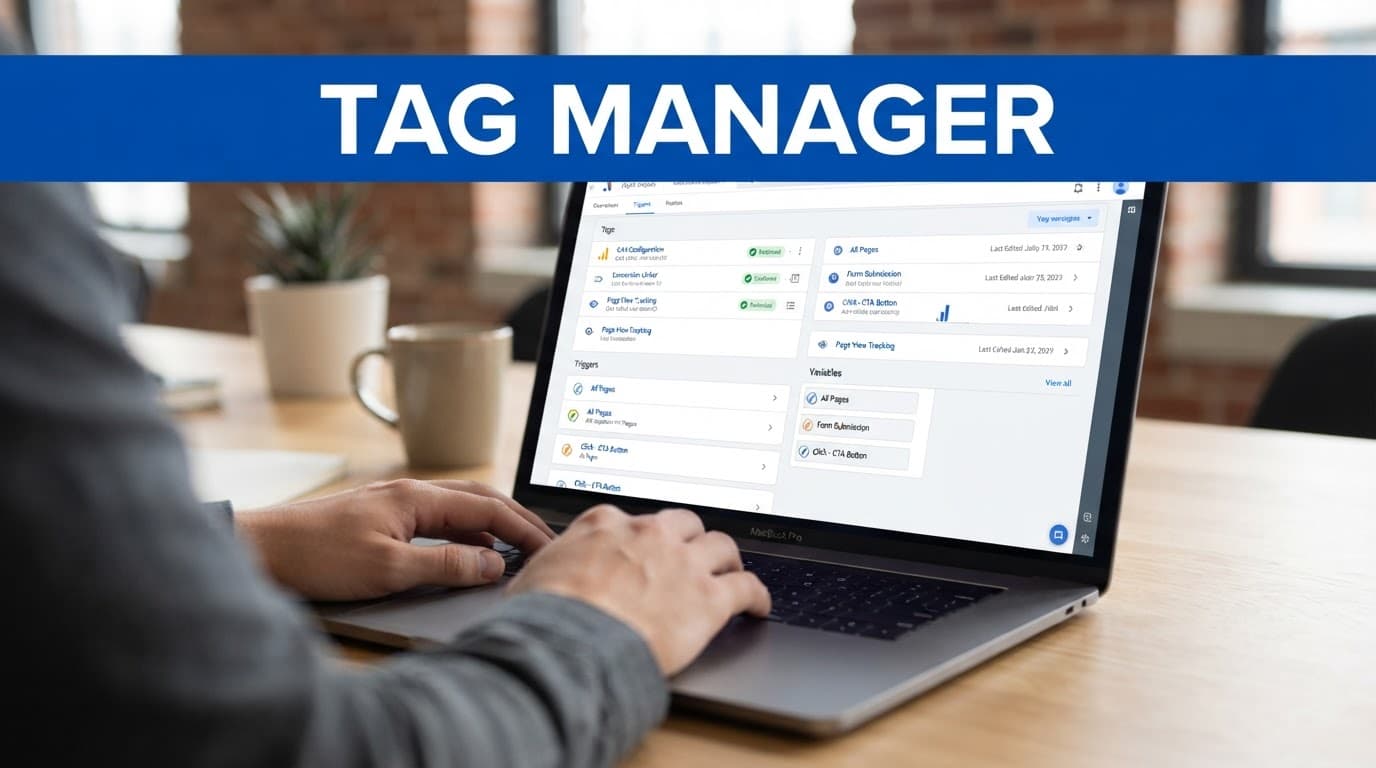
I generally prefer Google Tag Manager for a local service website because it keeps the Google Tag separate from theme files. It also makes event tracking easier when the business later adds phone clicks, forms, booking tools, or advertising platforms.
Google’s GA4 developer documentation provides technical reference material for Google Analytics 4 setup, including accounts, properties, streams, and collection. For a standard website, the practical installation process is:
- Create or open the website’s Google Tag Manager container.
- Select Tags, choose New, and select the Google Tag tag type.
- Paste the measurement ID that begins with
G-into the tag. This connects it to the selected data stream in the GA4 property. - Set the trigger to load on all relevant pages, normally the Initialization or All Pages trigger.
- Save the tag, use Preview mode, and publish the container after testing.
I check the website source, Tag Assistant, and DebugView after publishing; the base page_view should appear once.
The Google Tag should load once on each page, and I use DebugView to test a lead event.
If two systems install the same base tag, GA4 may receive duplicate page views or duplicate events; DebugView helps investigate missing or duplicate tags.
The tag itself only establishes the basic connection and begins site-wide data collection. I create event tags or triggers for phone clicks and successful form submissions, then define event parameters and custom dimensions. Each event needs a reliable trigger, and I register those custom dimensions for reporting.
Event names are case sensitive. I prefer lowercase names with underscores, such as phone_click, form_submit, and appointment_request. Consistent naming prevents reports from splitting one action into several versions.
Other installation methods for WordPress and hosted platforms
A tag manager isn’t the only valid installation method.
For WordPress, the Site Kit plugin can connect Analytics through the WordPress dashboard. I check the site’s existing plugins first, because adding it while another plugin already inserts the tag can create duplicate tracking.
Squarespace, Wix, and Shopify provide their own fields or integrations for Analytics identifiers. The exact menu names can change, so I confirm that the integration adds the tag to the entire site rather than only one page.
A custom website can receive the tracking code directly in the <head> section of every page. That manual installation works, but developer-managed tracking code makes later event changes more dependent on a developer. I avoid placing the tag in only the homepage header unless the site truly has one page.
The installation method matters less than three checks: the correct measurement ID, one active Google Tag, and reliable testing after publication.
Verify the installation before trusting reports
I never assume tracking works because a tag was published. I test the live site and confirm the data inside Google Analytics 4.
In Google Tag Manager Preview mode, I open the website and inspect the tags that fire. The Google Tag should appear on the intended pages. I then open GA4’s DebugView and confirm the test browser sends data. After each Preview test, I compare the fired tag with the incoming activity in DebugView.
The first events I expect to see in DebugView are page_view and session_start. For lead actions, DebugView can expose raw event parameters from clicks and form submissions. Real-time reports confirm activity is arriving in the intended data stream. I also confirm registered custom dimensions in reports, including the same custom dimensions used for lead details.
If DebugView stays empty, I work through these checks in order:
- The measurement ID belongs to another property or stream. Confirm it matches the intended destination.
- The Tag Manager container is still in Preview mode and has not been published. Publish the container, then test again.
- The website has a cached version of the old container. Clear the site, browser, and CDN cache before retesting.
- A cookie banner blocks Analytics until consent is granted. Accept the required options during testing.
- An ad blocker or browser privacy setting prevents the request. Test in a clean browser session or disable the blocker temporarily.
- The tag fires on some templates but not the contact or service pages. Check each important page type in Preview mode.
- A duplicate plugin or hard-coded tag causes a conflicting implementation. Remove the duplicate and keep one tracking method.
I also inspect the page source or Tag Assistant to confirm the tracking code is present only where expected.
DebugView also depends on debug data. Normal visitors may appear in reports without becoming debug sessions. I use Tag Manager Preview mode on my own test session instead of waiting for an ordinary visit to become a debug session.
A new property may not show a complete history immediately. I look for current activity first, then review the reports after enough real visits and leads have accumulated. I don’t judge a local campaign from a few sessions.
A live page view proves that data is arriving. It does not prove that the phone click, form submission, or booking event is accurate.
Improve data quality with enhanced measurement and privacy settings
GA4 can collect common website interactions without separate event tags. Depending on the stream settings, those interactions can include scrolls, outbound clicks, file downloads, site search, and embedded video engagement.
I review each enhanced measurement option before leaving it active. A service business may benefit from outbound-click and file-download tracking. Scrolls may offer limited value when decisions depend on leads, not content engagement. Automatic events still need sensible interpretation.
Next, I configure internal traffic. Staff members, owners, and developers can generate many visits while testing pages, forms, and phone links. If those visits remain in the main reports, they can distort engagement and lead statistics.
In GA4, I define internal traffic with a rule that identifies the business’s office or approved testing traffic. GA4 assigns the traffic type, often using internal, and I create a data filter for that traffic.
I test internal traffic filtering carefully and activate it only after confirming the results. Filtered data isn’t restored to standard reports later. Remote staff and changing IP addresses may require a different approach than one fixed office connection.
I review GA4’s data retention setting when a business needs longer comparisons. I often set data retention to 14 months for that purpose. This data retention period affects user-level and event-level analysis, including explorations. It doesn’t restore expired data, and it doesn’t mean standard aggregate reports only store 14 months.
Google signals can add cross-device reporting and demographic information when settings and user permissions support it. I enable it only after reviewing the business’s privacy notice and data practices. I never send names, email addresses, phone numbers, or other personally identifiable information as event parameters.
These settings make the reports more useful, but they don’t replace a privacy review of data collection. A local business should know what data it collects, why it collects it, and which vendors receive it.
Mark calls, forms, and bookings as key events
A local service business needs a direct connection between website activity and inquiries. In Google Analytics 4, I create events for actions that indicate genuine interest. Then I mark the most important ones as key events in GA4.
Useful events often include:
| Business action | Event example | Reliable trigger |
|---|---|---|
| Contact form completion | form_submit or generate_lead | Success message, thank-you page, or data layer event |
| Phone link tap | phone_click | A link beginning with tel: |
| Appointment request | appointment_request | Booking confirmation or successful scheduler event |
| Estimate request | estimate_request | Confirmed form completion |
| Directions request | get_directions | A click to the business map destination |
I choose one name for each action and use it everywhere. A form event should not become contact_form, contactForm, and lead_form across different templates unless those actions truly differ.
For a form, I prefer a successful submission trigger instead of a click on the submit button. A click doesn’t prove that the form passed validation or reached the business. A thank-you page, confirmed success message, or server-side event gives stronger evidence.
For phone tracking, GA4 records a tap on a mobile phone link, not whether someone completed a conversation. If phone calls are a major source of revenue, I compare phone-click data with a call-tracking or CRM system. I keep the primary business phone number consistent across the website and local listings, while using tracking tools carefully.
Event parameters add context. I may send service_name, service_area, form_location, or page_type. I don’t send a customer’s name or contact details. I plan these event parameters alongside the custom dimensions needed for reporting.
To use a custom parameter in standard reports, I register the relevant fields as custom dimensions in GA4. This makes the fields available for analysis without exposing personal information.
For businesses with many service pages, content grouping can help compare groups such as residential services, commercial services, and emergency repairs. Custom dimensions can add service and page fields to those comparisons. A practical GA4 content grouping guide shows how GTM rules can pass a content_group value for comparisons.
After implementation, I test a phone_click event in DebugView and confirm its parameters. I then submit a form or booking and verify the success event in DebugView. An event count alone does not prove a qualified lead, so I check the trigger and recorded details.
After testing, I verify that the custom dimensions receive the expected values in reports. Once checks pass, I mark the lead events as key events in the GA4 event settings. If the business runs Google Ads, I review which selected GA4 lead events should be imported as conversion events. GA4 key events remain the reporting label in GA4, while imported events support ad optimization. I don’t treat every automatic or low-value event as conversion events, because that weakens the meaning of the reports.

Configure cross-domain tracking for outside booking tools
Many local businesses send visitors to another domain for scheduling, payments, memberships, or quote requests. Without cross-domain tracking, GA4 may treat the same person as a new visitor or session after the domain changes.
I first decide whether both domains belong in the same Analytics property and data stream relationship. A company website and its booking domain may share one property when they form one customer journey. An unrelated partner site shouldn’t be combined simply because it receives referrals.
For a connected domain, I add both domains to the tag’s cross-domain configuration. GA4 can then decorate qualifying links with information that carries the session between domains. I also check referral exclusions so the booking domain doesn’t appear as a new referral source.
Testing matters here. I begin on the main website, click the booking link, and complete a test journey. In DebugView, I verify that the booking or confirmation event remains associated with the expected journey. If the scheduler loads inside an iframe, the setup may need support from the booking vendor. A confirmation redirect back to the business website can make lead measurement more reliable.
Use campaign parameters for Google Ads links and other external marketing URLs, but don’t add them to ordinary internal links. Incorrect tagging can overwrite the original source and make local marketing reports harder to interpret.
Build a reporting routine around local leads
I focus on a small group of reports in Google Analytics 4 instead of opening every report each week.
The real-time reports help confirm current activity after a site update. Traffic acquisition shows how channels bring users to the site. Landing pages reveal which service pages receive the first visit. Pages and Screens helps identify content that supports or fails to support the contact path. The Key Events report shows whether important actions are happening.
During each review, I use real-time reports for a quick activity check, then focus on:
- Users and sessions across traffic sources, with source and medium breakdowns.
- Key event rate by landing page.
- Phone clicks, form completions, and bookings.
- Device category, especially mobile performance.
- Service pages that attract traffic but produce few inquiries.
- Campaign traffic that produces leads rather than visits alone.
As a data-quality check, I confirm that internal traffic and testing visits are excluded. Where useful, I use custom dimensions to segment service pages, service areas, device categories, and content groups. I audit those custom dimensions to confirm they remain consistently populated.
I connect Search Console when the business wants to compare search visibility with behavior after the click. Search Console can show queries and search pages, while GA4 can show what visitors do after they arrive. Google Ads adds paid search cost and conversion information when the accounts are connected. I distinguish advertising conversion events from ordinary visits and low-value automatic events.
GA4 does not explain every problem by itself. If a lead count looks unusual, I use DebugView to validate the event before changing the report configuration. If a service page gets visits but no forms, I inspect the headline, service details, phone link, form length, page speed, and follow-up process. Analytics can reveal where people stop, but the page still needs a clear offer and a working contact path.
A business that needs help improving the website, forms, and organic visibility can review web design and organic SEO services. If you want a second opinion on tracking or lead flow, Contact Us for a consultation.
Frequently Asked Questions
What is the most important part of a GA4 setup for a local service business?
The most important part is connecting website activity with genuine inquiries. Track actions such as successful form submissions, phone-link taps, appointment requests, and estimate requests instead of focusing only on traffic volume.
Should I use Google Tag Manager to install GA4?
Google Tag Manager is often a practical choice because it separates tracking from website theme files and makes future event changes easier. WordPress plugins, hosted-platform integrations, and manual code installation can also work if they use the correct measurement ID and avoid duplicate tags.
How can I confirm that GA4 is working correctly?
Use Google Tag Manager Preview mode to confirm that the tags fire on the intended pages, then use GA4 DebugView to inspect incoming events. Test page_view, phone clicks, form completions, and booking events before relying on the reports.
What events should a local service business mark as key events?
Mark actions that indicate meaningful interest, such as confirmed form submissions, phone clicks, appointment requests, estimate requests, and directions requests. Avoid marking every automatic or low-value event as a key event because that makes the reports less useful.
Does GA4 track whether a phone call was completed?
A standard GA4 phone event usually records a tap on a tel: link, not whether the call was answered or became a qualified lead. Compare phone-click data with a call-tracking or CRM system when calls are an important source of revenue.
Conclusion
A useful GA4 setup gives a local service business more than visitor counts. It connects marketing channels and landing pages with phone clicks, form submissions, bookings, and other actions that support growth.
I start with the lead process, install the analytics tag correctly, test important actions, respect visitor privacy, and document the settings. Then I compare reports with real inquiries instead of treating Analytics numbers as the final answer.
When the data and contact path agree, you can see which marketing deserves more attention and which page needs repair. That is the point: better decisions based on clean lead data.