

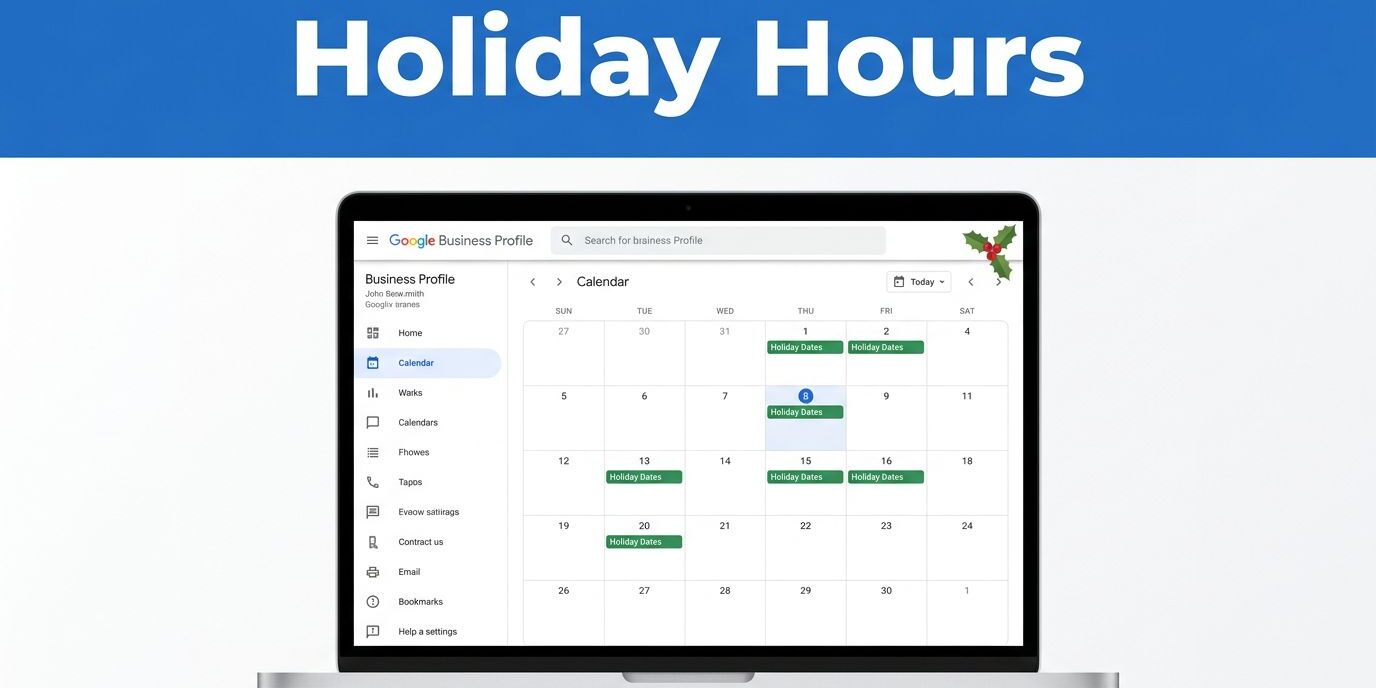
Holiday traffic can disappear fast when your hours are wrong. I have seen a single missed holiday update send customers to a closed door, a voicemail box, or a competitor down the street.
That is why I treat google business holiday hours as a small task with a real business impact. When the hours, website, and Google Business Profile all tell the same story, I get fewer confused calls and fewer lost visits.
Key Takeaways
- Use the dedicated feature: Always input holiday schedules into the “Special Hours” section of your Google Business Profile to avoid permanently altering your regular weekly business hours.
- Ensure cross-platform consistency: Keep your website, social media, and voicemail hours in sync with your Google profile to prevent customer confusion and maintain search engine trust.
- Verify details before saving: Before finalizing updates, double-check your dates, time zones, and exact opening/closing times to ensure accuracy for mobile users.
- Avoid mass editing: Update your holiday hours individually rather than making large-scale changes to your business profile simultaneously, as this can trigger slower verification processes by Google.
Why holiday hours matter more than most owners think
Most people check Google Search before they leave home. If they see the wrong hours, they do not wait around and hope for the best. They pick another business.
That matters even more during short holiday weeks. A normal Tuesday can bend into a half-day, a full closure, or a special schedule for a local event. If I leave the profile unchanged, I am asking customers to guess regarding my holiday hours.
I also think about trust. When a profile says one thing and the website says another, the business looks disorganized. Google notices that mismatch too, because it compares business details across the web.
For the basic profile setup, I keep Google’s own Business Profile page handy. It reminds me that these details are part of the public face of the business, rather than just a routine update to the hours of operation.
The exact way I set special hours
Google identifies holiday adjustments as special hours, and that distinction is important for local search accuracy. I avoid editing my standard weekly schedule unless the regular business operations have changed permanently.
Here is the process I follow:
- I sign in with the account that has manager access.
- I search for the business in Google and open the profile.
- I click Edit profile, then Business information.
- I open the Hours section.
- I find the section for special hours and click the edit icon.
- I select the specific holiday date.
- I mark the business as open or closed for that day.
- If the business is open for part of the day, I enter the exact opening hours for that period.
- I save the changes and verify the information on the profile.
If Google has already suggested a holiday, I review that entry instead of creating a fresh one. This saves time and lowers the chance of a mistake. When I need the official documentation, I also check Google’s business hours help page.
If the business closes early, I use the exact cutoff time. If it opens later, I enter the delayed start. If the business operates with two shifts, I add both time ranges instead of trying to squeeze them into one block.
I only change the holiday date I need, then I leave the regular weekly hours alone.
Following this simple habit keeps the profile clean and ensures that the special hours are displayed correctly for customers searching during the holiday season.
What I check before I save
Before I hit save, I take a moment to update holiday hours by checking three things: the date, the time zone, and the public message the customer will see. A tiny error here can create a very real problem later.
I also make sure the profile matches my website. If my site says I close at 2 p.m. and Google says 5 p.m., customers get mixed signals. Search engines do not love that, and customers hate it.
This quick table is the way I think about common holiday setups:
| Situation | What I enter | What I avoid |
|---|---|---|
| Closed all day | Mark the date as closed | Changing the weekly hours |
| Short holiday day | Add the exact opening and closing time | Guessing or rounding times |
| Split schedule | Add both time ranges | Cramping everything into one block |
For complex operations that require more hours, such as lunch breaks or extended holiday services, I ensure each time block is clearly defined. I usually recheck the listing after I save it. Most updates show up fast, often within about 10 minutes. Still, I do not assume it is done until I confirm it is live on Google Search and Google Maps.
If I am updating a site at the same time, I keep the contact page for the business location clean too. For businesses that need a clearer location page or a better mobile layout, I often pair the update with web design and organic SEO maintenance. A profile update works better when the site backs it up.
Mistakes that create confusion later
The biggest mistake I see is changing the wrong section. Holiday hours belong in the special hours section, not in your regular business hours. If I choose to override regular hours by modifying the main hours of the weekly schedule, I end up creating extra work for myself in January when I have to reset everything.
I also avoid making last-minute edits in large bursts. If I update the business name, address, phone number, category, and hours all at once within the Google Business Manager, I make the profile harder for the system to verify. Google tends to trust stable information far more than sudden, noisy updates.
Another problem is forgetting about connected systems. Scheduling tools, listing managers, and old website plugins can push outdated hours back into the profile automatically. That is how a correction gets undone overnight.
If the profile was recently suspended, reinstated, or heavily edited, I slow down. Google may review subsequent changes more carefully. When that happens, repeated resubmissions usually make the wait for approval longer, not shorter.
I keep one rule in mind: the profile should reflect the real business, not an ideal version of it. If I am closed on Thanksgiving, I mark it as such. If I am only open for four hours on New Year’s Eve, I list those specific four hours. If the business is not operating at all during a specific period, I consider if the profile should be marked as temporarily closed instead of just listing empty hours.
Keeping the rest of the local presence in step
Holiday hours work best when the rest of the business details stay in sync. I update the website footer, contact page, voicemail greeting, and any pinned social post that mentions hours or special events. That way, customers do not have to hunt for the truth.
I also check whether the phone number, address, and service area still match across the web. Google Maps and Google Business Profile use those signals to judge trust. If the website says one thing and the directory listings say another, the profile can feel unstable even after I save the new hours.
When I want the website to support the profile better, I look at the page layout first. Responsive website design services that convert make it easier for mobile visitors to find more hours and the holiday schedule without scrolling forever.
I also keep a broader visibility checklist in mind, including the kind of local presence tips I see in a small-business online visibility guide. Holiday hours are only one part of the job, but they sit inside a much bigger trust picture.
If I need help getting the website and profile aligned, I can always Contact Us for a free consultation.
Frequently Asked Questions
Should I change my regular weekly hours if I have a holiday schedule?
No, you should never edit your regular weekly hours for a holiday. Instead, use the “Special Hours” feature, which allows you to set temporary changes for specific dates without impacting your standard operating schedule.
How long does it take for holiday hours to appear on Google?
Most updates to your business profile appear very quickly, often within about 10 minutes. It is always best practice to verify your changes by checking your business listing on Google Maps or Search immediately after saving.
Why does my Google Business Profile show different hours than my website?
This often happens when business owners forget to update their website footer or contact page alongside their Google profile. Keeping these details aligned is critical, as search engines compare business information across the web to determine the accuracy and trustworthiness of your profile.
What should I do if my business has a split shift on a holiday?
If your business operates with two distinct time ranges, you should add both to the special hours section. Avoid trying to cram both shifts into one time block, as clear and defined hours help customers understand exactly when they can visit.
Conclusion
Managing holiday hours might seem like a minor administrative task, but it consistently rewards careful work. I achieve the best results by proactively setting dates within the special hours feature, keeping my regular business hours untouched, and ensuring the website information stays perfectly aligned with the profile.
Customers truly notice when the doors are open and the information is accurate. When my holiday hours and special hours are clearly defined, I protect my incoming calls, store visits, and overall brand trust simultaneously. By keeping your regular business hours consistent and only adjusting for temporary shifts, you provide a seamless experience that keeps your local audience coming back.